Skip to content
Integration

Gmail Integration for HelloGrowthCRM

Connect Gmail with HelloGrowthCRM to log emails automatically, track opens, and never lose a sales conversation. Setup in 2 minutes.

Quick answer

Does HelloGrowthCRM read my personal emails?

No. HelloGrowthCRM only accesses emails to or from contacts in your CRM. Emails unrelated to your CRM contacts are never read, logged, or stored.
Last updated:
What you get

Email is still where most B2B sales conversations happen—but email inboxes are terrible CRM systems. Messages get buried, threads break across dozens of people, and critical context disappears when reps are out of office or move teams. HelloGrowthCRM's Gmail integration centralizes those conversations in your CRM so the full history—who said what, when, and to whom—stays attached to deals and accounts forever.

The integration works by automatically logging emails to the right contact and opportunity the moment they arrive. When a rep sends a proposal to a prospect, the email lands in both Gmail and the CRM deal timeline simultaneously. When a prospect replies, that response logs instantly with read receipts and engagement data so the team knows exactly how interested they are without asking.

Open and click tracking gives reps valuable signals about prospect engagement. If a proposal sits unread for three days, HelloGrowthCRM flags it so the rep can follow up at the right moment. If a prospect opens an email five times and clicks the demo link, that behavior is visible to the whole team—helping them understand buying signal intensity before hopping on a call.

For teams sending mass email campaigns or sales sequences, the integration provides aggregate metrics: what percentage of recipients opened the first email, clicked through, or replied. That data guides sequence optimization so you spend time on messaging and channels that actually convert, not ones that sound good in theory.

Template and signature management integrates seamlessly. Reps have access to company-approved email templates for proposals, follow-ups, and objection handling without leaving Gmail. Email signatures stay consistent across the team so the brand experience is professional and predictable. HelloGrowthCRM enforces process compliance without slowing down rapid response.

The integration also respects Gmail's native search and organization so reps still use email the way they prefer. Labels, filters, and conversation threading all work normally. HelloGrowthCRM's logging happens in the background automatically. That low-friction approach means reps adopt the CRM integration immediately instead of resisting it.

For sales managers, email integration creates searchable audit trails. You can find all emails on a specific opportunity, search email content across the whole team, and spot communication patterns that predict success or risk. That visibility is useful for coaching, quality assurance, and understanding what actually moves deals forward in real conversation.
Automation workflows

Automation workflows with Gmail and HelloGrowthCRM

Enroll replies-pending prospects into sequences

When a proposal email gets no reply in four days, the contact enters an email sequence with two polite bumps and a call task. Follow-up stops depending on a rep remembering — the system carries the cadence.

Create leads from inbound enquiry emails

Emails arriving at sales@ or info@ addresses create CRM leads with the message body attached. AI lead scoring ranks them, and round-robin assignment means the first reply goes out in minutes, not the next morning.

Act on open-and-click signals

A prospect who opens your quote three times in an hour triggers a call-now task for the owner. Engagement signals become prompts for action instead of a report nobody checks.

Keep shared inboxes accountable

Assign ownership of every inbound thread so 'someone will reply' becomes 'Priya replies by 3pm'. Managers see unanswered enquiries ageing in a queue rather than discovering them in a complaint.

In practice

How small teams get more out of Gmail with a CRM

Recruitment agency desk

A recruiter's client conversations span months of Gmail threads. With logging on, every exchange lives on the client record, so a colleague can cover an account mid-search without forwarding a single email.

Freelancer proposals

A freelance developer sends proposals from Gmail and lets tracking flag when they're opened. Unopened proposals after five days get a different follow-up than opened-but-silent ones — a distinction that noticeably lifts reply rates.

Distributor order desk

A trading business receives orders by email. Each order email attaches to the buyer's record with a task for confirmation, so the morning email pile turns into a worked queue with owners and deadlines.

Setup guide

How to connect — step by step

Takes about 10–15 minutes. No coding required.

Setup at a glance

  • Connect your Google account
  • Choose email logging preferences
  • Install the Gmail sidebar extension
  • Enable open and click tracking
  • Test by emailing a CRM contact
  1. 1

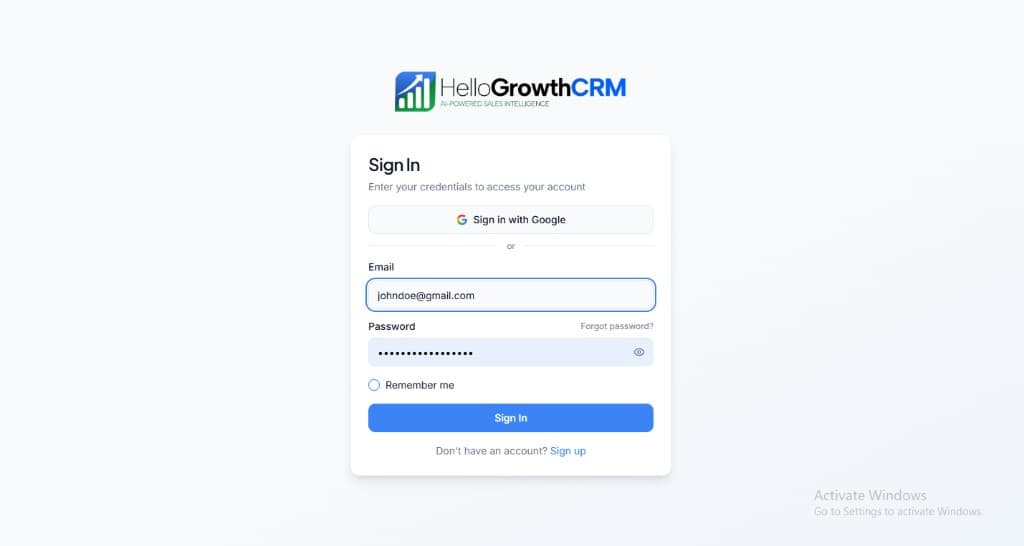
    Sign in or sign up at HelloGrowthCRM. Open the login page, enter your credentials (or use Google), or choose Sign up if you need a new account. You must be signed in before you can open Settings and connect this integration.

    HelloGrowthCRM login screen: Sign in with Google, email and password fields, Remember me, and Sign up link

    Open login page(opens in a new tab)app.hellogrowthcrm.com/login

  2. 2

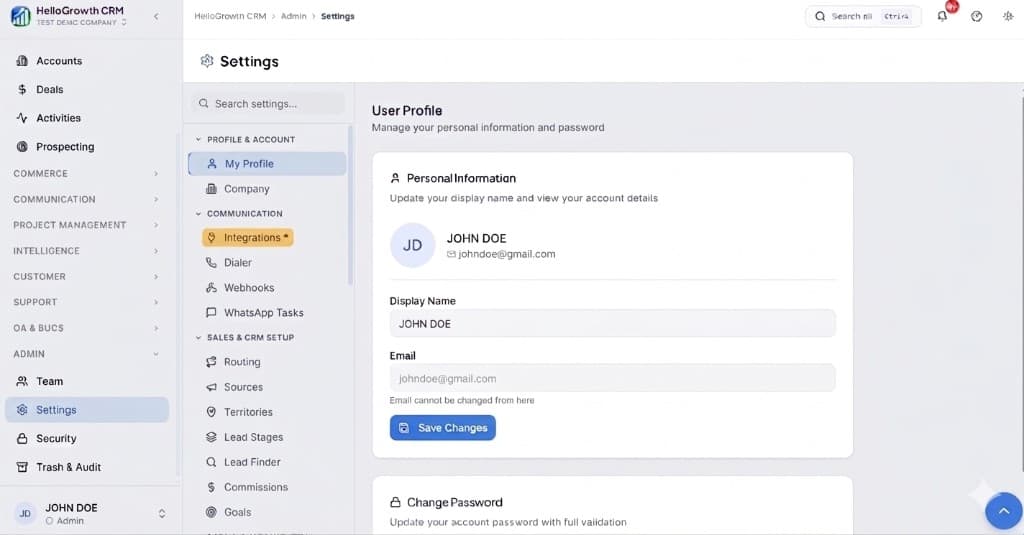
    Open Settings. In the left sidebar, under Admin, click Settings (you will land on the Settings area; the URL is app.hellogrowthcrm.com/settings).

    HelloGrowthCRM Settings: Admin sidebar with Settings selected, secondary menu with Communication and Integrations, and profile area

    Open Settings(opens in a new tab)app.hellogrowthcrm.com/settings

  3. 3

    Go to Integrations. On the Settings screen, use the middle settings menu. Under COMMUNICATION, click Integrations (star icon). Then find and configure this connector—the connector-specific steps below pick up from here.

    HelloGrowthCRM Settings menu highlighting COMMUNICATION and Integrations next to the Admin Settings sidebar

    Open Settings (Integrations)(opens in a new tab)app.hellogrowthcrm.com/settings

  4. 4

    Connect your Google account

    In HelloGrowthCRM, go to Settings → Integrations → Gmail. Click 'Connect Google Account'. Sign in with your Google account and approve the requested Gmail permissions.

  5. 5

    Choose email logging preferences

    Select whether to log all sent and received emails automatically, or only emails linked to contacts already in your CRM. We recommend 'All emails' for new setups.

  6. 6

    Install the Gmail sidebar extension

    Install the HelloGrowthCRM Chrome extension from the Chrome Web Store. This adds a sidebar inside Gmail that shows the contact's CRM record, deal stage, and activity history alongside every email.

  7. 7

    Enable open and click tracking

    In Settings → Email Tracking, enable read receipts and link click tracking. A transparent pixel is embedded in outbound emails to detect when a prospect opens your message.

  8. 8

    Test by emailing a CRM contact

    Send an email to any contact in your CRM. Within 60 seconds, the email should appear in that contact's timeline in HelloGrowthCRM. Open the email from the prospect's side to verify tracking fires.

Need help with setup? Book a 15-minute onboarding call — our team will connect it live with you.
FAQ

Frequently asked questions

Does HelloGrowthCRM read my personal emails?
No. HelloGrowthCRM only accesses emails to or from contacts in your CRM. Emails unrelated to your CRM contacts are never read, logged, or stored.
Does email tracking work on mobile?
Open tracking works on most email clients. Click tracking works universally. Some Apple Mail users with Mail Privacy Protection enabled may not trigger open tracking reliably.
Can multiple team members connect their Gmail accounts?
Yes. Each HelloGrowthCRM user connects their own Google account individually. Emails are attributed to the sending rep and appear in the shared contact timeline.
Does the integration work with Google Workspace and free Gmail?
Yes, both. Each user connects their own account via Google OAuth. Most businesses connect Workspace accounts so logged mail stays on company addresses, but personal Gmail works for solo founders getting started.
Can I stop specific threads from logging to the CRM?
Yes. You can exclude domains and addresses (for legal, HR, or personal contacts), and per-email controls let reps keep any individual thread out of the CRM.

Want help evaluating the next step?

Book a demo to see HelloGrowthCRM in action, or start a free trial.