Overview
Analytics is listed in HelloGrowthCRM's what customers see catalog as an planned or scaffolded integration. Creates a planned Analytics integration page for HelloGrowthCRM so teams can discover 4 workflows in the public integrations directory. Typical setup starts with Open HelloGrowthCRM and go to Settings → Integrations → Analytics.
What data is involved
- Analytics workflow data is organized under the What customers see category in HelloGrowthCRM's integrations directory.
- The page highlights the core Analytics use case, setup path, and the CRM workflow context teams usually care about first.
- Before go-live, confirm which records, events, or credentials should move between HelloGrowthCRM and Analytics.
Step-by-step setup
Setup at a glance (3-5 bullets)
- Open HelloGrowthCRM and go to Settings → Integrations → Analytics.
- Review your implementation scope first, because this integration is currently marked as scaffolded for 4.
- Add the required credentials, webhook details, or connection information for Analytics.
- Map the fields or workflow events you want HelloGrowthCRM to exchange with Analytics.
- Run a test connection and confirm data appears as expected before using it in production.
Sign in or sign up at HelloGrowthCRM. Open the login page, enter your credentials (or use Google), or choose Sign up if you need a new account. You must be signed in before you can open Settings and connect this integration.
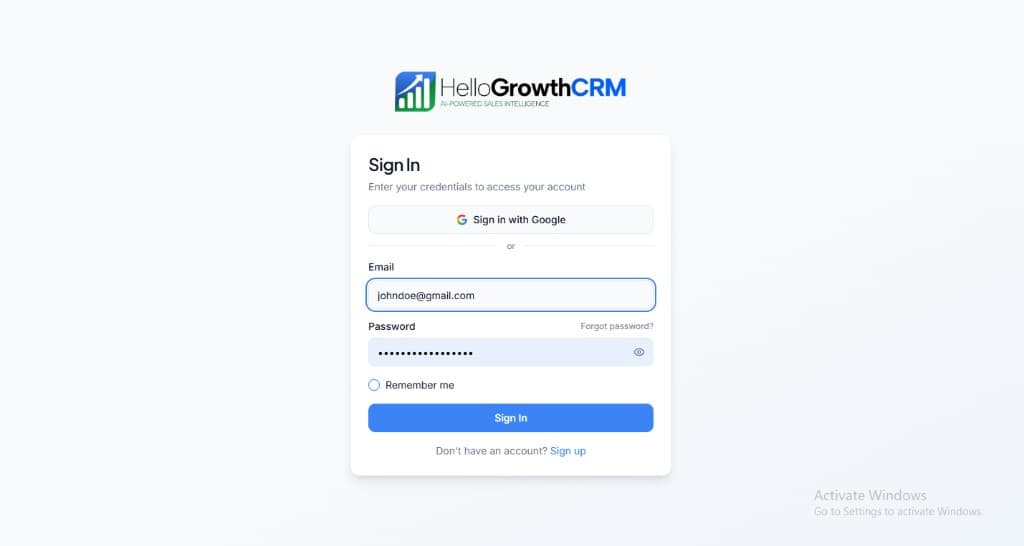
Open login page(opens in a new tab)app.hellogrowthcrm.com/login
Open Settings. In the left sidebar, under Admin, click Settings (you will land on the Settings area; the URL is app.hellogrowthcrm.com/settings).
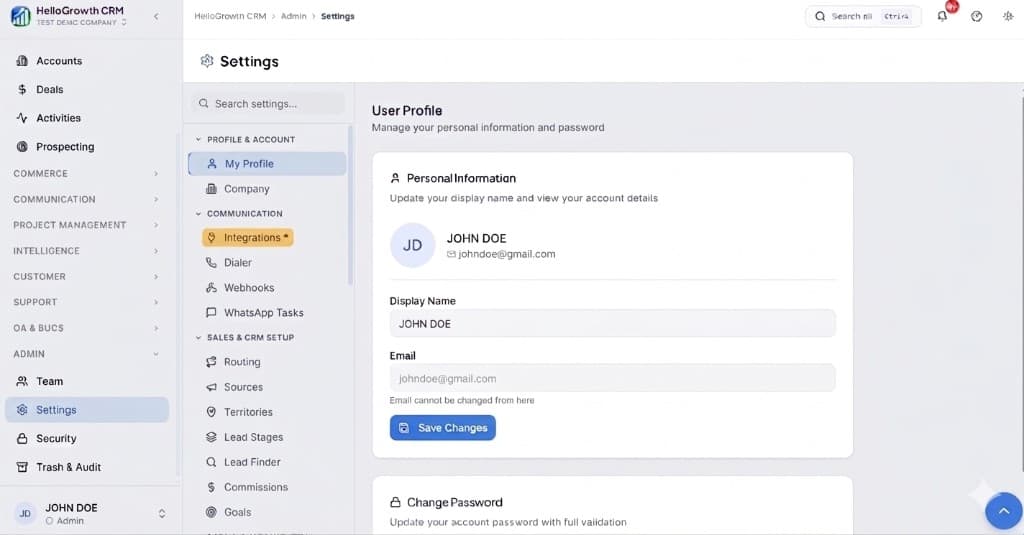
Open Settings(opens in a new tab)app.hellogrowthcrm.com/settings
Go to Integrations. On the Settings screen, use the middle settings menu. Under COMMUNICATION, click Integrations (star icon). Then find and configure this connector—the connector-specific steps below pick up from here.
Open Settings (Integrations)(opens in a new tab)app.hellogrowthcrm.com/settings
- Open HelloGrowthCRM and go to Settings → Integrations → Analytics.
- Review your implementation scope first, because this integration is currently marked as scaffolded for 4.
- Add the required credentials, webhook details, or connection information for Analytics.
- Map the fields or workflow events you want HelloGrowthCRM to exchange with Analytics.
- Run a test connection and confirm data appears as expected before using it in production.
Best practices
- Start with one narrow Analytics workflow before expanding the integration to more teams or records.
- Validate field mapping, ownership rules, and alerting so Analytics activity lands on the right CRM records.
- Keep API keys, OAuth credentials, and webhook secrets for Analytics in your normal production secret-management process.
Best for & common use cases
Teams researching Analytics in the context of 4 use cases before implementation.
- Document Analytics as part of your 4 stack evaluation.
- Create a discoverable SEO landing page for Analytics while implementation is still planned or partial.
Expected outcomes
- Faster lead handoff between tools and CRM owners
- Cleaner activity history for follow-up and reporting
- Lower manual copy-paste errors in the pipeline
FAQ
Governance
Treat API keys and webhooks as production secrets. Align field mapping with your privacy policy and regional regulations (GDPR, marketing consent, telemarketing rules). Your admin controls which roles can install or edit integrations.
Related integrations in this category
Creates a planned Other integration page for HelloGrowthCRM so teams can discover ~6 workflows in the public integrations directory.
Creates a planned Type integration page for HelloGrowthCRM so teams can discover Auth method workflows in the public integrations directory.
Creates a planned processes journey enrollments integration page for HelloGrowthCRM so teams can discover what customers see workflows in the public integrations directory.
Creates a planned runs lead automation rules integration page for HelloGrowthCRM so teams can discover what customers see workflows in the public integrations directory.
Creates a planned auto-assigns inbound leads integration page for HelloGrowthCRM so teams can discover what customers see workflows in the public integrations directory.
Creates a planned sends task due reminders integration page for HelloGrowthCRM so teams can discover what customers see workflows in the public integrations directory.
Creates a planned meeting reminders 15 min before integration page for HelloGrowthCRM so teams can discover what customers see workflows in the public integrations directory.
Creates a planned email digest integration page for HelloGrowthCRM so teams can discover what customers see workflows in the public integrations directory.