Skip to content
Integration

Google Sheets Integration for HelloGrowthCRM

Connect Google Sheets with HelloGrowthCRM. Export pipeline, contacts, and deal data to Sheets automatically. Import leads from Sheets into CRM in bulk.

Quick answer

Can I import leads from a Google Form into HelloGrowthCRM via Sheets?

Yes. Connect the Google Form to a response Sheet, then connect that Sheet to HelloGrowthCRM. New form submissions appear as rows in the Sheet and are imported to CRM automatically.
Last updated:
What you get

Google Sheets is often the first place sales data lives — before a team adopts a CRM, during reporting cycles, or when collaborating with stakeholders who don't have CRM access. HelloGrowthCRM's Sheets integration makes that data flow both ways without manual exports.

Automated exports push CRM pipeline snapshots to a designated Sheet on a schedule you set — daily, weekly, or on demand. Leadership, finance, and operations get a fresh view of deals, contacts, and activities in the spreadsheet format they already know, without needing CRM logins.

Bulk lead imports from Sheets streamline data migrations and one-off campaigns. Paste a list of contacts into a structured Sheet, trigger the import, and HelloGrowthCRM creates or updates the CRM records — handling deduplication and field mapping automatically.

For field sales teams collecting data outside the office, Sheets serves as a lightweight capture form. Reps log visit notes or new contacts in a shared Sheet; the integration pushes those rows into HelloGrowthCRM as contacts or activities — no app required for the rep.

Custom reporting becomes simpler when CRM data flows into Sheets. Build revenue dashboards, territory comparisons, or cohort analyses using Sheets formulas and charts, fed by live CRM data. Share with investors or board members who want a spreadsheet view of business performance.

The integration is also useful for RevOps audits. Export all contacts, run deduplication logic in Sheets, and import the cleaned dataset back to CRM. That workflow avoids paying for data cleaning tools by using Sheets as the processing layer.
Implementation details

Google Sheets as a CRM bridge tool

Google Sheets occupies a curious position in the modern sales stack — most teams claim they want to leave Sheets behind for a proper CRM, but very few actually stop using it. Sheets remains the universal tool for ad-hoc analysis, executive reporting, cross-functional sharing with stakeholders who don't have CRM logins, and one-off data manipulation that doesn't fit any specific tool's workflow. The HelloGrowthCRM-Sheets integration accepts this reality and makes Sheets a first-class extension of the CRM rather than a competing system.

Bulk-import workflows are the highest-frequency use case. Sales operations teams routinely receive lists from event leads, list-purchase vendors, partner referrals, and internal CSV exports that need to land in the CRM with proper deduplication and field mapping. The integration lets ops paste these lists into a Sheet with header rows matching CRM fields and trigger an import — far faster than the traditional CSV upload flow because Sheet edits can be reviewed and corrected before the import runs.

On the export side, the integration supports an underrated workflow: feeding live CRM data into Google Data Studio dashboards through Sheets as the intermediate layer. Data Studio connects natively to Sheets, so any executive or board dashboard built in Data Studio refreshes automatically when the integration updates the underlying Sheet. The result is real-time executive reporting without paying for a separate BI tool — useful for early-stage teams that haven't justified Looker or Tableau yet.

Automation workflows

Automation workflows with Google Sheets and HelloGrowthCRM

Import lead lists without formatting fights

Point the CRM at a sheet of leads — from an event, a purchased list, or a partner — and map columns to fields once. New rows import on schedule, deduped by email and phone, so the sheet stops being the database.

Stream pipeline data to a live reporting sheet

Deal stage changes, values, and owners export to a sheet your leadership dashboard already reads. The Monday pipeline review runs off numbers that updated themselves, not a Sunday-night copy-paste session.

Capture website form fills routed through Sheets

Plenty of small-business websites still dump form fills into a spreadsheet. Connect that sheet so each new row becomes a scored CRM lead with a follow-up task — closing the gap where enquiries sat unread for days.

Push call and activity logs for custom analysis

Export activity data — calls made, emails sent, tasks completed per rep — into Sheets for the custom analysis finance or ops wants to run, without giving everyone CRM logins or building bespoke reports.

In practice

How teams bridge spreadsheets and CRM

Exhibition lead capture

A machinery trader collects visiting cards at trade fairs into a sheet. By evening, every row is a CRM lead in the exhibition pipeline with a next-day call task — the fair follow-up that used to take three weeks starts tomorrow.

Franchise reporting rollup

A franchisor pulls each outlet's pipeline into one master sheet for weekly review. Outlets work in the CRM; the head office reads one auto-updating spreadsheet.

Ops handover lists

An installation team receives a daily sheet of newly won deals with addresses and scope, generated from the pipeline. Sales never writes a handover email again.

Setup guide

How to connect — step by step

Takes about 10–15 minutes. No coding required.

Setup at a glance

  • Connect your Google account
  • Select or create the target spreadsheet
  • Map CRM fields to Sheet columns
  • Set sync direction and schedule
  • Test the sync
  1. 1

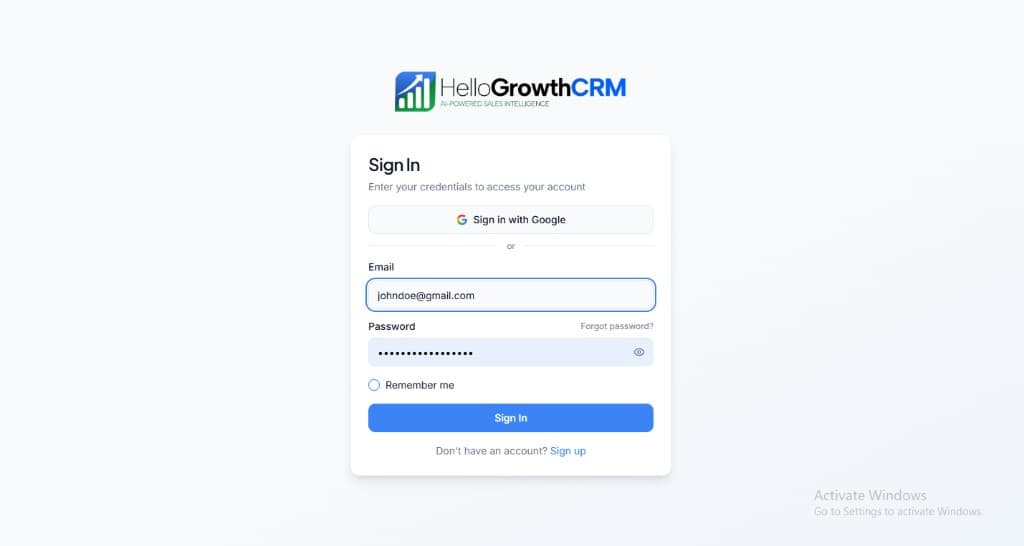
    Sign in or sign up at HelloGrowthCRM. Open the login page, enter your credentials (or use Google), or choose Sign up if you need a new account. You must be signed in before you can open Settings and connect this integration.

    HelloGrowthCRM login screen: Sign in with Google, email and password fields, Remember me, and Sign up link

    Open login page(opens in a new tab)app.hellogrowthcrm.com/login

  2. 2

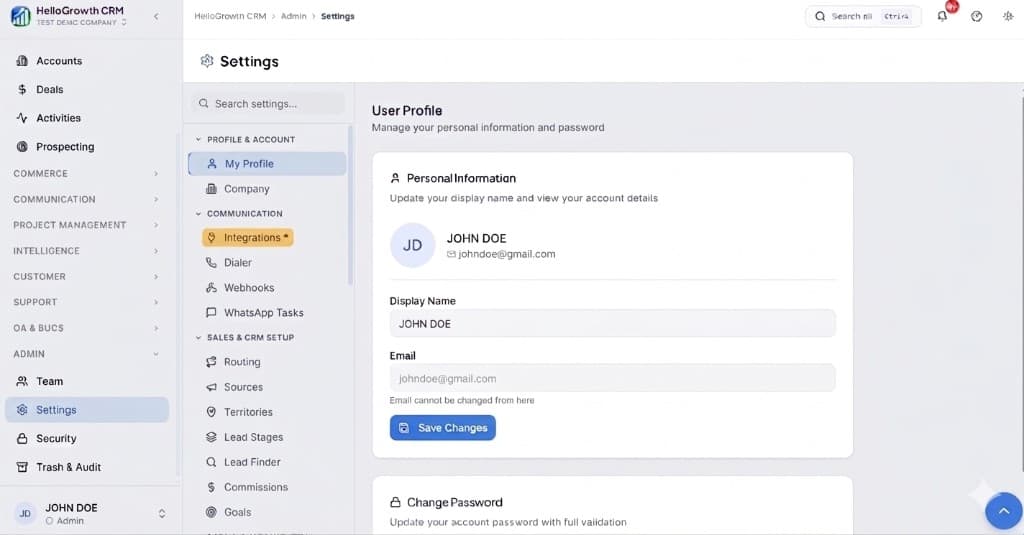
    Open Settings. In the left sidebar, under Admin, click Settings (you will land on the Settings area; the URL is app.hellogrowthcrm.com/settings).

    HelloGrowthCRM Settings: Admin sidebar with Settings selected, secondary menu with Communication and Integrations, and profile area

    Open Settings(opens in a new tab)app.hellogrowthcrm.com/settings

  3. 3

    Go to Integrations. On the Settings screen, use the middle settings menu. Under COMMUNICATION, click Integrations (star icon). Then find and configure this connector—the connector-specific steps below pick up from here.

    HelloGrowthCRM Settings menu highlighting COMMUNICATION and Integrations next to the Admin Settings sidebar

    Open Settings (Integrations)(opens in a new tab)app.hellogrowthcrm.com/settings

  4. 4

    Connect your Google account

    In HelloGrowthCRM, go to Settings → Integrations → Google Sheets. Click 'Connect Google Account'. Sign in and approve the Sheets and Drive permissions. Use the Google account that owns the Sheets you want to sync.

  5. 5

    Select or create the target spreadsheet

    Choose an existing Google Sheet or create a new one for the integration. The first row should contain column headers that match the CRM fields you want to sync (e.g. Name, Email, Phone, Company, Stage).

  6. 6

    Map CRM fields to Sheet columns

    In the integration settings, map each CRM field to a Sheet column. Standard fields (Name, Email, Company, Deal Stage) map automatically when column names match. Custom fields require manual mapping.

  7. 7

    Set sync direction and schedule

    Choose CRM → Sheets (export), Sheets → CRM (import), or bidirectional. Set the export frequency — daily, weekly, or on-demand. For imports, configure whether new rows create contacts or update existing ones (deduplication by email).

  8. 8

    Test the sync

    Click 'Sync Now' in the integration settings. For an export test, verify new rows appear in the Sheet with correct CRM data. For an import test, add a row to the Sheet and confirm a new contact appears in HelloGrowthCRM within the configured interval.

Need help with setup? Book a 15-minute onboarding call — our team will connect it live with you.
FAQ

Frequently asked questions

Can I import leads from a Google Form into HelloGrowthCRM via Sheets?
Yes. Connect the Google Form to a response Sheet, then connect that Sheet to HelloGrowthCRM. New form submissions appear as rows in the Sheet and are imported to CRM automatically.
What happens if I change column headers in the Sheet?
Changing column headers breaks field mapping. Always update the field mapping in HelloGrowthCRM integration settings when you rename columns in the Sheet.
Is there a row limit for imports?
HelloGrowthCRM can import up to 10,000 rows per sync. For larger imports, split the Sheet into batches or use the CRM's bulk import CSV feature instead.
How often does the sheet sync run?
Scheduled syncs cover most reporting needs, and webhook-triggered flows (for example via Zapier) can push individual rows in near real time when speed matters — like website form fills.
What happens if someone edits the sheet badly?
Imports validate rows and skip ones with broken required fields, reporting exactly which rows failed. Your CRM data doesn't get corrupted by a stray column drag in the sheet.

Want help evaluating the next step?

Book a demo to see HelloGrowthCRM in action, or start a free trial.