Overview
Acuity Scheduling is a live integration in the HelloGrowthCRM catalog, filed under scheduling & video. It is available to connect from Settings → Integrations without a custom build.
Sync appointments from Squarespace Acuity Where it earns its place: Consultants, clinics, and service businesses that take bookings through Acuity and want each appointment on the client's CRM record. The point of connecting a scheduling & video tool to your CRM is to stop the same information being typed twice: the record in HelloGrowthCRM stays the single place a rep looks, and Acuity Scheduling keeps doing the job it is good at.
The workflows teams reach for first — Review a client's upcoming and past Acuity appointments on their timeline before a call; Create a CRM contact automatically when a new client books their first consult. Whichever workflow you start with, decide first which system is the source of truth for each field. Contact ownership, lifecycle stage and consent status should have exactly one owner; everything else can be mirrored. That single decision prevents most of the "why did this record change?" questions that follow an integration going live.
Setup starts here: Open HelloGrowthCRM and go to Settings → Integrations → Acuity Scheduling. The full sequence is listed further down this page. Budget time for the mapping step rather than the connection step — authenticating takes a minute, while agreeing what maps to what is the part that decides whether the data is usable afterwards.
What data is involved
- Scope: Acuity Scheduling is grouped with the rest of the scheduling & video tools in HelloGrowthCRM's integrations directory, so it shares the same connection, permission and audit surface as the others in that group.
- Records: decide which HelloGrowthCRM objects are in scope — usually leads and contacts first, then deals and activities once the mapping is proven. Keeping the first pass narrow makes a bad mapping cheap to undo.
- Direction: agree per field whether HelloGrowthCRM writes to Acuity Scheduling, reads from it, or both. Two-way sync on a field that both systems edit is the most common cause of records flipping back and forth.
- Identity: pick one matching key — normally work email, sometimes phone or an external ID — and make sure both sides normalise it the same way. Mismatched casing and stray whitespace are what create duplicate contacts.
- Timing: know whether updates arrive by webhook in near real time or on a schedule. It changes what your team should expect after they hit save, and it changes how you read any report built on the synced data.
- Credentials: before go-live, confirm which API keys, OAuth grants or webhook secrets are in play for Acuity Scheduling, who owns them, and what happens when they expire or the person who created them leaves.
Step-by-step setup
Setup at a glance (3-5 bullets)
- Open HelloGrowthCRM and go to Settings → Integrations → Acuity Scheduling.
- In Acuity, open Settings → Integrations → API to get your User ID and API key, and paste them into the connection form.
- Choose which appointment types should sync into the CRM — client consults and demos, for example, but not internal blocks.
- Decide how clients are matched: by email against existing contacts, with a new contact created when no match exists.
- Book a test appointment on your Acuity scheduling page and confirm it appears on the matched contact's timeline with date, time, and appointment type.
Sign in or sign up at HelloGrowthCRM. Open the login page, enter your credentials (or use Google), or choose Sign up if you need a new account. You must be signed in before you can open Settings and connect this integration.
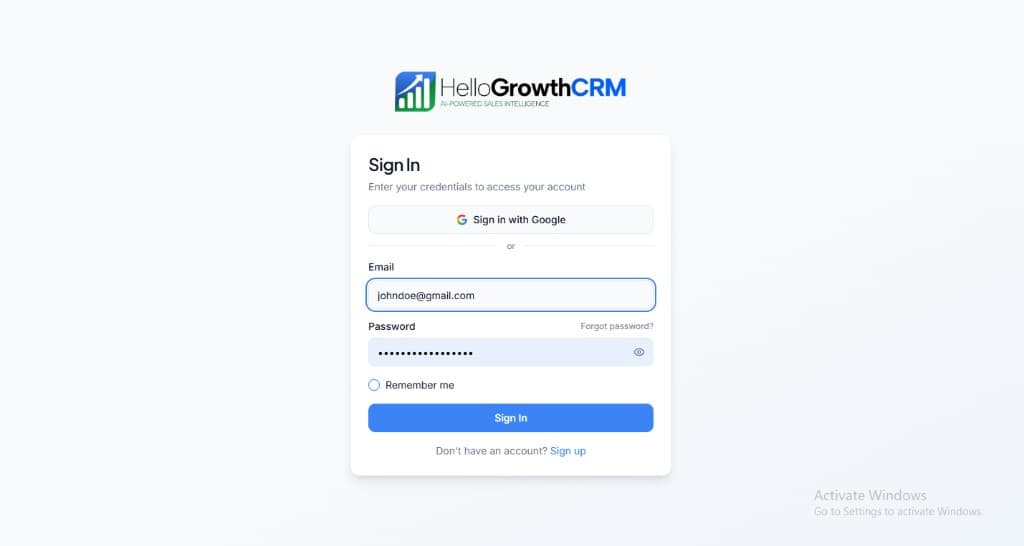
Open login page(opens in a new tab)app.hellogrowthcrm.com/login
Open Settings. In the left sidebar, under Admin, click Settings (you will land on the Settings area; the URL is app.hellogrowthcrm.com/settings).
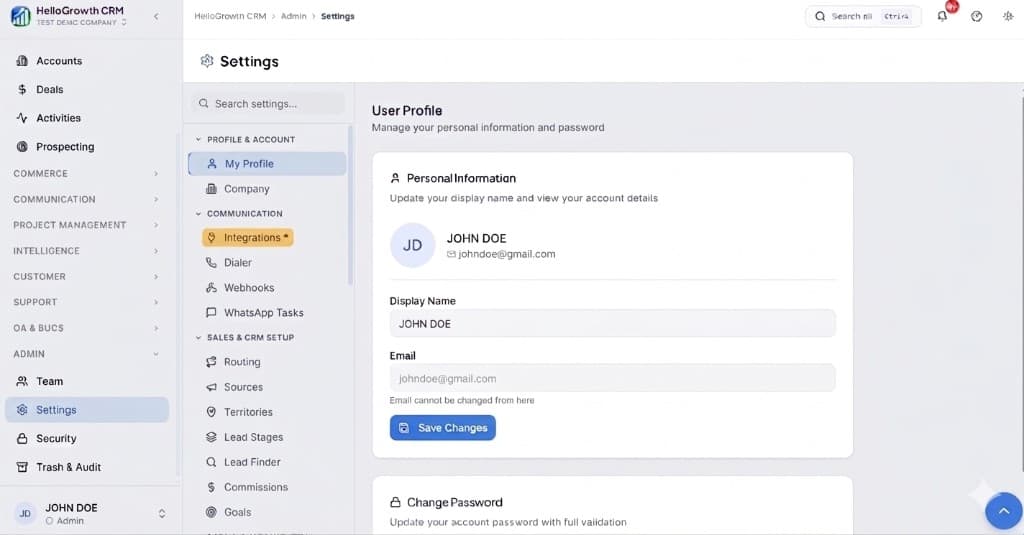
Open Settings(opens in a new tab)app.hellogrowthcrm.com/settings
Go to Integrations. On the Settings screen, use the middle settings menu. Under COMMUNICATION, click Integrations (star icon). Then find and configure this connector—the connector-specific steps below pick up from here.
Open Settings (Integrations)(opens in a new tab)app.hellogrowthcrm.com/settings
- Open HelloGrowthCRM and go to Settings → Integrations → Acuity Scheduling.
- In Acuity, open Settings → Integrations → API to get your User ID and API key, and paste them into the connection form.
- Choose which appointment types should sync into the CRM — client consults and demos, for example, but not internal blocks.
- Decide how clients are matched: by email against existing contacts, with a new contact created when no match exists.
- Book a test appointment on your Acuity scheduling page and confirm it appears on the matched contact's timeline with date, time, and appointment type.
Best practices
- Start with one narrow Acuity Scheduling workflow and one team. Prove it end to end on real records before widening the scope — an integration that quietly writes to the wrong field is harder to unpick than one that was never turned on.
- Write down the field map before you build it. A short table of "HelloGrowthCRM field → Acuity Scheduling field → who wins on conflict" is the document you will actually reach for six months later.
- Test with a small batch of real records, not with a record called "test test". Real data carries the accented names, missing phone numbers and duplicate emails that break mappings in production.
- Give the integration an owner. Someone should be responsible for its credentials, for noticing when a sync stops, and for deciding what changes when either product ships an update.
- Keep API keys, OAuth credentials and webhook secrets for Acuity Scheduling in your normal production secret-management process, and rotate them on the same schedule as everything else. An integration credential is a production credential.
- Check the CRM reports after go-live, not just the connection status. A green connection with a broken field map still shows up as a healthy integration and a pipeline report nobody trusts.
Best for & common use cases
Consultants, clinics, and service businesses that take bookings through Acuity and want each appointment on the client's CRM record.
- Review a client's upcoming and past Acuity appointments on their timeline before a call.
- Create a CRM contact automatically when a new client books their first consult.
- Spot no-shows by finding appointments with no outcome note and follow up the same day.
Expected outcomes
- Faster lead handoff between tools and CRM owners
- Cleaner activity history for follow-up and reporting
- Lower manual copy-paste errors in the pipeline
Troubleshooting
- Nothing is syncing: re-check the credentials first. Expired API keys and revoked OAuth grants account for most "it stopped working" reports, and both fail silently from the CRM side.
- Records sync but land empty: the connection is fine and the field map is not. Compare one record in both systems field by field rather than re-authenticating.
- Duplicates appear: the matching key is not matching. Confirm both systems use the same field, and the same normalisation of it, before running another full sync.
- Updates arrive late: check whether Acuity Scheduling is pushing by webhook or being polled on a schedule. Scheduled syncs are working as designed even when they feel broken.
FAQ
Governance
Treat API keys and webhooks as production secrets. Align field mapping with your privacy policy and regional regulations (GDPR, marketing consent, telemarketing rules). Your admin controls which roles can install or edit integrations.
Related integrations in this category
Inbound lead routing & scheduling

Schedule Zoom meetings from the CRM and store join links on leads/bookings.

Auto-generate Google Meet links on bookings and meetings.
Send and log Outlook/Microsoft 365 email from inside the CRM.

Send templated & session messages via Meta WhatsApp Business Cloud API.
Send WhatsApp messages via Gupshup BSP.
Send WhatsApp messages, media & interactive replies via DoubleTick BSP.

Receive and reply to Instagram direct messages inside CRM inbox.