Skip to content
Integration

HubSpot Integration for HelloGrowthCRM — Contact & Pipeline Sync

Connect HubSpot to HelloGrowthCRM for bidirectional contact, deal, and activity sync. Run dual-CRM or migrate cleanly with automated data mapping.

Quick answer

Do I need to keep paying for HubSpot during migration?

Run both systems in parallel for 1–2 weeks to validate data integrity and give your team time to adopt HelloGrowthCRM. After that, you can downgrade or cancel your HubSpot subscription.
Last updated:
What you get

Teams evaluating a move from HubSpot or running HelloGrowthCRM alongside HubSpot need contact and deal data to stay in sync across both platforms. The HelloGrowthCRM HubSpot integration syncs contacts, companies, deals, and activities bidirectionally — so no lead is missed and no rep has to maintain two systems manually.

Contact sync pulls HubSpot contacts into HelloGrowthCRM with configurable field mapping. HubSpot's lifecycle stage maps to HelloGrowthCRM's contact status. Custom contact properties can be mapped to HelloGrowthCRM custom fields. Duplicate detection runs at sync time to prevent multiple CRM records for the same contact.

Deal sync connects HubSpot deals to HelloGrowthCRM pipeline deals. HubSpot deal stages are mapped to HelloGrowthCRM pipeline stages in the integration settings. Deal owner assignment follows the same user email matching used for contacts. Close dates, deal amounts, and deal type custom properties all sync with configurable conflict resolution.

Email and engagement activity tracked in HubSpot — opens, clicks, form submissions — can be pushed to HelloGrowthCRM contact timelines. This gives HelloGrowthCRM reps visibility into marketing touchpoints without logging into HubSpot. Combined with HelloGrowthCRM's call and WhatsApp engagement data, the full multi-channel contact history is visible in one place.

Migration from HubSpot to HelloGrowthCRM is supported with a purpose-built import wizard that handles HubSpot's export formats. Contact lists, deal pipelines, email sequences, and meeting logs are all importable. Custom property mapping is handled in the wizard's field-mapping step. Most HubSpot migrations complete in one working day for teams under 500 contacts.

For teams running both platforms during a transition period, the sync keeps data consistent without requiring manual exports or double data entry. Teams can sunset HubSpot at their own pace without losing contact or pipeline history.
Automation workflows

Moving from HubSpot to HelloGrowthCRM — how the pieces map

Export and import your core objects

HubSpot's export tools produce CSVs of contacts, companies, and deals. HelloGrowthCRM's import wizard maps HubSpot properties to CRM fields — including custom properties — with dedupe on email so re-runs stay safe.

Rebuild lifecycle stages as pipeline stages

HubSpot lifecycle stages and deal stages flatten into a Kanban pipeline you design. Most teams simplify on the way over: fewer stages, clearer exit criteria, and every imported deal lands in the right column.

Replace workflows with sequences and automations

Recreate your active HubSpot workflows as HelloGrowthCRM email sequences and stage-based automations. Audit first — most teams find a fraction of their workflows were live and useful, and rebuild only those.

Run both in parallel for one clean week

Keep HubSpot read-only while the team works the new pipeline. New leads flow only into HelloGrowthCRM, and the week surfaces any field or report you missed before the old subscription lapses.

In practice

Why teams make this move

Priced out of Sales Hub tiers

A startup using free HubSpot hits the features-behind-upgrade wall — sequences, required fields, forecasting. At $12/user/month ($10 annual) with AI included, the switch costs less than one HubSpot seat upgrade.

WhatsApp-first sales team

An Indian services firm ran sales on WhatsApp with HubSpot as an afterthought. Native WhatsApp via Meta Cloud API means conversations live on the deal record, and CRM adoption stops being a fight.

Simplicity over marketing suite

A ten-person sales org used a tenth of HubSpot's surface. Setup on HelloGrowthCRM took under an hour, and the team's complaint list shrank to zero because there's nothing to get lost in.

Setup guide

How to connect — step by step

Takes about 10–15 minutes. No coding required.

Setup at a glance

  • Export your HubSpot data
  • Audit and clean the exported data
  • Import contacts into HelloGrowthCRM
  • Import deals and companies
  • Rebuild sequences and connect integrations
  1. 1

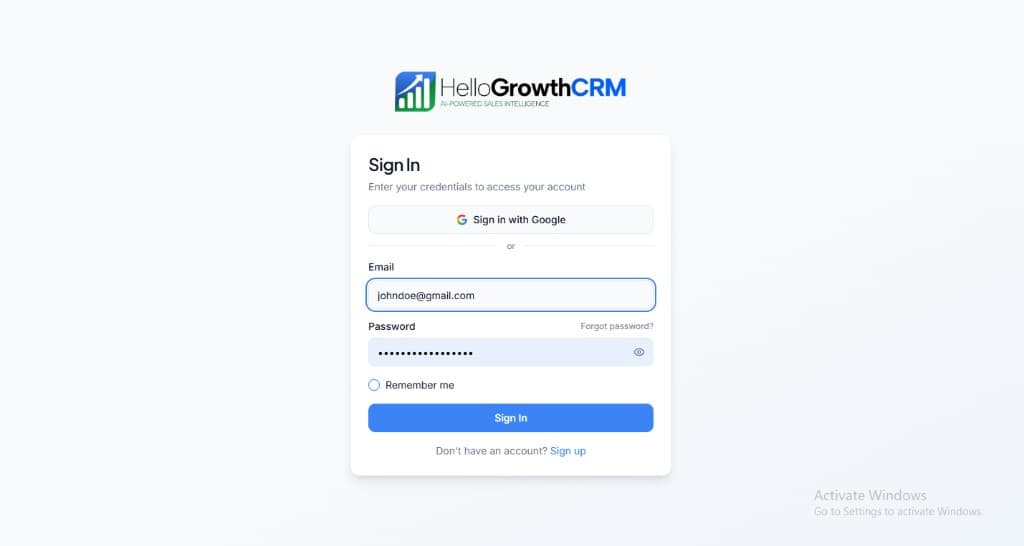
    Sign in or sign up at HelloGrowthCRM. Open the login page, enter your credentials (or use Google), or choose Sign up if you need a new account. You must be signed in before you can open Settings and connect this integration.

    HelloGrowthCRM login screen: Sign in with Google, email and password fields, Remember me, and Sign up link

    Open login page(opens in a new tab)app.hellogrowthcrm.com/login

  2. 2

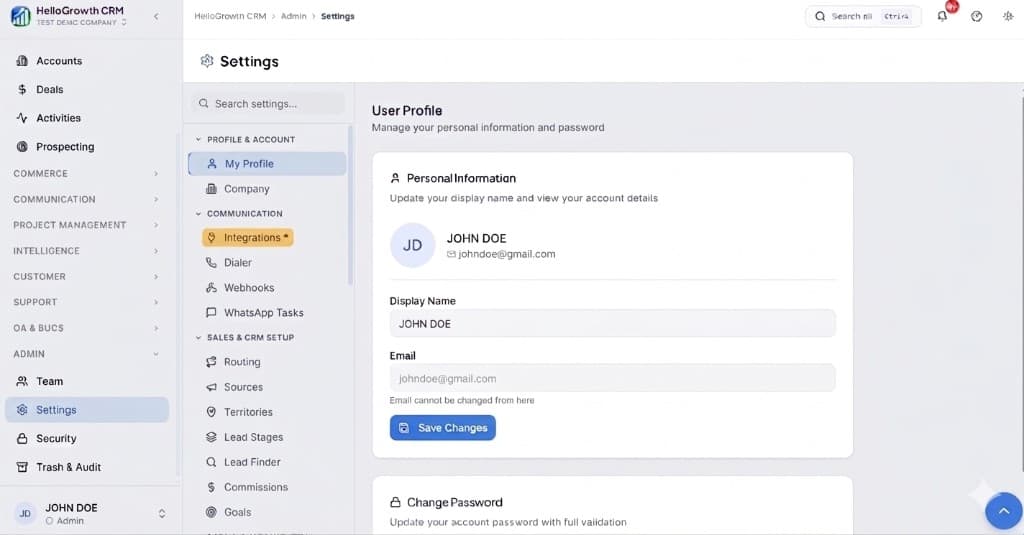
    Open Settings. In the left sidebar, under Admin, click Settings (you will land on the Settings area; the URL is app.hellogrowthcrm.com/settings).

    HelloGrowthCRM Settings: Admin sidebar with Settings selected, secondary menu with Communication and Integrations, and profile area

    Open Settings(opens in a new tab)app.hellogrowthcrm.com/settings

  3. 3

    Go to Integrations. On the Settings screen, use the middle settings menu. Under COMMUNICATION, click Integrations (star icon). Then find and configure this connector—the connector-specific steps below pick up from here.

    HelloGrowthCRM Settings menu highlighting COMMUNICATION and Integrations next to the Admin Settings sidebar

    Open Settings (Integrations)(opens in a new tab)app.hellogrowthcrm.com/settings

  4. 4

    Export your HubSpot data

    In HubSpot, go to Contacts → Actions → Export. Export all contacts, companies, deals, and notes. HubSpot exports in CSV format. Request a full data export to capture all properties and activity history.

  5. 5

    Audit and clean the exported data

    Open the exported CSVs and remove test contacts, internal accounts, and duplicate records. Standardize lifecycle stage names and resolve any formatting inconsistencies in phone numbers or company names.

  6. 6

    Import contacts into HelloGrowthCRM

    In HelloGrowthCRM, go to Contacts → Import. Upload your cleaned contacts CSV. Map HubSpot lifecycle stage to the equivalent HelloGrowthCRM pipeline stage. Review the import log and fix errors before proceeding.

  7. 7

    Import deals and companies

    Upload the deals CSV and map deal stages. Map HubSpot Companies to HelloGrowthCRM Accounts. If you have custom properties in HubSpot, create the equivalent custom fields in HelloGrowthCRM before importing.

  8. 8

    Rebuild sequences and connect integrations

    Recreate your HubSpot email sequences in HelloGrowthCRM's sequence builder. Reconnect any third-party integrations (Zapier, calendars, ad platforms) that were linked to HubSpot so data flows to HelloGrowthCRM instead.

Need help with setup? Book a 15-minute onboarding call — our team will connect it live with you.
FAQ

Frequently asked questions

Do I need to keep paying for HubSpot during migration?
Run both systems in parallel for 1–2 weeks to validate data integrity and give your team time to adopt HelloGrowthCRM. After that, you can downgrade or cancel your HubSpot subscription.
Will my HubSpot forms still work after migration?
HubSpot forms will continue submitting to HubSpot until you replace them. Update your website forms to point to HelloGrowthCRM's form endpoint or use Zapier to bridge HubSpot form submissions to HelloGrowthCRM during transition.
Can HelloGrowthCRM match HubSpot's marketing hub features?
HelloGrowthCRM focuses on sales CRM, pipeline management, and follow-up automation. For advanced marketing automation (landing pages, full email marketing campaigns), you may want to retain a dedicated marketing tool alongside HelloGrowthCRM.
Can I bring my HubSpot email templates and sequences?
Templates copy across easily — paste and adjust merge fields. Sequences are rebuilt rather than imported, which is usually a feature: you re-enroll only around messaging that was actually converting.
What HubSpot data doesn't transfer?
Marketing assets — landing pages, blogs, ad audiences — stay behind, since HelloGrowthCRM is a sales CRM. Contacts, companies, deals, notes, and activity history all come across via export/import.

Want help evaluating the next step?

Book a demo to see HelloGrowthCRM in action, or start a free trial.