Skip to content
Integration

Salesforce Integration for HelloGrowthCRM — Sync Leads, Opportunities & Contacts

Connect Salesforce to HelloGrowthCRM for bidirectional lead, contact, and opportunity sync — with field mapping, stage mapping, and migration validation.

Quick answer

How do I migrate Salesforce custom objects?

Custom Salesforce objects that do not map directly to HelloGrowthCRM entities (Contacts, Deals, Companies) can be migrated as custom fields or attached notes. Contact HelloGrowthCRM support for complex custom object migrations.
Last updated:
What you get

Salesforce is the market's dominant enterprise CRM — and also the most common system that growing SMB and mid-market teams outgrow due to cost and complexity. HelloGrowthCRM's Salesforce integration supports bidirectional sync of leads, contacts, accounts, and opportunities — enabling hybrid operation during a transition or ongoing data consistency for teams using both platforms.

Lead and contact sync maps Salesforce leads and contacts to HelloGrowthCRM contacts. Salesforce's lead/contact duality (unconverted leads are separate from contacts) is handled by the sync: leads that convert in Salesforce update the corresponding HelloGrowthCRM contact record. Field mapping covers all standard Salesforce fields and supports custom field pairing.

Opportunity sync connects Salesforce opportunities to HelloGrowthCRM deals. Stage mapping, amount, close date, account association, and owner assignment all sync with configurable precedence rules. Custom opportunity fields in Salesforce can be mapped to custom deal fields in HelloGrowthCRM.

Account sync brings Salesforce accounts into HelloGrowthCRM as company records with associated contacts and deals. Account hierarchy (parent/child) is simplified in HelloGrowthCRM's data model but parent account information is preserved as a custom field for reference.

Migration from Salesforce to HelloGrowthCRM is one of HelloGrowthCRM's most-requested use cases. The migration wizard supports Salesforce data export formats and covers contacts, accounts, opportunities, activities, notes, and attachments. HelloGrowthCRM's cost is typically 80-95% lower than Salesforce for equivalent team sizes — the ROI for switching is usually immediate.

Post-migration data validation tools help teams confirm the completeness of migrated records before decommissioning Salesforce. Row-level comparison reports between the two systems flag any records that failed to migrate cleanly, allowing targeted remediation before cutover.
Automation workflows

Moving from Salesforce to HelloGrowthCRM — what maps where

Export objects, import with field mapping

Salesforce reports or Data Loader produce CSVs of accounts, contacts, and opportunities. The import wizard maps standard and custom fields across, deduping on email so trial runs and re-imports stay clean.

Collapse record types into simple pipelines

Years of Salesforce customisation usually mean record types and stages nobody remembers commissioning. Migration maps them onto one or two clean Kanban pipelines with stages your team can actually recite.

Replace key automations deliberately

List your live Flows and assignment rules, then rebuild only the ones that earn their keep as CRM automations and sequences. Most orgs find the essential list is short — that's the point.

Archive history, migrate the living book

Bring open opportunities, active accounts, and recent activity; archive the rest as exports. Reps get a fast system with relevant context instead of a decade of dormant records.

In practice

Why smaller teams leave Salesforce

Admin-dependency fatigue

A 12-person company needed consultant hours for every field change. After migrating, the sales manager makes changes herself — setup took under an hour, and the consultant retainer ended.

Cost per seat reality check

Sales Cloud pricing plus add-ons was hard to justify for a team using basic pipeline features. At $12/user/month with AI scoring, dialer, and WhatsApp included, the annual saving funded a new hire.

Adoption reboot

Reps had quietly retreated to spreadsheets because Salesforce felt like paperwork. A simpler pipeline with automatic logging brought real usage back — and with it, trustworthy forecasts.

Setup guide

How to connect — step by step

Takes about 10–15 minutes. No coding required.

Setup at a glance

  • Export Salesforce data using Data Loader
  • Map Salesforce objects to HelloGrowthCRM
  • Import in sequence — contacts first, then deals
  • Recreate Salesforce custom fields and picklists
  • Test with your most active accounts
  1. 1

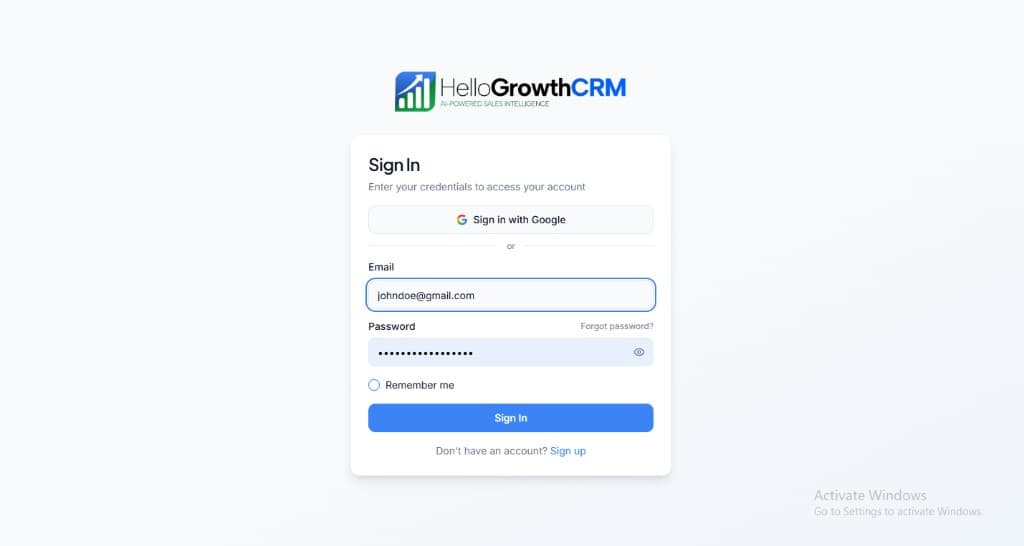
    Sign in or sign up at HelloGrowthCRM. Open the login page, enter your credentials (or use Google), or choose Sign up if you need a new account. You must be signed in before you can open Settings and connect this integration.

    HelloGrowthCRM login screen: Sign in with Google, email and password fields, Remember me, and Sign up link

    Open login page(opens in a new tab)app.hellogrowthcrm.com/login

  2. 2

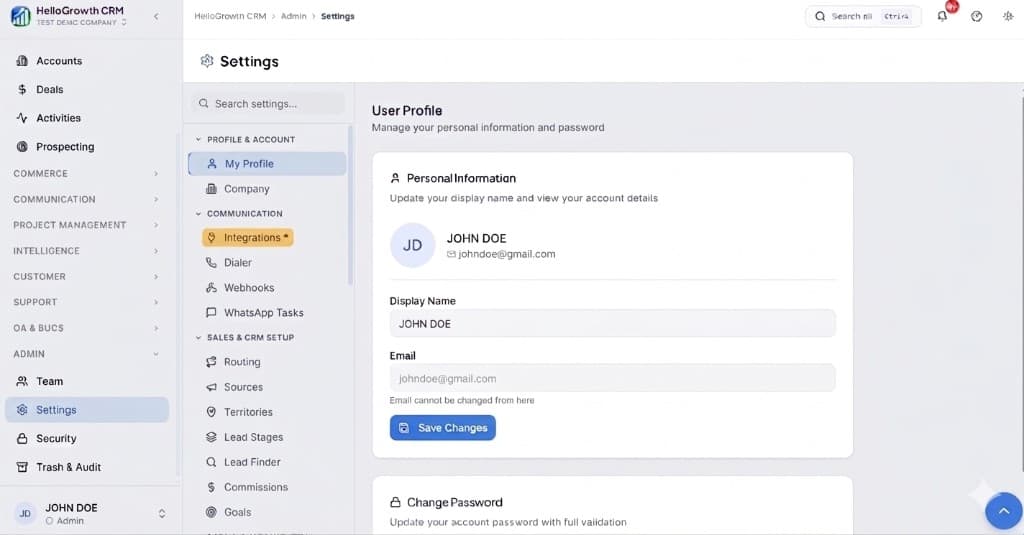
    Open Settings. In the left sidebar, under Admin, click Settings (you will land on the Settings area; the URL is app.hellogrowthcrm.com/settings).

    HelloGrowthCRM Settings: Admin sidebar with Settings selected, secondary menu with Communication and Integrations, and profile area

    Open Settings(opens in a new tab)app.hellogrowthcrm.com/settings

  3. 3

    Go to Integrations. On the Settings screen, use the middle settings menu. Under COMMUNICATION, click Integrations (star icon). Then find and configure this connector—the connector-specific steps below pick up from here.

    HelloGrowthCRM Settings menu highlighting COMMUNICATION and Integrations next to the Admin Settings sidebar

    Open Settings (Integrations)(opens in a new tab)app.hellogrowthcrm.com/settings

  4. 4

    Export Salesforce data using Data Loader

    In Salesforce, use Data Loader (or Reports) to export Leads, Contacts, Accounts, Opportunities, and Activities. Export as CSV with all fields. Use the 'All Fields' template to capture custom fields.

  5. 5

    Map Salesforce objects to HelloGrowthCRM

    Salesforce Leads → HelloGrowthCRM Leads. Salesforce Contacts + Accounts → HelloGrowthCRM Contacts + Companies. Salesforce Opportunities → HelloGrowthCRM Deals. Create a field mapping document before importing.

  6. 6

    Import in sequence — contacts first, then deals

    Import contacts before deals so deal records can be linked to the correct contacts. In HelloGrowthCRM, go to Settings → Import and upload each CSV in order: Companies, Contacts, then Deals.

  7. 7

    Recreate Salesforce custom fields and picklists

    Create equivalent custom fields in HelloGrowthCRM before importing. Map Salesforce picklist values to HelloGrowthCRM dropdown options. Preserve field names where possible to reduce rep confusion during transition.

  8. 8

    Test with your most active accounts

    After import, open your 10 most active accounts in HelloGrowthCRM and verify that contacts, deals, activity history, and custom fields are populated correctly. Fix any mapping errors before going live.

Need help with setup? Book a 15-minute onboarding call — our team will connect it live with you.
FAQ

Frequently asked questions

How do I migrate Salesforce custom objects?
Custom Salesforce objects that do not map directly to HelloGrowthCRM entities (Contacts, Deals, Companies) can be migrated as custom fields or attached notes. Contact HelloGrowthCRM support for complex custom object migrations.
Can I keep Salesforce running in read-only mode during migration?
Yes. Running Salesforce in read-only (no new data entry) while migrating is a safe approach. It gives your team a reference system while getting comfortable with HelloGrowthCRM.
Does HelloGrowthCRM have a Salesforce-style permission model?
HelloGrowthCRM has role-based access control with Owner, Admin, and Viewer roles at the record and pipeline level. Salesforce's complex profile-based permissions are simplified in HelloGrowthCRM for faster adoption.
Can I migrate my Salesforce custom fields and picklists?
Yes. Custom fields map to HelloGrowthCRM custom fields during import, and picklist values carry over as dropdown options. The migration moment is also the right time to retire fields nobody fills.
What about my Salesforce reports and dashboards?
Reports don't transfer as objects — you recreate the handful that matter on HelloGrowthCRM's pipeline analytics. Most teams discover they used a fraction of their Salesforce report inventory.

Want help evaluating the next step?

Book a demo to see HelloGrowthCRM in action, or start a free trial.