Skip to content
Integration

Turn Every Typeform Submission Into a CRM Lead Automatically

Sync Typeform responses to HelloGrowthCRM automatically. Every form submission becomes a qualified CRM lead. Rs 899/user/month.

Quick answer

Does every Typeform submission automatically become a HelloGrowthCRM lead?

Yes. When you connect a Typeform to HelloGrowthCRM and map the fields, every new form submission creates a CRM lead immediately via webhook. There is no delay, no manual export, and no Zapier required.
Last updated:
What you get

Typeform creates beautiful, high-converting forms and surveys. The HelloGrowthCRM Typeform integration ensures every form submission flows directly into your CRM as a qualified lead — no Zapier, no CSV downloads, no manual entry.

Connect any Typeform to HelloGrowthCRM in minutes. Map form fields to CRM lead fields — name, email, mobile, company, product interest, budget range. When someone completes the form, a CRM lead is created immediately with all their answers, the source form tagged, and the follow-up sequence triggered.

For lead generation forms — demo requests, free consultation bookings, event registrations, quote requests — the integration eliminates the lag between form submission and rep follow-up. The lead is assigned and in a sequence within seconds of the form being completed.

Typeform's conditional logic and scoring features pair well with HelloGrowthCRM lead scoring. Respondents who answer high-budget and near-term timeline in the Typeform get a higher lead score in HelloGrowthCRM and are routed to senior reps immediately.

Survey responses from existing customers also sync to HelloGrowthCRM. NPS surveys, satisfaction surveys, and product feedback forms update the CRM contact record with the latest sentiment data — useful for account health scoring and renewal prioritisation.

SOC 2 Type II. NASSCOM Member. Rs 899/user/month.
Automation workflows

Automation workflows you can build with Typeform and HelloGrowthCRM

Make every completion a routed lead

Typeform's conversational format earns high completion rates; the integration makes each completion a CRM lead within seconds, with answers mapped to fields and routing rules applied while interest is minutes old.

Qualify inside the form

Use Typeform's logic jumps to ask budget, timeline, and need — and map those answers to scoring fields. High-intent respondents route to a rep's task list; the rest enter nurture automatically.

Acknowledge instantly, follow up fast

Submission triggers the welcome email or WhatsApp message immediately, and the human follow-up task carries an SLA. The respondent comparing three vendors remembers the one who replied first.

Attribute conversions per form

Each Typeform is source-tagged, so the webinar form, the pricing-page form, and the campaign landing form report their pipelines separately — and marketing learns which forms produce revenue, not just responses.

In practice

How teams pair Typeform with a CRM

Agency scoping projects in the form

A design agency's project brief Typeform maps straight into deal fields. Discovery calls start half-answered, and lowball briefs route to a polite template instead of a partner's calendar.

Course creator qualifying applicants

Application answers score applicants automatically; qualified ones get the booking link in the acknowledgement message. The founder's calendar fills with fits, not tyre-kickers.

Event team capturing sponsor interest

Sponsor-enquiry submissions become leads with package interest mapped, routed by budget band to the right salesperson the same hour.

Setup guide

How to connect — step by step

Takes about 10–15 minutes. No coding required.

Setup at a glance

  • Connect Typeform
  • Select forms to sync
  • Map fields to CRM
  • Set lead creation rules
  • Test with a form submission
  1. 1

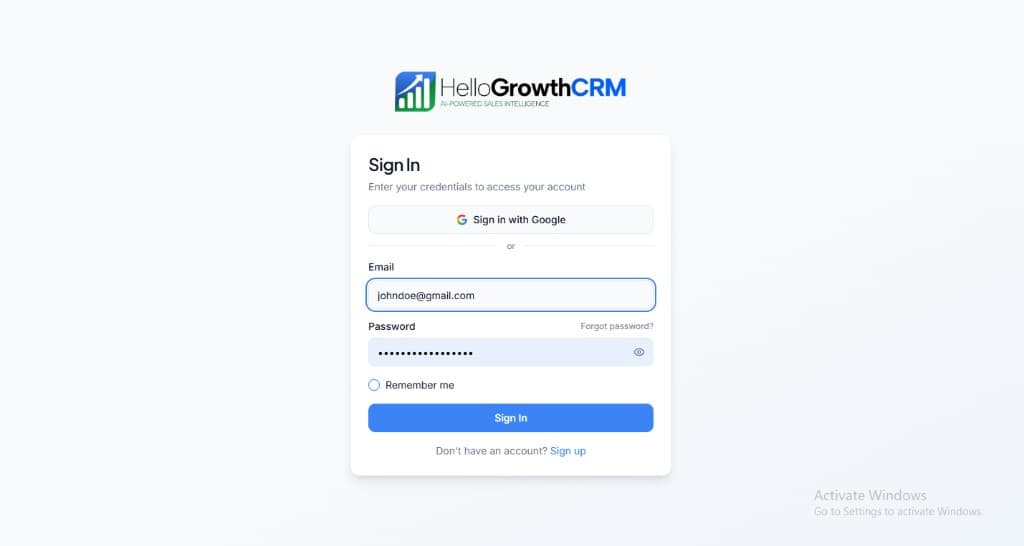
    Sign in or sign up at HelloGrowthCRM. Open the login page, enter your credentials (or use Google), or choose Sign up if you need a new account. You must be signed in before you can open Settings and connect this integration.

    HelloGrowthCRM login screen: Sign in with Google, email and password fields, Remember me, and Sign up link

    Open login page(opens in a new tab)app.hellogrowthcrm.com/login

  2. 2

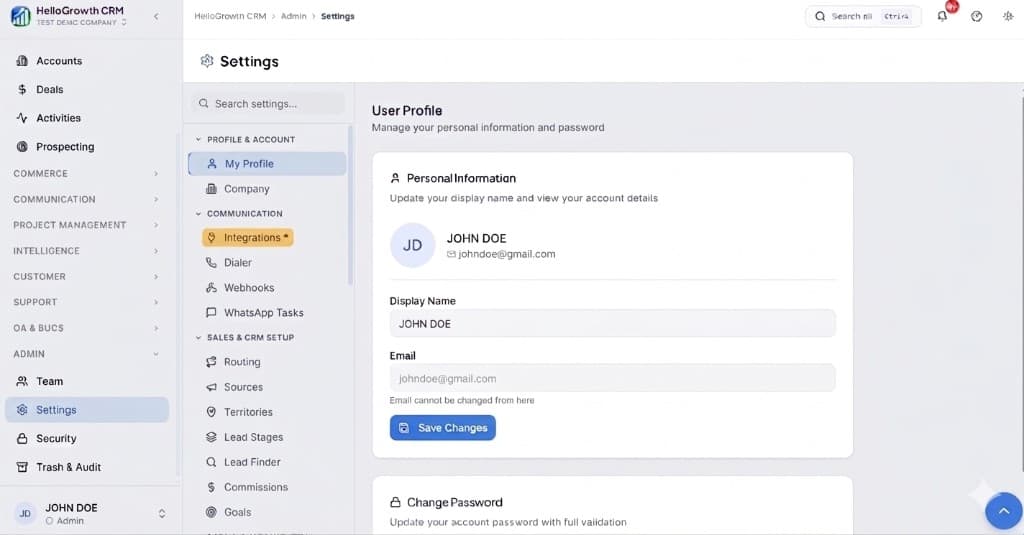
    Open Settings. In the left sidebar, under Admin, click Settings (you will land on the Settings area; the URL is app.hellogrowthcrm.com/settings).

    HelloGrowthCRM Settings: Admin sidebar with Settings selected, secondary menu with Communication and Integrations, and profile area

    Open Settings(opens in a new tab)app.hellogrowthcrm.com/settings

  3. 3

    Go to Integrations. On the Settings screen, use the middle settings menu. Under COMMUNICATION, click Integrations (star icon). Then find and configure this connector—the connector-specific steps below pick up from here.

    HelloGrowthCRM Settings menu highlighting COMMUNICATION and Integrations next to the Admin Settings sidebar

    Open Settings (Integrations)(opens in a new tab)app.hellogrowthcrm.com/settings

  4. 4

    Connect Typeform

    In HelloGrowthCRM Settings → Integrations → Forms, click Connect Typeform. Authenticate with your Typeform account.

  5. 5

    Select forms to sync

    Choose which Typeform forms push data to HelloGrowthCRM. You can connect all forms or select specific ones — typically lead generation forms and qualification surveys.

  6. 6

    Map fields to CRM

    Map each Typeform question to a HelloGrowthCRM field. Standard fields — name, email, phone — map automatically. Custom questions map to CRM custom fields you define.

  7. 7

    Set lead creation rules

    Configure lead assignment, source tagging, and sequence enrolment per form. Demo request form submissions get assigned to senior reps; general enquiry forms go to round-robin.

  8. 8

    Test with a form submission

    Submit a test response to your connected Typeform. Verify the lead appears in HelloGrowthCRM within seconds with all fields mapped correctly and the sequence triggered.

Need help with setup? Book a 15-minute onboarding call — our team will connect it live with you.
FAQ

Frequently asked questions

Does every Typeform submission automatically become a HelloGrowthCRM lead?
Yes. When you connect a Typeform to HelloGrowthCRM and map the fields, every new form submission creates a CRM lead immediately via webhook. There is no delay, no manual export, and no Zapier required.
Can I map Typeform answers to custom CRM fields?
Yes. Any Typeform question can be mapped to any HelloGrowthCRM field — standard fields like name, email, phone, and company, or custom fields you create for budget, timeline, industry, or product interest.
Can I use Typeform for customer surveys and sync responses to existing CRM contacts?
Yes. For surveys sent to existing customers, HelloGrowthCRM matches the respondent email to an existing contact record and updates it with the survey answers. NPS scores, CSAT responses, and product feedback update the contact record rather than creating a duplicate lead.
Does the integration work with Typeform logic jumps and scoring?
Yes. Typeform logic jump answers and calculated scores are captured in the form response and sync to HelloGrowthCRM. Use the score field in CRM automation — high-score submissions trigger a priority lead sequence.
Is the Typeform integration included in the standard plan?
Yes. The Typeform integration is included in HelloGrowthCRM paid plans from Rs 899/user/month.
How fast do submissions reach the CRM?
Within seconds — Typeform webhooks fire on completion and the lead is created, routed, and acknowledged before the respondent has closed the tab.
Do logic-jump answers map cleanly?
Yes — every question, including conditionally shown ones, maps to a CRM field of your choice; unanswered branches simply leave their fields empty.

Want help evaluating the next step?

Book a demo to see HelloGrowthCRM in action, or start a free trial.