Skip to content
Integration

OpenAI Integration for HelloGrowthCRM — AI-Powered CRM Workflows

Connect OpenAI to HelloGrowthCRM for AI-powered email drafting, lead insight generation, call summarisation, and intelligent CRM automation.

Quick answer

How are AI credits billed?

OpenAI charges your API key directly based on token usage. HelloGrowthCRM does not mark up API costs. Your OpenAI bill is separate from your HelloGrowthCRM subscription.
Last updated:
What you get

HelloGrowthCRM integrates OpenAI's models directly into CRM workflows — giving reps AI-generated email drafts, deal summaries, and lead insights without leaving the platform. The integration uses your CRM data as context, so AI outputs are grounded in actual deal information rather than generic templates.

Email drafting with OpenAI uses the contact record, deal stage, last interaction, and rep prompt to generate personalised outreach in seconds. Reps provide a brief direction — 'follow up on the pricing call, mention the Q2 deadline' — and the AI generates a full email draft in the rep's configured tone. The draft is editable before sending, keeping the human in control of final content.

Deal insight generation summarises a deal's history — calls, emails, notes, stage changes — into a structured executive summary. When a new rep inherits a deal, the AI summary gives them context in 30 seconds instead of 30 minutes of record review. For managers reviewing pipeline, deal summaries surface key risks and open questions at a glance.

Call summarisation via OpenAI processes raw transcripts into structured summaries with decisions, next steps, and flagged concerns. Combined with HelloGrowthCRM's call transcription, every call becomes a searchable, summarised record with extracted action items — without reps spending 10 minutes on post-call notes.

Lead research and qualification assistance uses OpenAI to generate prospect background summaries from company name and domain — pulling in company description, industry, size indicators, and recommended talking points based on your ICP profile. Reps approaching a new logo get a briefing in seconds, not minutes.

The MCP server for HelloGrowthCRM allows any OpenAI-compatible agent or GPT Action to query and update CRM data directly. Teams building custom GPTs for sales workflows can point them at HelloGrowthCRM's MCP endpoint and get full pipeline access without custom API development.
Automation workflows

AI workflows with OpenAI models and HelloGrowthCRM

Summarise long histories on demand

A deal with sixty emails, ten calls, and months of notes condenses into a briefing paragraph. Handoffs, escalations, and pre-call prep stop requiring archaeology.

Draft outreach in your voice

Follow-up emails and WhatsApp replies draft from deal context — what was quoted, what the prospect objected to, what happens next. Reps edit and send instead of staring at blank compose windows.

Extract structure from messy enquiries

A rambling enquiry email becomes clean fields: requirement, quantity, urgency, budget signals. Leads arrive pre-parsed rather than needing a reading session before routing.

Classify and prioritise at scale

Language-model classification tags intent and sentiment across hundreds of inbound messages, feeding AI lead scoring so the call list ranks itself by evidence, not entry order.

In practice

Where model-powered CRM work pays off

Two-person team, enterprise polish

A boutique consultancy drafts every proposal follow-up with AI from call summaries. Clients experience big-firm responsiveness from a team of two.

High-volume enquiry triage

An equipment trader receiving 300 marketplace enquiries daily lets extraction and scoring surface the 30 with genuine specs. Call time goes where the money is.

Multilingual inbox handling

A tour operator receives enquiries in five languages. Drafted replies come back in the enquirer's language with details intact, and the owner reviews rather than translates.

Setup guide

How to connect — step by step

Takes about 10–15 minutes. No coding required.

Setup at a glance

  • Generate an OpenAI API key
  • Connect OpenAI in HelloGrowthCRM
  • Configure AI Copilot features
  • Set AI context and tone
  • Test AI email drafting with a real lead
  1. 1

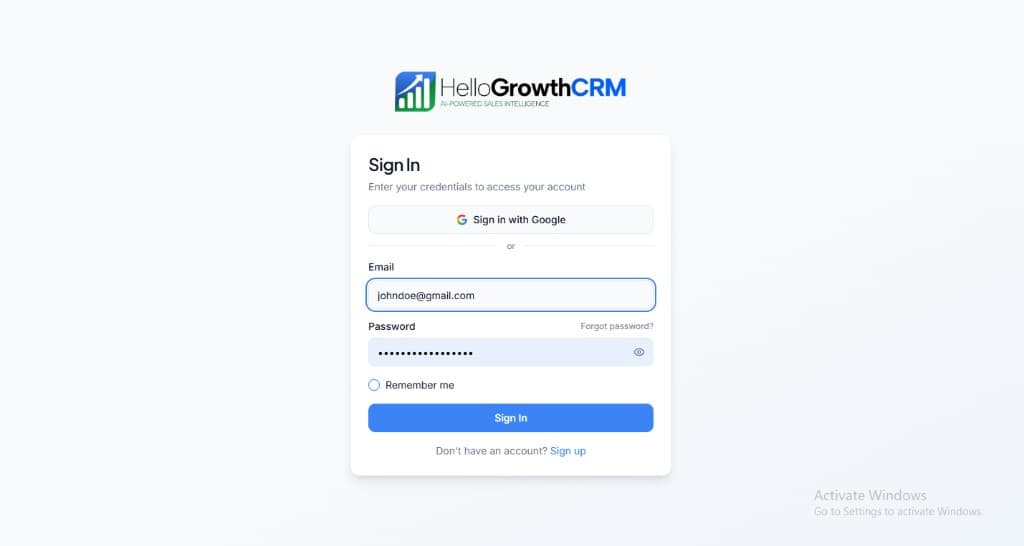
    Sign in or sign up at HelloGrowthCRM. Open the login page, enter your credentials (or use Google), or choose Sign up if you need a new account. You must be signed in before you can open Settings and connect this integration.

    HelloGrowthCRM login screen: Sign in with Google, email and password fields, Remember me, and Sign up link

    Open login page(opens in a new tab)app.hellogrowthcrm.com/login

  2. 2

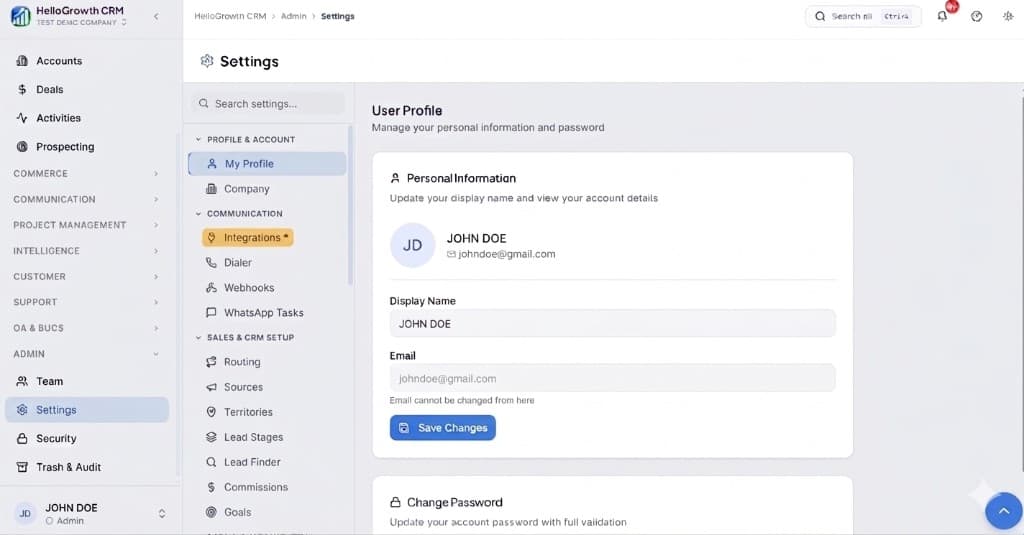
    Open Settings. In the left sidebar, under Admin, click Settings (you will land on the Settings area; the URL is app.hellogrowthcrm.com/settings).

    HelloGrowthCRM Settings: Admin sidebar with Settings selected, secondary menu with Communication and Integrations, and profile area

    Open Settings(opens in a new tab)app.hellogrowthcrm.com/settings

  3. 3

    Go to Integrations. On the Settings screen, use the middle settings menu. Under COMMUNICATION, click Integrations (star icon). Then find and configure this connector—the connector-specific steps below pick up from here.

    HelloGrowthCRM Settings menu highlighting COMMUNICATION and Integrations next to the Admin Settings sidebar

    Open Settings (Integrations)(opens in a new tab)app.hellogrowthcrm.com/settings

  4. 4

    Generate an OpenAI API key

    Log in to platform.openai.com. Go to API Keys → Create New Key. Name it 'HelloGrowthCRM' and copy the key immediately — it will not be shown again. Store it securely.

  5. 5

    Connect OpenAI in HelloGrowthCRM

    In HelloGrowthCRM, go to Settings → AI → OpenAI Integration. Paste your API key and click Save. Select the model to use — GPT-4o is recommended for best accuracy. GPT-3.5 Turbo is faster and lower cost.

  6. 6

    Configure AI Copilot features

    Enable the AI features you want: email draft suggestions, call summary generation, lead scoring explanation, or deal risk analysis. Each can be toggled on or off per user or team.

  7. 7

    Set AI context and tone

    In AI Settings, add your company description, product positioning, and any tone guidelines (formal / conversational / industry-specific). The AI uses this context to generate more relevant and on-brand outputs.

  8. 8

    Test AI email drafting with a real lead

    Open a lead record and click 'Draft Email with AI'. Review the generated draft for accuracy and tone. Refine the AI context settings if the output needs adjustment before rolling out to the team.

Need help with setup? Book a 15-minute onboarding call — our team will connect it live with you.
FAQ

Frequently asked questions

How are AI credits billed?
OpenAI charges your API key directly based on token usage. HelloGrowthCRM does not mark up API costs. Your OpenAI bill is separate from your HelloGrowthCRM subscription.
Is my CRM data sent to OpenAI?
Only the specific context needed for each AI request is sent — for example, a lead's name, company, and the email thread when drafting a reply. Full CRM exports are never sent. Review OpenAI's data processing terms at openai.com.
Can I use Azure OpenAI instead of OpenAI directly?
Yes. HelloGrowthCRM supports Azure OpenAI endpoints. Enter your Azure OpenAI endpoint URL and API key in the integration settings instead of the standard OpenAI key.
How does this relate to HelloGrowthCRM's built-in AI agents?
The platform ships 12 AI agents covering scoring, summaries, and drafting out of the box — no API key needed. The OpenAI integration is for teams wanting custom prompts and workflows on their own API account beyond the built-ins.
Is my CRM data used to train OpenAI models?
As of 2026, OpenAI states that data sent via its API is not used for model training by default. Review OpenAI's current data-usage terms for specifics — and only connected workflows send data at all.

Want help evaluating the next step?

Book a demo to see HelloGrowthCRM in action, or start a free trial.