Skip to content
Integration

Slack Integration for HelloGrowthCRM — CRM Slack integration

Covers CRM Slack integration, Slack CRM notifications, Slack sales CRM, and adjacent CRM buying questions.

Quick answer

Can I reply to CRM alerts directly in Slack?

Notifications are one-way by default. To take action, click the CRM link included in each notification to open the record directly in HelloGrowthCRM.
Last updated:
What you get

Slack is where revenue teams coordinate in real time—but pipeline truth still lives in your CRM. The HelloGrowthCRM Slack integration bridges the gap: push key CRM events into the channels that matter, so account owners, managers, and RevOps see the same signals without refreshing dashboards all day.

Typical use cases include notifying a #sales channel when a high-score lead books a meeting, alerting CS when an enterprise deal moves to closed-won, or sending a daily pipeline snapshot to leadership. You can tune which objects and thresholds trigger messages so channels stay high-signal, not noisy.

For sales managers, Slack notifications shorten reaction time on stalled deals and inbound spikes. For RevOps, they create an audit trail of operational events next to team discussion—making it easier to connect process changes to outcomes. Reps spend less time writing “FYI” updates because the system posts structured updates automatically.

Security and access control matter: integrations should respect who can see which deals and accounts. Configure notifications per workspace or channel map, and use Slack’s own permissions together with CRM roles so sensitive opportunities aren’t broadcast too widely.

Slack does not replace CRM hygiene— it amplifies it. Pair notifications with required fields, stage definitions, and weekly pipeline reviews so alerts reflect trustworthy data. For deeper workflow automation beyond chat, use HelloGrowthCRM’s native sequences, tasks, and API alongside Slack.

Getting started is straightforward: connect your workspace, choose event types, map channels, and validate in a sandbox channel before rolling out to the whole revenue org. If you need help aligning CRM stages to Slack alerts, our team can recommend patterns from high-performing B2B teams.
Automation workflows

Automation workflows with Slack and HelloGrowthCRM

Celebrate wins where the team lives

Closed Won posts to your wins channel with deal value and owner. Public recognition costs nothing and does more for CRM adoption than any mandate — reps close deals in the system because that's what triggers the applause.

Alert on the leads that can't wait

High-score leads and enterprise-domain signups ping a priority channel with an @mention for the owner. The five-minute response window stops depending on someone watching a dashboard.

Digest the pipeline every morning

A daily summary posts new leads, stage movements, overdue tasks, and week-to-date closes. Standups shorten because everyone read the same three lines at 9am.

Surface stalled deals for peer review

Deals idle past your threshold post to a review channel where teammates suggest next moves in-thread. Pipeline hygiene becomes ambient instead of a monthly interrogation.

In practice

How Slack-native teams keep CRM visible

Remote startup rhythm

A fully remote team across three time zones follows deal flow through channel alerts. The founder wakes to an overnight digest instead of opening five dashboards.

Sales-and-delivery handoff

Won deals post to the delivery channel with scope notes attached. Project managers start kickoff the same hour — the 'sales never told us' complaint disappeared.

Manager coaching triggers

Lost-deal alerts with reasons flow to a private managers channel. Patterns — pricing objections spiking, a competitor recurring — get spotted in days rather than at quarter end.

Setup guide

How to connect — step by step

Takes about 10–15 minutes. No coding required.

Setup at a glance

  • Connect your Slack workspace
  • Choose notification channels
  • Configure trigger events
  • Map Slack users to CRM owners
  • Test with a live CRM event
  1. 1

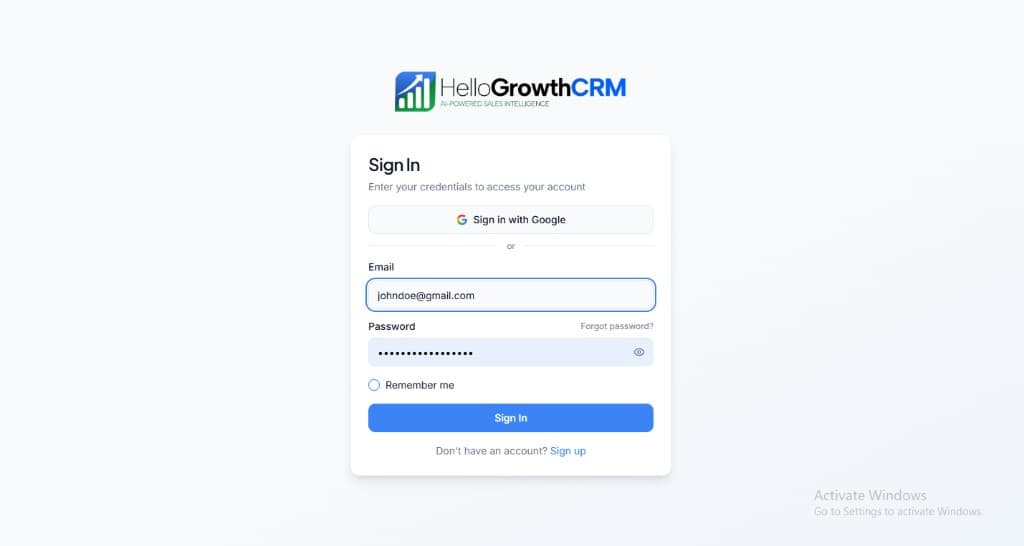
    Sign in or sign up at HelloGrowthCRM. Open the login page, enter your credentials (or use Google), or choose Sign up if you need a new account. You must be signed in before you can open Settings and connect this integration.

    HelloGrowthCRM login screen: Sign in with Google, email and password fields, Remember me, and Sign up link

    Open login page(opens in a new tab)app.hellogrowthcrm.com/login

  2. 2

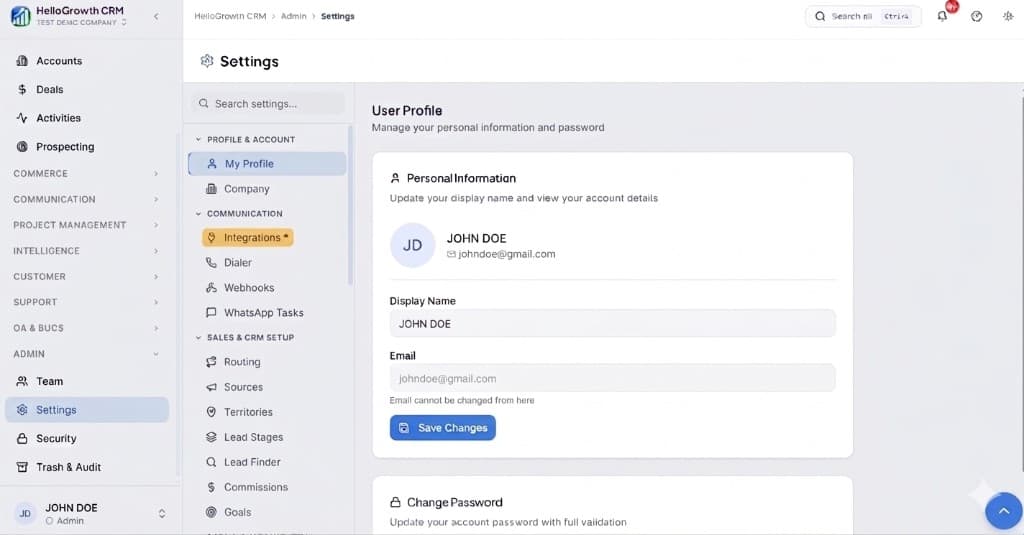
    Open Settings. In the left sidebar, under Admin, click Settings (you will land on the Settings area; the URL is app.hellogrowthcrm.com/settings).

    HelloGrowthCRM Settings: Admin sidebar with Settings selected, secondary menu with Communication and Integrations, and profile area

    Open Settings(opens in a new tab)app.hellogrowthcrm.com/settings

  3. 3

    Go to Integrations. On the Settings screen, use the middle settings menu. Under COMMUNICATION, click Integrations (star icon). Then find and configure this connector—the connector-specific steps below pick up from here.

    HelloGrowthCRM Settings menu highlighting COMMUNICATION and Integrations next to the Admin Settings sidebar

    Open Settings (Integrations)(opens in a new tab)app.hellogrowthcrm.com/settings

  4. 4

    Connect your Slack workspace

    In HelloGrowthCRM, go to Settings → Integrations → Slack. Click 'Connect to Slack'. You will be redirected to Slack's OAuth screen — select your workspace and approve the permissions.

  5. 5

    Choose notification channels

    Select which Slack channels should receive CRM notifications. Common choices: a #crm-alerts channel for new leads, a #deals-won channel for closed opportunities, and a #pipeline-updates channel for stage changes.

  6. 6

    Configure trigger events

    Choose which CRM events trigger Slack notifications: new lead assigned, deal advanced to a stage, deal won, deal lost, task overdue, or a specific pipeline value crossed. Configure per channel.

  7. 7

    Map Slack users to CRM owners

    Link each HelloGrowthCRM user to their Slack handle so @mentions in notifications go to the right person. This ensures lead assignment alerts reach the correct rep instantly.

  8. 8

    Test with a live CRM event

    Create a test lead or advance a deal to a new stage. Verify the notification appears in the correct Slack channel with the right information and owner mention.

Need help with setup? Book a 15-minute onboarding call — our team will connect it live with you.
FAQ

Frequently asked questions

Can I reply to CRM alerts directly in Slack?
Notifications are one-way by default. To take action, click the CRM link included in each notification to open the record directly in HelloGrowthCRM.
Which Slack plan do I need?
Any Slack plan works — Free, Pro, Business+, or Enterprise Grid. The integration uses Slack's standard OAuth and Incoming Webhooks, which are available on all plans.
Can I get personal DMs instead of channel notifications?
Yes. In the user mapping step, you can configure personal DM alerts for individual reps instead of channel posts for sensitive notifications like deal assignments.
Will Slack notifications get noisy?
Only if you let them. Route by event type and threshold — wins and hot leads to busy channels, routine stage changes to a low-traffic feed or nowhere. High-signal beats high-volume.
Can alerts include deep links back to the CRM?
Yes. Every notification links to the exact lead or deal, so acting on an alert is one click — read in Slack, work in the CRM.

Want help evaluating the next step?

Book a demo to see HelloGrowthCRM in action, or start a free trial.