HelloGrowthCRM software
Built for real small-business sales teams
HelloGrowthCRM helps reps qualify faster, follow up on time, and close more deals—with practical automation in one place.
- AI lead scoring and pipeline visibility
- Built-in dialer, WhatsApp, and email automation
- Sales forecasting and RevOps-ready reporting
Creating an online form enables your business to collect information, leads, or feedback efficiently. Many small-business owners need forms for contact, orders, or surveys but struggle with the technical steps or what fields to include. This guide provides clear, numbered steps, a realistic example from a plumbing company in Austin, Texas, common pitfalls to avoid, and answers to common questions.
Why this comes up / what goes wrong
Small-business owners often want to create online forms to capture leads, schedule appointments, or gather customer feedback. However, they may get stuck choosing which fields to add, how to make the form user-friendly, or how to publish it online without coding skills. Slow follow-up or losing leads can happen if forms don’t integrate with their sales process or CRM. Many run sales on text messages, email, and spreadsheets and need a simple form that feeds data directly to their tools.
Step-by-step
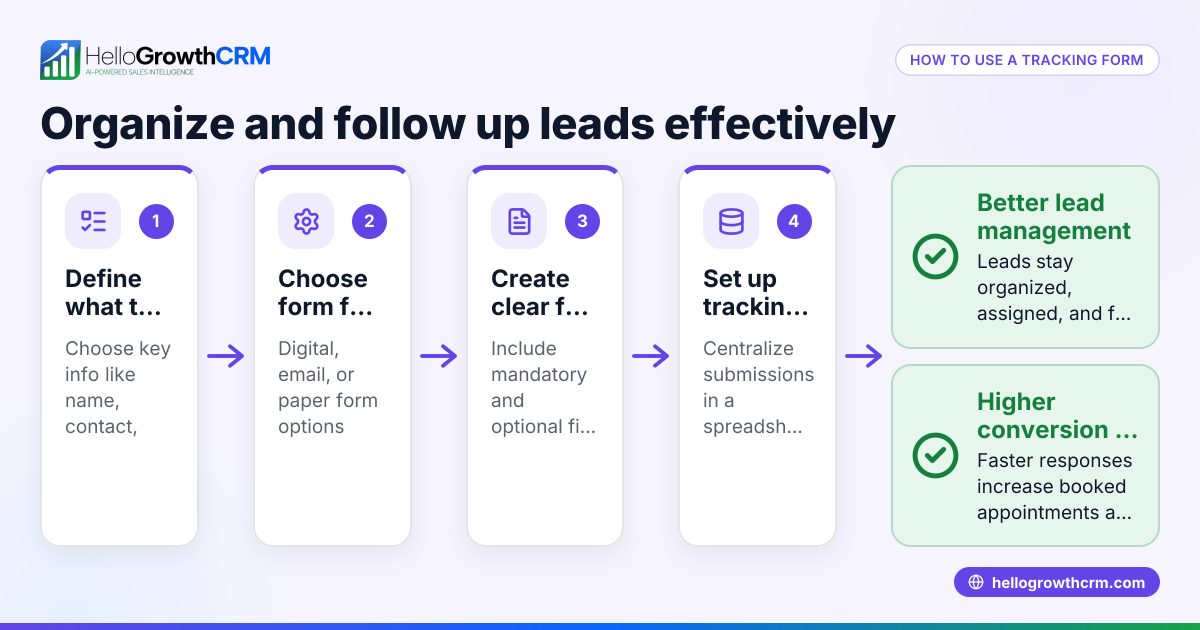
- Choose a form builder or platform. Pick a user-friendly tool that fits your needs, such as Google Forms, Microsoft Forms, or a website builder with form features. Check if it supports embedding on your site or sharing via link.
- Define the purpose of your form. Decide what information you need: contact details, appointment times, product choices, or feedback. This helps you select fields.
- Add fields to your form. Common fields include:
- Name (First and Last)
- Email address
- Phone number
- Dropdown menus or checkboxes for options
- Date and time pickers
- Open text fields for comments
Check that required fields are clearly marked.
- Customize the form design. Adjust colors, fonts, and layout to match your brand. Keep it simple and mobile-friendly.
- Set up form settings. Configure options such as:
- Notifications when a form is submitted
- Confirmation messages or emails to respondents
- Limits on responses if needed
- Test the form. Fill it out yourself and check that data is collected correctly and notifications work.
- Publish or share the form. Embed it on your website or share the direct link via email or social media.
- Integrate with your sales or CRM tools if possible. This reduces manual data entry and speeds up follow-up. For example, if you use a WhatsApp and SMS CRM, link form submissions to your pipeline.
Example (fictional figures)
A plumbing company in Austin, Texas, wants to create a service request form to capture customer details and appointment times.
Step 1: They select a free form builder that allows embedding on their WordPress website.
Step 2: The purpose is to schedule plumbing services and collect contact info.
Step 3: They add these fields:
- Full Name (required)
- Phone Number (required)
- Email Address
- Service Type (dropdown: Leak Repair, Drain Cleaning, Installation)
- Preferred Appointment Date (date picker)
- Additional Notes (optional)
Step 4: They customize the form with blue and white colors matching their branding.
Step 5: They set notifications to alert their office email when a form is submitted and a confirmation message: "Thank you for your request. We will contact you within 24 hours."
Step 6: They test the form by submitting a sample request:
- Name: John Smith
- Phone: 512-555-1234
- Email: john.smith@example.com
- Service Type: Leak Repair
- Appointment Date: 07/15/2026
- Notes: Kitchen sink leaking
Step 7: They embed the form on the "Contact Us" page of their website.
Step 8: They connect form submissions to their sales pipeline in a WhatsApp and SMS CRM to speed follow-up.
Common mistakes
- Too many fields: Keep forms concise to avoid discouraging users. Only ask for essential information.
- Unclear field labels: Use simple, descriptive labels and mark required fields clearly.
- No confirmation or notification: Always set up a confirmation message and notify your team to follow up promptly.
- Poor mobile experience: Test the form on phones to ensure it’s easy to use.
- Not testing the form: Always submit test entries to check data collection and notifications.
- Ignoring integration: If you use a CRM or sales tool, integrate form data to avoid manual entry and lost leads. See how a WhatsApp and SMS CRM or a built-in CRM dialer can help manage leads from forms.
Frequently asked questions
What is the easiest way to create an online form? Using free tools like Google Forms or Microsoft Forms is the easiest way. They require no coding, offer templates, and allow sharing via link or embedding on websites. (support.google.com)
Can I customize the design of my online form? Yes, most form builders let you change colors, fonts, and layout. Keep the design simple and aligned with your brand for the best user experience.
How do I make sure I don’t miss form submissions? Set up email or mobile notifications in your form settings. Integrating with a CRM can also automatically add leads to your sales pipeline for timely follow-up.
Can online forms work on mobile devices? Yes, most modern form builders create mobile-friendly forms. Always test your form on different devices to ensure usability.
How do I add an online form to my website? After creating the form, use the embed code provided by the form builder and paste it into your website’s HTML or use a plugin if your site platform supports it. Alternatively, share the direct link.
What if I want to collect payments through my form? Some form builders support payment fields via integrations with payment gateways. Check your chosen tool’s features if you need this.
For US businesses looking for a CRM that supports sales on WhatsApp, SMS, and email, and helps manage leads efficiently, see HelloGrowthCRM for the United States.
Key takeaways
- Choose a simple, user-friendly form builder that fits your business needs.
- Define clear, essential fields and mark required ones.
- Customize the form design for clarity and brand consistency.
- Test your form thoroughly before publishing.
- Set up notifications and integrate with your sales tools to avoid losing leads.
- Keep mobile usability in mind for better customer experience.
Start creating your online form today to capture leads and improve your sales process. To manage those leads efficiently, consider starting on the Free Forever plan (200 leads, no credit card).
Ready to put this into practice?
Set up your pipeline, WhatsApp follow-ups, and AI lead scoring in minutes — free, no credit card.
Try HelloGrowthCRM freeGet CRM tips in your inbox
Join thousands of sales professionals who get weekly insights on CRM strategy, AI automation, and pipeline optimization.

The HelloGrowthCRM team publishes guides on CRM strategy, AI sales tools, and revenue operations for small business sales teams.