HelloGrowthCRM software
Built for real small-business sales teams
HelloGrowthCRM helps reps qualify faster, follow up on time, and close more deals—with practical automation in one place.
- AI lead scoring and pipeline visibility
- Built-in dialer, WhatsApp, and email automation
- Sales forecasting and RevOps-ready reporting
Managing multiple calendars is common for small business owners who juggle client meetings, team schedules, and personal appointments. Without a clear system, it’s easy to double-book or miss important events. This guide shows you how to organize multiple calendars into one manageable view to stay on top of your time.
Why this comes up / what goes wrong
Small-business owners often maintain separate calendars for different purposes: one for client appointments, another for internal team meetings, and a personal calendar. When these calendars are on different platforms or devices without synchronization, confusion arises. Missed meetings, scheduling conflicts, and inefficient time use are common problems. This fragmentation leads to lost productivity and frustration.
Step-by-step
- List all your calendars: Write down each calendar you use, noting the platform (Google Calendar, Outlook, Apple Calendar, etc.) and the device (phone, computer).
- Select a primary calendar platform: Choose one calendar app that supports viewing multiple calendars together and integrates with others. This will be your main calendar dashboard.
- Import or subscribe to other calendars: Use your primary calendar’s features to add other calendars by importing files or subscribing to their feeds. This allows you to see all events in one place without switching apps.
- Assign color codes: Give each calendar a distinct color. For example, client meetings could be blue, team meetings green, and personal appointments red. This visual separation helps avoid confusion.
- Set notifications and priorities: Decide which events need reminders and how far in advance. For example, set client meetings to notify you 30 minutes before, team meetings 15 minutes before, and personal appointments 1 hour before.
- Review your combined calendar regularly: Check your calendar daily and weekly to spot conflicts early and adjust your schedule as needed.
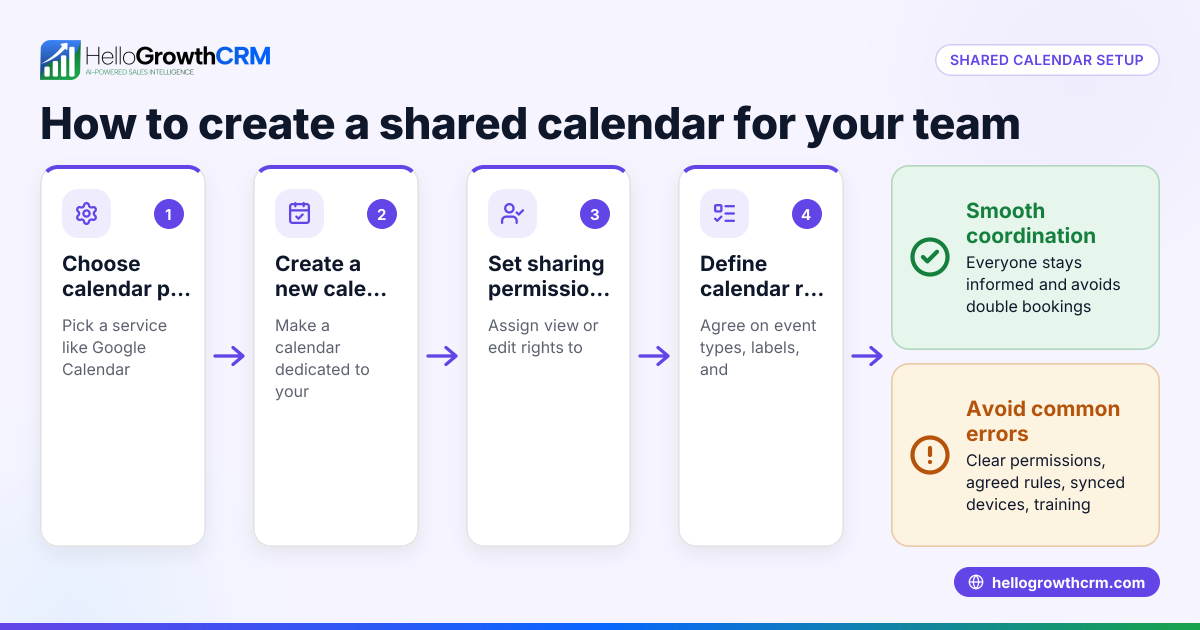
- Share calendars with your team: If applicable, share relevant calendars with team members to improve coordination and transparency.
- Use calendar integrations: Connect your calendar with CRM or communication tools to automate scheduling and follow-ups. For example, a WhatsApp and SMS CRM can link messages directly to calendar events for smoother workflows (WhatsApp and SMS CRM).
- Backup your calendar data: Export your calendar data regularly to avoid losing important information.
- Train your team: Make sure everyone understands how to use the shared calendar system to maintain consistency.
Example (fictional figures)
A residential real-estate team in Phoenix, Arizona manages multiple calendars: one for client showings, one for internal team meetings, and one personal calendar for the lead agent. They use Google Calendar as their primary platform.
Step 1: List calendars:
- Client showings calendar (Google Calendar)
- Team meetings calendar (Outlook)
- Personal calendar (Apple Calendar)
Step 2: Choose Google Calendar as the primary calendar.
Step 3: Subscribe to Outlook and Apple calendars in Google Calendar.
Step 4: Assign colors:
- Client showings: Blue
- Team meetings: Green
- Personal: Red
Step 5: Set notifications:
- Client showings: 30 minutes before
- Team meetings: 15 minutes before
- Personal: 1 hour before
Step 6: Daily review every morning at 8:00 AM.
Step 7: Share client showings calendar with all agents.
Step 8: Integrate calendar with their CRM to automatically schedule follow-ups after showings.
Step 9: Backup calendar data every Friday.
This system reduces double bookings and missed appointments, improving client satisfaction and team productivity.
Common mistakes
- Not consolidating calendars: Leads to missed appointments and confusion. Prevent this by choosing a primary calendar and subscribing to others.
- Ignoring color-coding: Makes it hard to distinguish events quickly. Always assign distinct colors to each calendar.
- Skipping notifications: Causes forgotten meetings. Set reminders for all important events.
- Not sharing calendars: Causes misalignment in teams. Share calendars with relevant members.
- Using incompatible platforms: Leads to sync issues. Choose calendar apps that support cross-platform integration.
- Neglecting regular reviews: Overlooks scheduling conflicts. Schedule daily or weekly calendar checks.
Using tools like a built-in CRM dialer can help streamline scheduling calls linked to calendar events (built-in CRM dialer). For US businesses, consider workflows in HelloGrowthCRM for the United States (HelloGrowthCRM for the United States).
Frequently asked questions
Can I sync calendars from different providers? Yes, most calendar apps like Google Calendar and Outlook allow you to subscribe to or import calendars from other providers, letting you view all events in one place.
How do I avoid double bookings when managing multiple calendars? Consolidate your calendars into one platform and enable notifications. Color-coding events also helps identify overlaps quickly.
Is it possible to share calendars with my team without losing privacy? Yes, you can share only specific calendars or events with team members, controlling what they see and maintaining privacy.
What’s the best way to handle personal and work calendars together? Use color-coding and set clear boundaries on notifications. Keep personal events marked private if sharing your calendar with others.
How do calendar integrations improve business workflows? Integrations with CRM and communication tools automate scheduling and follow-up tasks, saving time and reducing errors.
Key takeaways
- Consolidate all calendars into one primary platform for a unified view.
- Use color-coding and notifications to prevent conflicts and missed appointments.
- Share calendars selectively with your team to improve coordination.
- Regularly review your combined calendar to catch scheduling issues early.
- Choose calendar apps that support cross-platform syncing.
- Integrate calendars with CRM and communication tools for automation.
Managing multiple calendars becomes easier when you follow these steps. Start organizing your schedules today to improve your business’s efficiency and prevent costly mistakes.
Start on the Free Forever plan (200 leads, no credit card) at HelloGrowthCRM.
Ready to put this into practice?
Set up your pipeline, WhatsApp follow-ups, and AI lead scoring in minutes — free, no credit card.
Try HelloGrowthCRM freeGet CRM tips in your inbox
Join thousands of sales professionals who get weekly insights on CRM strategy, AI automation, and pipeline optimization.

The HelloGrowthCRM team publishes guides on CRM strategy, AI sales tools, and revenue operations for small business sales teams.