Skip to content
Integration

WhatsApp Integration for HelloGrowthCRM — WhatsApp CRM integration

Covers WhatsApp CRM integration, CRM with WhatsApp, WhatsApp business CRM, WhatsApp sales automation, and adjacent CRM buying questions.

Quick answer

Do I need a separate WhatsApp Business account?

Yes. HelloGrowthCRM connects via the WhatsApp Business API, which requires a separate Business account linked to a dedicated phone number. Your personal WhatsApp number cannot be used.
Last updated:
What you get

WhatsApp is often where real buying conversations happen, especially for fast-moving sales teams that need quick replies and informal follow-up. Connecting WhatsApp to HelloGrowthCRM gives your team one place to see those conversations alongside leads, deals, notes, and next steps instead of leaving critical context scattered across personal devices or separate inboxes.

The most useful WhatsApp integrations do more than just send a message. They tie conversation history back to the correct contact and account, make ownership visible, and let managers see whether outreach is actually moving opportunities forward. That matters because messaging volume alone does not improve conversion unless it is connected to a disciplined CRM process.

Common use cases include responding to inbound website leads, confirming meetings, following up after demos, re-engaging stalled opportunities, and keeping multi-stakeholder buying groups aligned. When WhatsApp activity is attached to the CRM record, the team can coordinate outreach without duplicating work or losing history when ownership changes.

A strong integration should also support templates, timing controls, and operational guardrails. Sales teams need to move quickly, but they still need consistent messaging standards, opt-in awareness, and a clear view of which conversations belong to active pipeline versus long-term nurture. The CRM becomes more reliable when messaging is treated as part of the operating system, not a side channel.

HelloGrowthCRM already includes dedicated WhatsApp and SMS CRM workflows for teams that want messaging built directly into the platform. This integration page is useful if you are evaluating how WhatsApp fits into lead response, follow-up, and sales coordination more broadly before deciding on your final implementation approach.

When comparing options, ask whether the setup helps your team respond faster, preserve conversation context, and report on pipeline outcomes more clearly. That is the real business value of a WhatsApp CRM integration, especially for teams that depend on speed-to-lead and consistent follow-up to convert more opportunities.
Automation workflows

Automation workflows with native WhatsApp in HelloGrowthCRM

Reply to new leads on WhatsApp within a minute

A new lead from your website, IndiaMART, or Meta Lead Ads triggers an approved WhatsApp template automatically through the native Meta Cloud API connection. First contact happens while the enquiry is still open in the prospect's mind — not the next morning.

Send stage-based updates without typing them

Quote sent, site visit confirmed, payment link shared — each pipeline stage change can fire a matching WhatsApp template with deal fields merged in. Customers stay informed and reps stop re-typing the same three messages all day.

Run a shared team inbox on one business number

Inbound WhatsApp messages land in a shared CRM inbox, matched to the contact record. Conversations can be assigned, handed over with full history, and reported on — instead of living on one salesperson's personal phone.

Revive quiet deals with a two-message nudge

When a deal sits idle past your threshold, an automation sends a light check-in template, waits, then creates a call task for the owner if there is no reply. The built-in dialer turns that task into a call in one click.

In practice

How WhatsApp-first businesses use the CRM

Real estate site visits

A broker confirms every site visit by WhatsApp with location pin and time. No-shows dropped noticeably once confirmations and morning-of reminders went out automatically, and every conversation sits on the deal record.

Clinic appointment follow-up

A dental clinic answers treatment enquiries on WhatsApp from the shared inbox. Front-desk staff assign clinical questions to the doctor's queue, and quotes follow as a template with the price attached to the CRM deal.

Distributor order coordination

An FMCG distributor takes reorder messages on WhatsApp. Each message logs against the retailer's account, so the owner sees order frequency slipping before a retailer quietly switches supplier.

Setup guide

How to connect — step by step

Takes about 10–15 minutes. No coding required.

Setup at a glance

  • Enable WhatsApp Business API access
  • Verify your business phone number
  • Create and submit message templates
  • Set up inbound message routing
  • Send your first message and verify logging
  1. 1

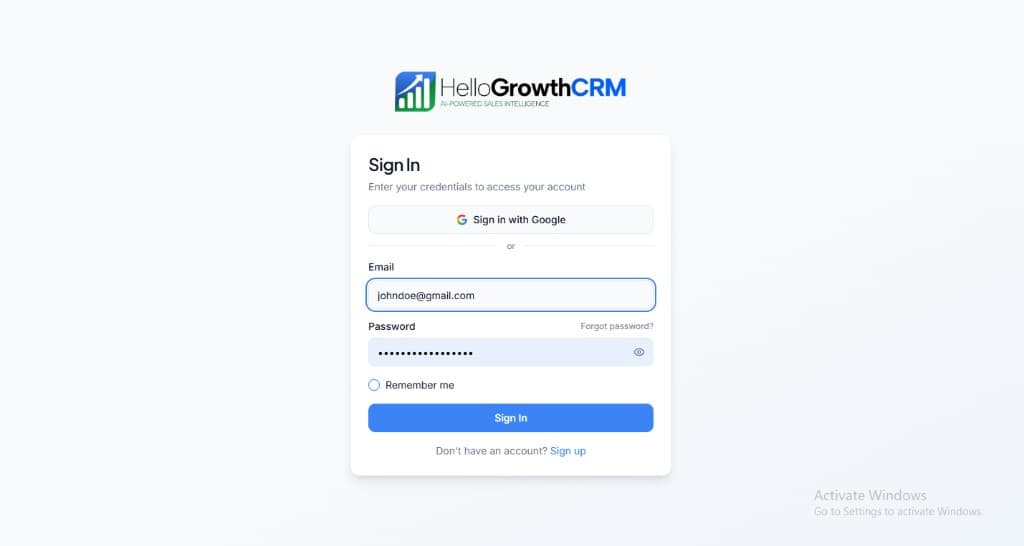
    Sign in or sign up at HelloGrowthCRM. Open the login page, enter your credentials (or use Google), or choose Sign up if you need a new account. You must be signed in before you can open Settings and connect this integration.

    HelloGrowthCRM login screen: Sign in with Google, email and password fields, Remember me, and Sign up link

    Open login page(opens in a new tab)app.hellogrowthcrm.com/login

  2. 2

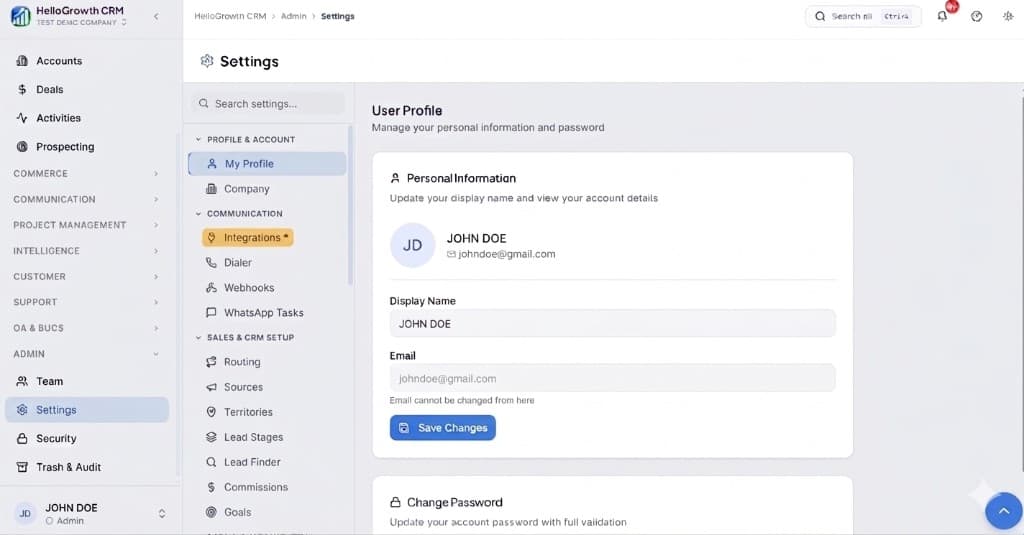
    Open Settings. In the left sidebar, under Admin, click Settings (you will land on the Settings area; the URL is app.hellogrowthcrm.com/settings).

    HelloGrowthCRM Settings: Admin sidebar with Settings selected, secondary menu with Communication and Integrations, and profile area

    Open Settings(opens in a new tab)app.hellogrowthcrm.com/settings

  3. 3

    Go to Integrations. On the Settings screen, use the middle settings menu. Under COMMUNICATION, click Integrations (star icon). Then find and configure this connector—the connector-specific steps below pick up from here.

    HelloGrowthCRM Settings menu highlighting COMMUNICATION and Integrations next to the Admin Settings sidebar

    Open Settings (Integrations)(opens in a new tab)app.hellogrowthcrm.com/settings

  4. 4

    Enable WhatsApp Business API access

    In HelloGrowthCRM, go to Settings → Integrations → WhatsApp. Click 'Connect WhatsApp Business'. You will need a WhatsApp Business account linked to a phone number not currently active on the WhatsApp app.

  5. 5

    Verify your business phone number

    Enter the phone number you want to use for outbound messaging. WhatsApp will send a 6-digit OTP to that number. Enter the OTP in HelloGrowthCRM to verify ownership.

  6. 6

    Create and submit message templates

    Go to Settings → WhatsApp Templates. Create templates for common messages (follow-up, meeting confirmation, demo invite). Submit for WhatsApp approval — approval usually takes 24–48 hours.

  7. 7

    Set up inbound message routing

    Configure which pipeline and owner receives inbound WhatsApp messages. You can route by keyword, phone number prefix, or round-robin assignment across your team.

  8. 8

    Send your first message and verify logging

    Open any lead in HelloGrowthCRM and click the WhatsApp icon. Send a test message. Confirm the conversation appears in the lead timeline and the contact's message history.

Need help with setup? Book a 15-minute onboarding call — our team will connect it live with you.
FAQ

Frequently asked questions

Do I need a separate WhatsApp Business account?
Yes. HelloGrowthCRM connects via the WhatsApp Business API, which requires a separate Business account linked to a dedicated phone number. Your personal WhatsApp number cannot be used.
Can I send bulk WhatsApp messages?
Yes. Use the Broadcast feature under Campaigns to send approved template messages to segmented contact lists. Bulk messaging requires pre-approved templates to comply with WhatsApp's policy.
Are WhatsApp messages logged automatically to the CRM?
Yes. Every inbound and outbound WhatsApp message is automatically logged to the relevant lead or contact timeline so the full conversation history is always visible.
Is this a third-party WhatsApp tool bolted onto the CRM?
No. HelloGrowthCRM connects natively through Meta's WhatsApp Cloud API. There is no separate messaging vendor to buy, and conversations, templates, and automations all live inside the CRM.
What does WhatsApp messaging cost on top of the CRM?
Meta bills WhatsApp Business API conversations directly based on its conversation-based pricing, which varies by country and conversation category as of 2026. Check Meta's current rate card for your market — HelloGrowthCRM does not add a per-message markup.
Can several reps reply from the same WhatsApp number?
Yes. The shared inbox lets your whole team work one business number, with assignment, internal notes, and per-rep reporting — something the standard WhatsApp Business app on a single phone cannot do.

Want help evaluating the next step?

Book a demo to see HelloGrowthCRM in action, or start a free trial.