HelloGrowthCRM software
Built for real small-business sales teams
HelloGrowthCRM helps reps qualify faster, follow up on time, and close more deals—with practical automation in one place.
- AI lead scoring and pipeline visibility
- Built-in dialer, WhatsApp, and email automation
- Sales forecasting and RevOps-ready reporting
An appointment confirmation script is a prepared message or dialogue used to confirm scheduled meetings with clients or prospects. It ensures both parties are clear on the appointment details, reducing no-shows and last-minute cancellations. This article explains why appointment confirmation scripts matter, provides step-by-step guidance to create one, offers a realistic example, highlights common mistakes, and shows how HelloGrowthCRM can help automate confirmations.
Why this comes up / what goes wrong
Small-business owners often face lost revenue and wasted time due to missed appointments or unclear meeting details. When appointment confirmations are handled inconsistently—by text, email, or phone—prospects may forget or misunderstand the time, location, or purpose of the meeting. This leads to no-shows or reschedules that disrupt sales workflows and slow down closing deals. A clear, consistent appointment confirmation script helps prevent these issues by setting expectations and providing all necessary details.
Step-by-step
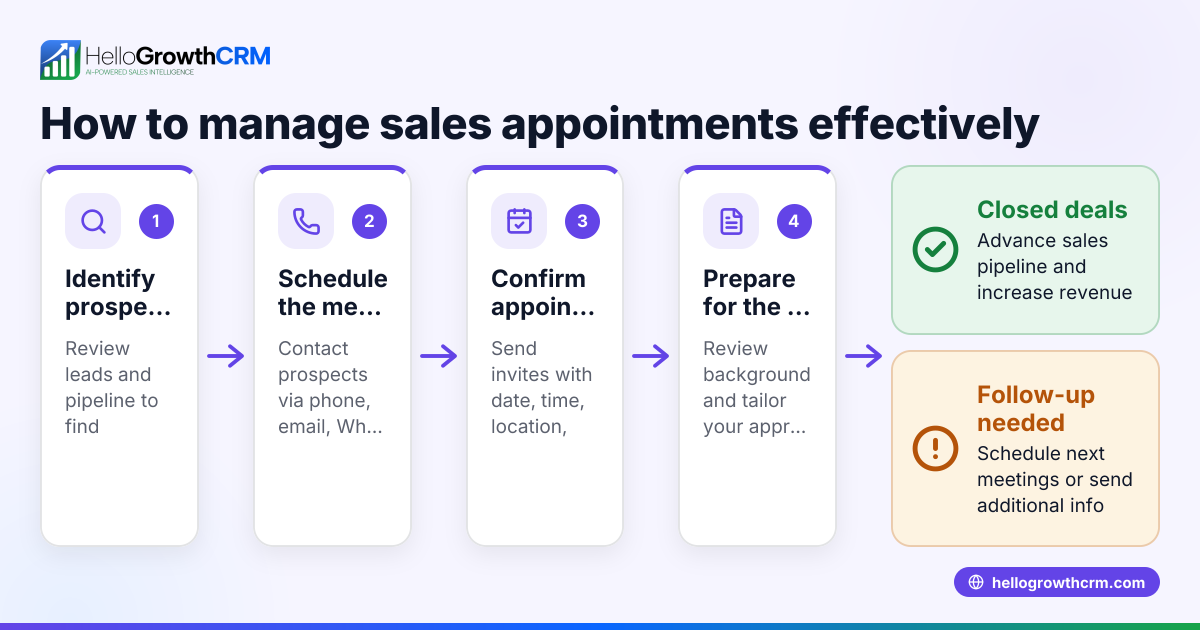
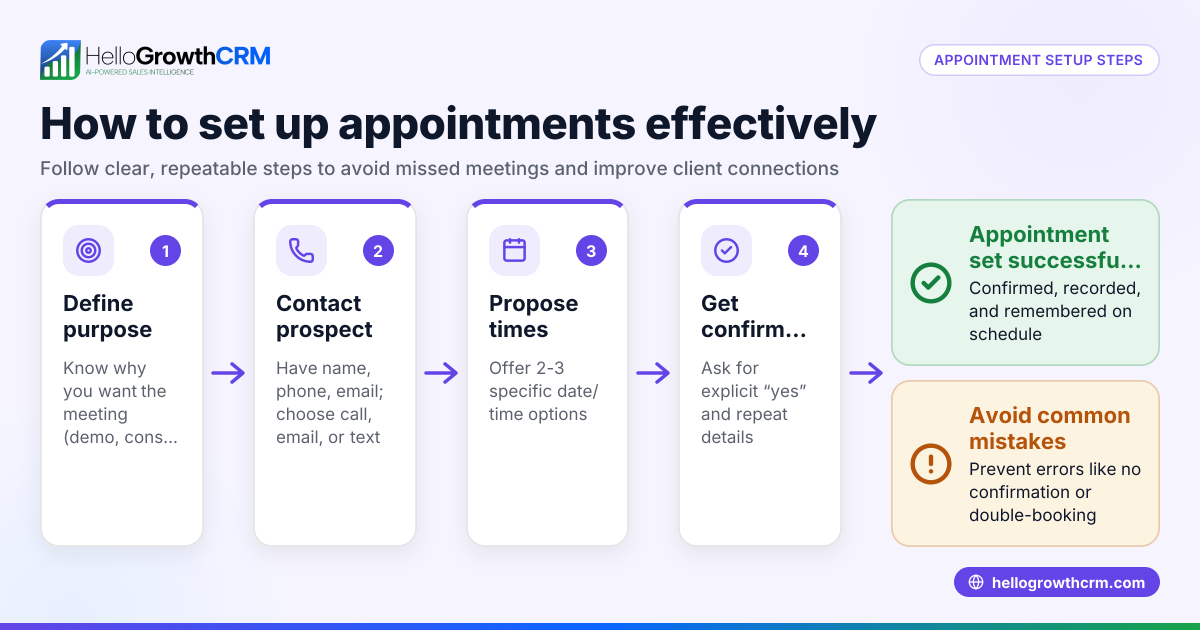
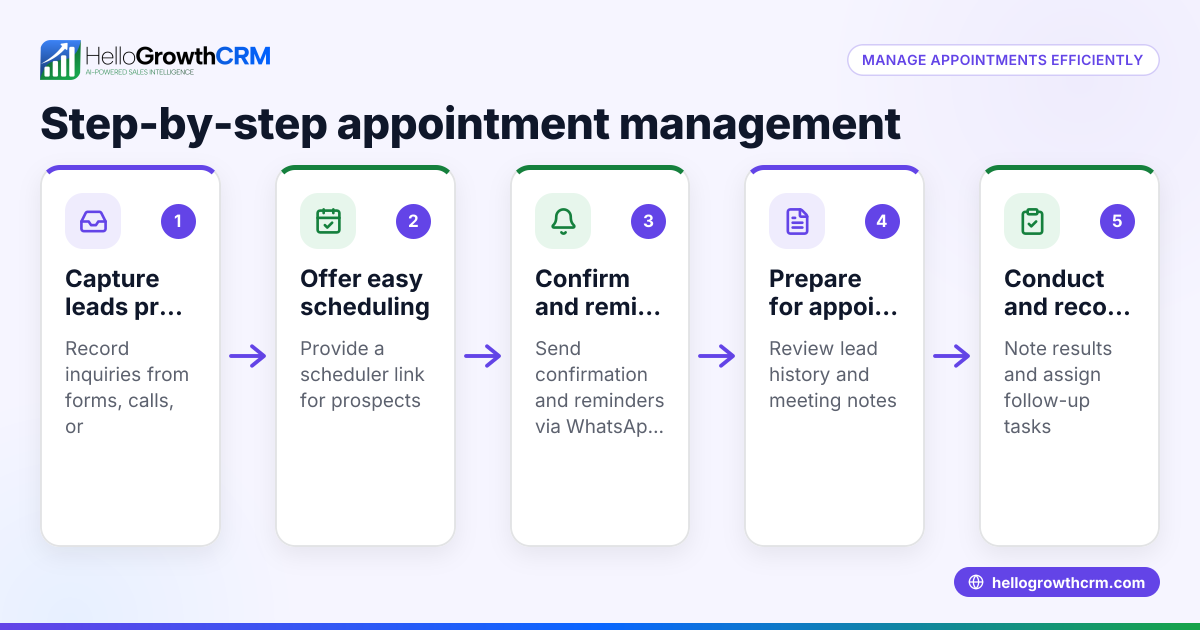
- Prepare the script content: Include essential details such as the date, time, location (or virtual meeting link), contact person, and any preparation needed. Keep the tone polite and professional.
- Choose the communication channel: Decide if you will confirm appointments by phone call, text message, email, or WhatsApp. Use the channel your client prefers.
- Send the confirmation promptly: Ideally, send the confirmation within 24-48 hours after scheduling the appointment.
- Request acknowledgement: Ask the client to reply or confirm receipt to ensure they have seen the message.
- Include a reschedule option: Provide instructions or a link for rescheduling if necessary.
- Follow up if no response: If you don’t get confirmation within a day, send a polite reminder.
- Verify details before the appointment: On the day before or the morning of the meeting, send a brief reminder with the key details.
- Check your script regularly: Update it to reflect any changes in your process or client feedback.
For tools to help with scheduling and follow-ups, see HelloGrowthCRM’s meeting scheduler and sales templates.
Example (fictional figures)
A residential real-estate team in Phoenix, Arizona, schedules a home tour appointment with a prospect.
- Appointment date set: 05/15/2026
- Appointment time: 2:00 PM
Appointment confirmation script example: "Hello [Client Name], this is [Agent Name] from Phoenix Home Realty. Just confirming your home tour appointment on 05/15/2026 at 2:00 PM. We will meet at 1234 Maple Street, Phoenix, AZ. Please reply 'Yes' to confirm or let us know if you need to reschedule. Looking forward to helping you find your new home!"
Follow-up reminder on 05/14/2026: "Reminder: Your home tour with [Agent Name] is tomorrow at 2:00 PM at 1234 Maple Street. Contact us at (555) 123-4567 if you have any questions."
This script clearly states the date, time, location, and contact information, and requests a confirmation reply.
Common mistakes
- Being too vague: Not including all necessary details leads to confusion. Prevent by listing date, time, location, and contact info.
- Not requesting confirmation: Without asking for acknowledgment, you don’t know if the client received the message. Always ask for a reply.
- Sending confirmation too late: Waiting too long risks the client forgetting. Send confirmations within 1-2 days after booking.
- Ignoring no-shows without follow-up: Failing to follow up on missed confirmations loses opportunities. Schedule reminder messages.
- Using inconsistent messaging channels: Switching between call, text, and email can confuse clients. Pick one preferred channel and stick to it.
- Not providing rescheduling options: Clients may cancel if they can’t easily reschedule. Include a reschedule link or instructions.
Using HelloGrowthCRM’s sales templates can help you avoid these mistakes by providing ready-to-use scripts.
Doing this in HelloGrowthCRM
HelloGrowthCRM offers a meeting scheduler that lets prospects pick an appointment slot from a link, removing the back-and-forth typically needed on WhatsApp. This streamlines booking and automatically sends confirmation messages. Additionally, HelloGrowthCRM provides free sales tools and templates, including follow-up cadences and pipeline templates, available without an account at sales templates. These resources help small-business teams standardize their appointment confirmations and follow-ups efficiently.
Frequently asked questions
What is the best way to confirm an appointment? The best way is to send a clear, concise message including all appointment details and request a confirmation reply. Use the client’s preferred channel—phone, text, email, or WhatsApp—and send the confirmation promptly after scheduling.
How soon should I send an appointment confirmation? Send the confirmation within 24 to 48 hours after booking the appointment. This timing ensures the client remembers the meeting and has time to reschedule if needed.
What should I include in an appointment confirmation script? Include the appointment date, time, location or meeting link, contact person’s name, and a request for confirmation. Also add rescheduling instructions or a link to give clients flexibility.
How do I handle no-shows or unconfirmed appointments? Send a polite reminder message if you don’t receive confirmation within a day or two. If the client misses the appointment, follow up to reschedule or understand their situation.
Can I automate appointment confirmations? Yes, tools like HelloGrowthCRM’s meeting scheduler automate booking and send confirmation messages, reducing manual work and improving reliability.
Key takeaways
- An appointment confirmation script clearly states meeting details and requests client acknowledgment.
- Confirm appointments within 1-2 days of scheduling to reduce no-shows.
- Include rescheduling options to maintain flexibility and client goodwill.
- Use consistent communication channels and follow up on unconfirmed appointments.
- HelloGrowthCRM’s meeting scheduler and free sales templates simplify appointment confirmations.
Start confirming your appointments more efficiently. Start on the Free Forever plan (200 leads, no credit card).
Ready to put this into practice?
Set up your pipeline, WhatsApp follow-ups, and AI lead scoring in minutes — free, no credit card.
Try HelloGrowthCRM freeGet CRM tips in your inbox
Join thousands of sales professionals who get weekly insights on CRM strategy, AI automation, and pipeline optimization.

The HelloGrowthCRM team publishes guides on CRM strategy, AI sales tools, and revenue operations for small business sales teams.