HelloGrowthCRM software
Built for real small-business sales teams
HelloGrowthCRM helps reps qualify faster, follow up on time, and close more deals—with practical automation in one place.
- AI lead scoring and pipeline visibility
- Built-in dialer, WhatsApp, and email automation
- Sales forecasting and RevOps-ready reporting
A "call from browser" lets you place phone calls using your computer or device’s web browser instead of a traditional phone. This uses internet protocols like WebRTC to connect calls over the internet, so you don’t need a physical phone or phone line. Small businesses often use this to allow sales teams to call leads directly from their CRM or web apps, saving time switching devices and improving follow-up speed.
Why this comes up / what goes wrong
Small business owners often manage multiple communication channels such as phones, emails, text messages, and spreadsheets. Typically, calling requires a separate phone or softphone app. This setup can slow down follow-up because sales reps must switch between devices or applications. It also increases the chance of missing calls or failing to log call outcomes properly.
Calling from the browser solves these issues by centralizing phone calls within one platform, usually integrated with your CRM. It reduces device switching and helps keep accurate call records. However, challenges include ensuring your browser supports the required technology, setting up audio devices correctly, and maintaining call quality and integration.
Step-by-step
- Check your browser compatibility: Use a modern browser that supports WebRTC technology, such as Google Chrome, Mozilla Firefox, or Microsoft Edge. Avoid outdated browsers like Internet Explorer.
- Choose a calling service or CRM with browser calling: You need software that enables calls inside your browser. Many CRMs offer built-in dialers for this purpose.
- Set up your microphone and speakers: Connect and test your device’s microphone and speakers or headset. Test audio input and output in your browser settings before calling.
- Grant browser permissions: When prompted, allow your browser to access the microphone and speakers to enable calling.
- Log in to your calling platform or CRM: Access your account where the browser calling feature is enabled.
- Load your call list or contact record: Prepare the leads or contacts you want to call in the CRM or calling app.
- Initiate the call from the browser interface: Click the call button next to a contact or phone number. The call connects via the internet.
- Manage call features during the call: Use mute, hold, or keypad options as needed.
- Log the call outcome: After the call ends, record notes or update the lead status in your CRM to keep your sales process organized.
For more on managing calls efficiently, see our WhatsApp and SMS CRM.
Example (fictional figures)
GreenLeaf Landscaping in Charlotte, North Carolina, wants to improve their sales follow-up by calling prospects directly from their CRM browser interface in April 2026.
- They have 100 leads to call.
- Each call lasts about 10 minutes.
- The internet data cost per call is estimated at $0.05.
Calculations:
100 calls × 10 minutes = 1,000 minutes total calling time 1,000 minutes ÷ 60 = 16.67 hours of calling 100 calls × $0.05 = $5.00 total internet data cost
By calling from the browser, the sales rep saves time switching devices and logs calls automatically, improving lead follow-up and reducing missed opportunities.
Common mistakes
- Using an unsupported browser: Prevent by verifying browser compatibility before starting to avoid call failures.
- Poor audio setup: Test microphone and speakers beforehand to avoid call quality issues.
- Not granting microphone permissions: Always allow your browser to access audio devices when prompted.
- Not logging call outcomes: Always record call results to keep track of lead progress and sales pipeline.
- Ignoring internet stability: Use a reliable internet connection to prevent dropped or poor-quality calls.
- Using multiple communication tools separately: Centralize calls and notes in one CRM platform to avoid data loss and inefficiency.
Refer to HelloGrowthCRM for the United States for more about managing sales communication.
Doing this in HelloGrowthCRM
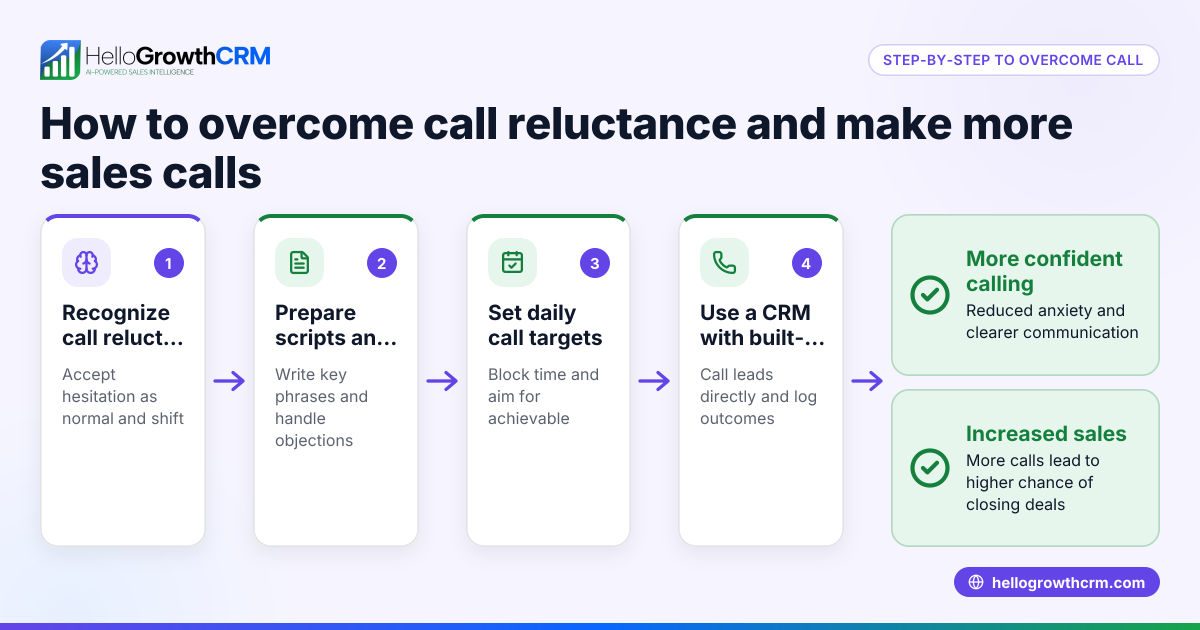
HelloGrowthCRM includes a built-in dialer that lets your sales reps call leads directly from inside the CRM. A rep works through a list within the CRM, and each call’s outcome is logged automatically on the lead’s record. This keeps your sales pipeline updated without switching apps or devices. Learn more about the built-in CRM dialer.
Frequently asked questions
Can I make calls from any browser? Most modern browsers like Chrome, Firefox, and Edge support browser calls via WebRTC. Some older or less common browsers might not support this. Check your browser’s compatibility before starting.
Do I need special hardware to call from the browser? You only need a microphone and speakers or a headset connected to your device. Most laptops and smartphones have these built-in.
Is calling from a browser secure? Browser calls use encrypted internet connections, but security depends on the calling service or CRM you use. Always use trusted platforms and secure networks.
How does calling from browser integrate with CRM workflows? Calling from the browser inside a CRM lets you log call outcomes, update lead statuses, and keep a full call history tied to contacts and deals. This improves follow-up and sales forecasting.
Can I use browser calling on mobile devices? Yes, if your mobile browser supports WebRTC and the calling platform is mobile-friendly, you can make calls from your phone’s browser.
Key takeaways
- Calling from browser means making phone calls over the internet using your web browser without a traditional phone.
- It improves sales efficiency by centralizing calls and lead management in one platform.
- Use a compatible browser, test audio devices, and ensure internet stability.
- Avoid common mistakes like not logging calls, using unsupported browsers, or ignoring permissions.
- HelloGrowthCRM’s built-in dialer supports calling leads from inside the CRM with automatic outcome logging.
Start making calls faster and keep your sales organized. Start on the Free Forever plan (200 leads, no credit card).
Ready to put this into practice?
Set up your pipeline, WhatsApp follow-ups, and AI lead scoring in minutes — free, no credit card.
Try HelloGrowthCRM freeGet CRM tips in your inbox
Join thousands of sales professionals who get weekly insights on CRM strategy, AI automation, and pipeline optimization.

The HelloGrowthCRM team publishes guides on CRM strategy, AI sales tools, and revenue operations for small business sales teams.