HelloGrowthCRM software
Built for real small-business sales teams
HelloGrowthCRM helps reps qualify faster, follow up on time, and close more deals—with practical automation in one place.
- AI lead scoring and pipeline visibility
- Built-in dialer, WhatsApp, and email automation
- Sales forecasting and RevOps-ready reporting
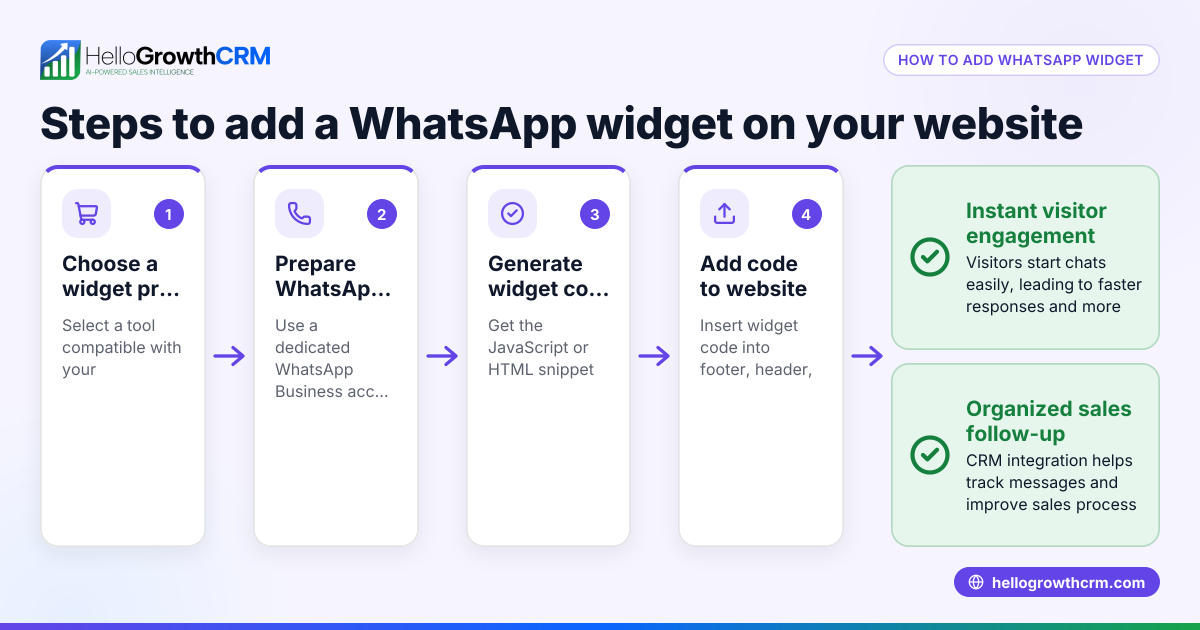
Adding WhatsApp chat to your website enables visitors to contact your business quickly and directly, improving lead engagement and sales follow-up. Canadian small business owners can add this feature themselves by creating a WhatsApp link or using a chat widget and embedding it into their site’s HTML.
Why this comes up / what goes wrong
Many small and mid-sized businesses in Canada communicate with leads using phone calls, emails, or text messages. These methods can delay responses and cause lost opportunities. Adding WhatsApp chat to a website offers a quick, familiar way for visitors to start conversations instantly. However, without clear instructions, business owners may struggle to format the phone number correctly, generate the proper link, embed the code properly, or place the chat button where visitors can easily find it.
Step-by-step
- Format your phone number:
- Use the international format without spaces or plus signs. For example, a British Columbia number (604) 555-1234 becomes 16045551234.
- Create your WhatsApp chat link:
- Use the URL format:
https://wa.me/<YourPhoneNumber>. - To add a pre-filled message, append
?text=YourMessagewith URL-encoded text.
- Decide how to add WhatsApp chat to your website:
- Simple clickable link or button: Embed a WhatsApp icon or text link that opens the chat.
- Floating chat widget: Use a third-party widget provider offering a floating WhatsApp chat button with customizable options.
- Embed the link or widget code:
- For a simple link, add HTML like
<a href="https://wa.me/16045551234" target="_blank">Chat on WhatsApp</a>in your website’s HTML where you want the chat to appear. - For a widget, copy the JavaScript or HTML snippet from the provider and paste it just before your website’s closing
</body>tag.
- Test the chat button:
- Open your website on desktop and mobile devices.
- Click the WhatsApp chat button or link.
- Confirm it opens WhatsApp or WhatsApp Web with your chat ready.
- Place the chat button visibly:
- Typical spots include the bottom right corner or website header.
- Ensure it does not cover important content or navigation.
- Keep your WhatsApp link updated:
- If your business phone number changes, update the link or widget accordingly.
Example (fictional figures)
A heating and cooling company in Surrey, British Columbia, "Surrey Cool Air", wants to add WhatsApp chat to its website on 2024-06-15.
- Their phone number is (778) 123-4567.
- Convert to international format: +1 778 123 4567 → 17781234567.
- They want a pre-filled message: "Hello Surrey Cool Air, I have a question about your services."
URL-encode the message: "Hello Surrey Cool Air, I have a question about your services." → "Hello%20Surrey%20Cool%20Air%2C%20I%20have%20a%20question%20about%20your%20services."
Create the WhatsApp link: https://wa.me/17781234567?text=Hello%20Surrey%20Cool%20Air%2C%20I%20have%20a%20question%20about%20your%20services.
Embed the link in HTML: <a href="https://wa.me/17781234567?text=Hello%20Surrey%20Cool%20Air%2C%20I%20have%20a%20question%20about%20your%20services." target="_blank">Chat with us on WhatsApp</a>
This code is added to the footer of their website.
Testing:
- Click the link on desktop or mobile.
- WhatsApp opens with the pre-filled message ready to send.
This simple addition helps Surrey Cool Air respond faster and capture leads directly.
Common mistakes
- Incorrect phone number format: Always use the full international number without plus signs or spaces to avoid broken links.
- Placing the chat button where it’s hard to find: Ensure the button is visible on all pages and devices, typically bottom right or header.
- Not testing on multiple devices: WhatsApp Web works on desktop, but users must have WhatsApp installed on mobile for full functionality.
- Forgetting to update the link after changing the phone number: This breaks communication and frustrates potential leads.
- Ignoring privacy notices: Inform visitors that clicking the chat button will open WhatsApp and that messages are handled securely.
Doing this in HelloGrowthCRM
HelloGrowthCRM supports WhatsApp and SMS messaging natively. When you engage leads through WhatsApp, conversations are logged on the lead record, and follow-ups can be sent as messages within the CRM. This helps your sales team keep track of WhatsApp chats alongside other communications. Learn more about WhatsApp and SMS CRM. You can also explore HelloGrowthCRM for Canada and its built-in CRM dialer to streamline your sales process.
Frequently asked questions
Can I add WhatsApp chat to any website platform? Yes, as long as you can edit your website’s HTML or use a widget plugin, you can add a WhatsApp chat link or button.
Do I need WhatsApp Business for this? No, but WhatsApp Business offers additional features for managing chats. The basic link works with both standard and Business accounts.
Will WhatsApp chat work on desktop computers? Yes, clicking the chat link opens WhatsApp Web if the user has it set up, or prompts to download WhatsApp.
Is it free to add WhatsApp chat to my website? Creating and embedding the WhatsApp chat link is free. Some third-party widget providers may charge for advanced features.
How do I handle multiple salespeople on WhatsApp? Using a CRM like HelloGrowthCRM can help log conversations and assign follow-ups to team members.
Key takeaways
- Format your WhatsApp link using the full international phone number without plus signs or spaces.
- Embed a clickable WhatsApp link or floating chat widget visibly on your website.
- Test the chat button on desktop and mobile devices before publishing.
- Update your WhatsApp link promptly if your business phone number changes.
- Use HelloGrowthCRM to log WhatsApp conversations and manage follow-ups efficiently.
Adding WhatsApp chat to your website is a simple way to connect with leads faster. To manage WhatsApp conversations and SMS in one place, try HelloGrowthCRM. Start on the Free Forever plan (200 leads, no credit card).
Ready to put this into practice?
Set up your pipeline, WhatsApp follow-ups, and AI lead scoring in minutes — free, no credit card.
Try HelloGrowthCRM freeGet CRM tips in your inbox
Join thousands of sales professionals who get weekly insights on CRM strategy, AI automation, and pipeline optimization.

The HelloGrowthCRM team publishes guides on CRM strategy, AI sales tools, and revenue operations for small business sales teams.