HelloGrowthCRM software
Built for real small-business sales teams
HelloGrowthCRM helps reps qualify faster, follow up on time, and close more deals—with practical automation in one place.
- AI lead scoring and pipeline visibility
- Built-in dialer, WhatsApp, and email automation
- Sales forecasting and RevOps-ready reporting
Adding WhatsApp chat to your website allows customers to reach you instantly on a channel they use daily. Many small New Zealand businesses want this feature to improve lead response times and customer engagement but don’t know exactly how to set it up. This guide walks you through every step, so you can add WhatsApp chat to your website today without guesswork.
Why this comes up / what goes wrong
Small business owners in New Zealand often rely on text messages, email, or spreadsheets to manage sales leads. This can slow down follow-up and lose potential customers. Adding WhatsApp chat to your website helps visitors contact you immediately without switching apps or searching for your number. However, the technical steps can be confusing: generating the right link, creating a clickable button, and embedding it correctly in your website’s code.
Many try copying a WhatsApp number without the correct link format or forget to check mobile responsiveness, leading to a poor user experience. This guide ensures you do it right the first time.
Step-by-step
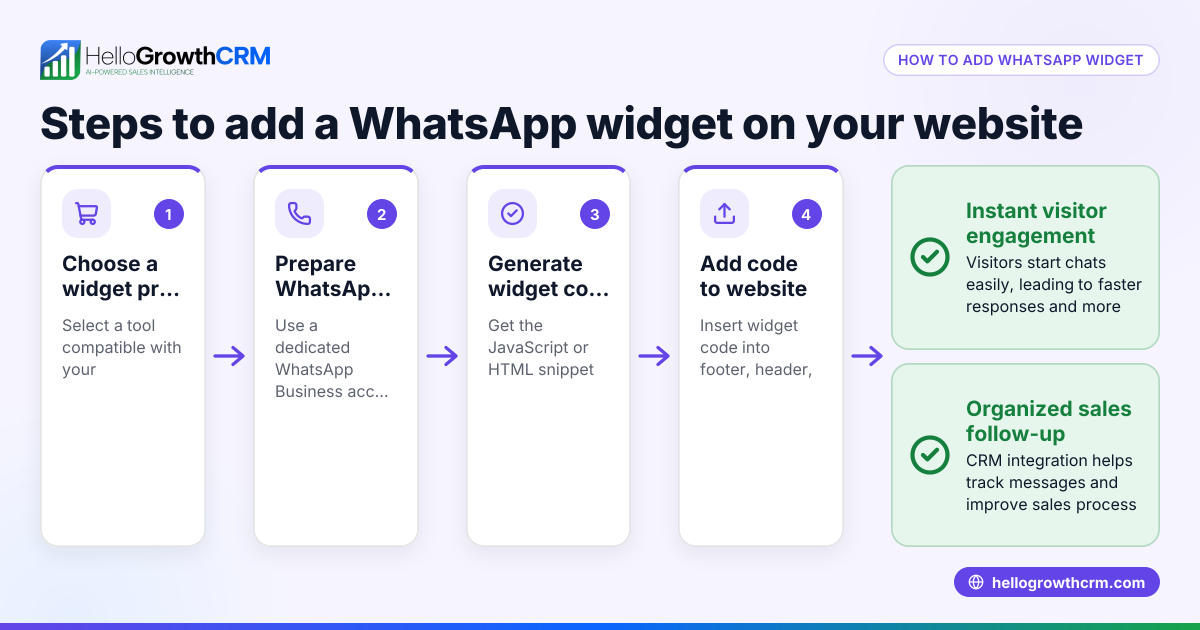
- Get your WhatsApp Business phone number
- Use your dedicated business number linked to WhatsApp Business or WhatsApp app.
- Check the number includes your New Zealand country code (+64) without the leading zero.
- Create a WhatsApp chat link
- Use the format:
https://wa.me/<number>where<number>is your full phone number with country code but no spaces or symbols. - Example: For number 021 123 4567, use
https://wa.me/64211234567.
- Add a pre-filled message (optional)
- Append
?text=Your%20message%20hereto the link to greet or prompt the visitor. - Example:
https://wa.me/64211234567?text=Hello%20I%20would%20like%20more%20info.
- Create a WhatsApp chat button or widget
- Design a clickable button with WhatsApp branding or use free online generators.
- Link the button’s URL to your WhatsApp chat link.
- Embed the button on your website
- Insert the button’s HTML code into your website’s header, footer, or contact page.
- For WordPress, use a custom HTML block or widget.
- For other platforms, add it into the site’s code where you want the button to appear.
- Test on desktop and mobile
- Click the button on desktop to see if it opens WhatsApp Web or the app.
- On mobile, ensure it opens the WhatsApp app directly.
- Make the button visible and accessible
- Position it where visitors can easily find it, such as bottom right corner.
- Ensure it does not block other important page elements.
- Maintain and update
- Regularly test the link and button after website updates.
- Update your phone number in the link if it changes.
Example (fictional figures)
Real Estate Agency in Auckland wants to add WhatsApp chat to their website. Their business number is 027 987 6543.
- Remove leading zero and add country code: 027 987 6543 → 64279876543
- Create the basic link:
https://wa.me/64279876543 - Add a pre-filled message:
https://wa.me/64279876543?text=Hi%20I%27m%20interested%20in%20your%20property%20listings - Design a button with the text “Chat with us on WhatsApp” linking to the above URL.
- Embed this button's HTML code into the website’s contact page.
- Test on desktop and mobile to confirm it opens WhatsApp chat.
This process took the agency about 30 minutes and cost no extra software fees.
Common mistakes
- Using incorrect phone number format: Always include +64 but remove the leading zero. Prevent by double-checking your number.
- Not testing on mobile: WhatsApp chat must open the app on mobile devices. Test on multiple devices.
- Button not visible or hidden: Position the chat button clearly, avoid overlaps with other elements.
- Link missing pre-filled message: Adding a greeting helps start the conversation. Use URL encoding for spaces and special characters.
- Embedding in the wrong website section: Place the button in a consistent, easy-to-find spot like the footer or floating corner.
Doing this in HelloGrowthCRM
HelloGrowthCRM supports WhatsApp and SMS messaging by logging WhatsApp conversations on each lead record. Follow-ups can be sent directly as WhatsApp messages from the CRM, keeping your team coordinated and responsive. Learn more about the WhatsApp and SMS CRM features that help New Zealand businesses engage leads faster. The CRM also includes a built-in CRM dialer to streamline calling, and HelloGrowthCRM is tailored for New Zealand businesses looking to improve sales workflows.
Frequently asked questions
Can I add WhatsApp chat to any website? Yes, as long as you can edit the website’s HTML or use a widget/plugin that supports custom links, you can add a WhatsApp chat button.
Is WhatsApp Business required to add chat to my website? No, but using WhatsApp Business is recommended because it offers business profiles and better customer interaction tools.
How do I make the WhatsApp chat button mobile-friendly? Use responsive design practices and test the button on various screen sizes. Place it where it does not interfere with other content.
Can I track WhatsApp chats from my website leads? Yes, with tools like HelloGrowthCRM, WhatsApp conversations with leads are logged and managed within the CRM, helping sales teams follow up effectively.
Is it free to add WhatsApp chat to my website? Creating and embedding a WhatsApp chat link is free. Some website builders or plugins may charge fees, but the basic setup costs nothing.
Key takeaways
- Use the format
https://wa.me/plus your NZ number without the leading zero. - Embed a clear, clickable WhatsApp chat button on your website.
- Test on both desktop and mobile devices.
- Avoid common mistakes like wrong number format or hidden buttons.
- HelloGrowthCRM logs WhatsApp chats and helps manage follow-ups efficiently.
Adding WhatsApp chat to your website is a straightforward way to improve customer contact and lead follow-up. Start today by creating your WhatsApp chat link and embedding it where your visitors can easily reach you.
Get started with HelloGrowthCRM’s WhatsApp and SMS features to manage your conversations and leads in one place. Start on the Free Forever plan (200 leads, no credit card).
Ready to put this into practice?
Set up your pipeline, WhatsApp follow-ups, and AI lead scoring in minutes — free, no credit card.
Try HelloGrowthCRM freeGet CRM tips in your inbox
Join thousands of sales professionals who get weekly insights on CRM strategy, AI automation, and pipeline optimization.

The HelloGrowthCRM team publishes guides on CRM strategy, AI sales tools, and revenue operations for small business sales teams.