HelloGrowthCRM software
Built for real small-business sales teams
HelloGrowthCRM helps reps qualify faster, follow up on time, and close more deals—with practical automation in one place.
- AI lead scoring and pipeline visibility
- Built-in dialer, WhatsApp, and email automation
- Sales forecasting and RevOps-ready reporting
Adding WhatsApp chat to a website lets your visitors contact you instantly, improving lead capture and customer engagement. For UAE small businesses, this is especially useful because many customers prefer WhatsApp for communication. This guide explains why you need WhatsApp chat on your site, how to add it step-by-step, common pitfalls, and how HelloGrowthCRM integrates WhatsApp messaging for sales teams.
Why this comes up / what goes wrong
Many UAE small-business owners rely on WhatsApp for sales and support but lose leads because website visitors have no direct WhatsApp contact option. Without an easy chat button, visitors leave without reaching out. Business owners often struggle to add WhatsApp chat because they don’t know how to generate the right link or embed it on their site. Some try copying their WhatsApp number as plain text, which doesn’t start a chat automatically. Others miss testing the link on mobile and desktop or forget to check that the chat works before going live.
Step-by-step
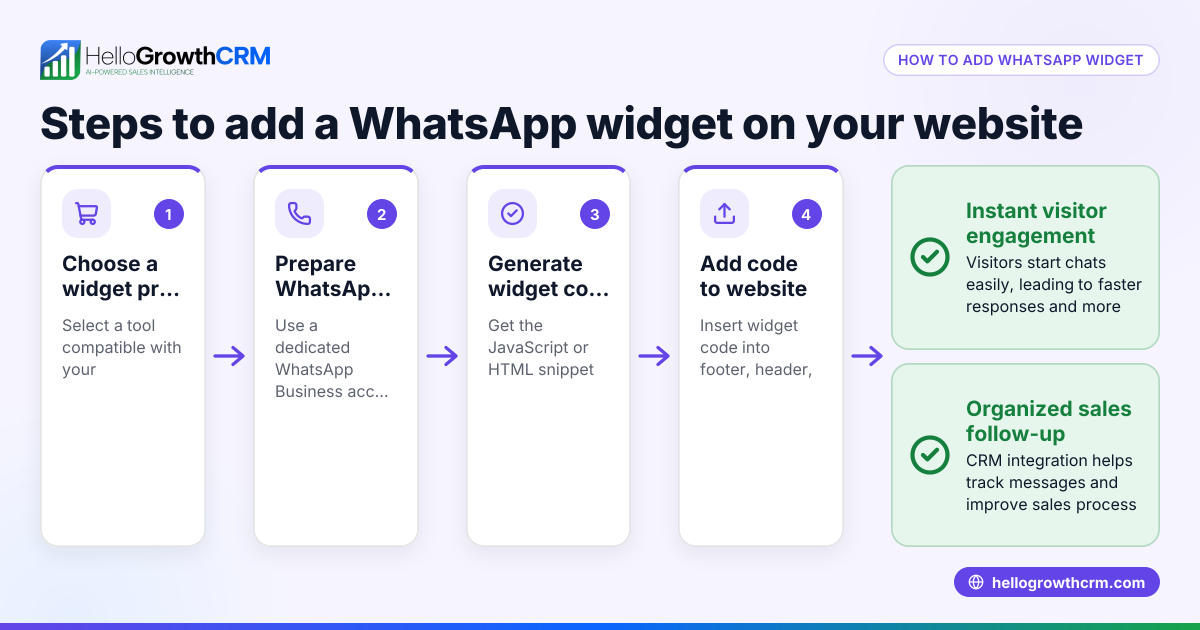
- Get a WhatsApp Business number
- Use your existing WhatsApp Business account or create one with your business phone number.
- Confirm the number is active and able to send/receive messages.
- Create a WhatsApp chat link
- Use the format:
https://wa.me/<phone_number>where<phone_number>is your full UAE number without plus signs or spaces. For example, for +971 50 123 4567, usehttps://wa.me/971501234567. - Optionally, add a default message so visitors see a pre-filled text. Append
?text=Your%20message%20herewith URL encoding.
- Generate a WhatsApp chat button or widget code
- Use free online WhatsApp widget generators or your website platform’s plugin.
- These tools create HTML or JavaScript code for a clickable WhatsApp icon or button.
- Embed the code on your website pages
- Insert the widget code into your website’s HTML, usually in the footer or sidebar.
- If using a website builder (like Wix, WordPress), add a custom HTML block and paste the code.
- Test the WhatsApp chat button
- Open your website on mobile and desktop.
- Click the WhatsApp button and confirm it opens WhatsApp or WhatsApp Web with your chat.
- Ensure your business hours and response plan are ready
- Let visitors know when you respond.
- Prepare quick replies or assign team members to handle chats.
Example (fictional figures)
Business Bay Business Setup Consultancy wants to add WhatsApp chat to their website on 15/06/2024.
- Their WhatsApp Business number is +971 55 987 6543.
- They create the link:
https://wa.me/971559876543?text=Hello%20Business%20Setup%20Team,%20I%20need%20consultancy%20services. - Using a widget generator, they create a chat button code.
- They add the code to the website footer.
- Testing on mobile, clicking the button opens WhatsApp with the pre-filled message.
This setup cost AED 0 as they used free tools and existing resources.
Common mistakes
- Using the wrong phone number format: Always use the full UAE number without plus signs or spaces to avoid broken links.
- Not testing on mobile and desktop: WhatsApp behaves differently on devices; test both to ensure functionality.
- Embedding code incorrectly: Place the widget code where it loads on all pages visitors use, typically the footer.
- Ignoring business hours: Visitors expect timely replies; clearly state your availability.
- Not integrating WhatsApp chats into sales workflows: Leads can be lost if chats aren’t tracked and followed up.
Doing this in HelloGrowthCRM
HelloGrowthCRM supports WhatsApp and SMS messaging by logging WhatsApp conversations on each lead’s record. Follow-ups can be sent as WhatsApp messages directly from the CRM, helping your sales team keep track of chats and respond promptly. Learn more about WhatsApp and SMS CRM and how HelloGrowthCRM fits UAE businesses at HelloGrowthCRM for the United Arab Emirates.
Frequently asked questions
Can I add WhatsApp chat to any website platform? Yes, whether your site is built on WordPress, Wix, Shopify, or custom HTML, you can add WhatsApp chat by embedding the appropriate link or widget code.
Do I need WhatsApp Business API for this? No, a WhatsApp Business number and the wa.me link are sufficient for basic chat buttons on your website. The API is for advanced automation and larger businesses.
How do I make sure visitors see the chat button? Place the chat button prominently on your website, such as in the bottom right corner or in the header/footer, and ensure it is visible on mobile and desktop.
Can HelloGrowthCRM help manage WhatsApp chats? Yes, HelloGrowthCRM logs WhatsApp conversations per lead and allows follow-up messages directly from the CRM, improving lead management and sales efficiency.
Is there a way to automate replies on WhatsApp? Basic chat buttons do not automate replies. For automation, you need WhatsApp Business API and approved templates, which HelloGrowthCRM can integrate with on higher plans.
Key takeaways
- Use the correct UAE phone number format in your WhatsApp chat link.
- Embed the WhatsApp chat button code on all key website pages.
- Test the chat button on both mobile and desktop before going live.
- Clearly communicate your business hours and response expectations.
- Use HelloGrowthCRM to log and follow up WhatsApp conversations with leads.
Adding WhatsApp chat to your website in the UAE is straightforward and boosts customer engagement. Start today by following these steps and improve how your business connects with visitors.
Ready to organise your WhatsApp chats and sales follow-ups? Start on the Free Forever plan (200 leads, no credit card) with HelloGrowthCRM.
Ready to put this into practice?
Set up your pipeline, WhatsApp follow-ups, and AI lead scoring in minutes — free, no credit card.
Try HelloGrowthCRM freeGet CRM tips in your inbox
Join thousands of sales professionals who get weekly insights on CRM strategy, AI automation, and pipeline optimization.

The HelloGrowthCRM team publishes guides on CRM strategy, AI sales tools, and revenue operations for small business sales teams.