HelloGrowthCRM software
Built for real small-business sales teams
HelloGrowthCRM helps reps qualify faster, follow up on time, and close more deals—with practical automation in one place.
- AI lead scoring and pipeline visibility
- Built-in dialer, WhatsApp, and email automation
- Sales forecasting and RevOps-ready reporting
To manage clinic appointment requests in Singapore effectively, you need a clear, organised process that captures patient requests quickly, confirms their details, schedules appointments without conflicts, and follows up with reminders. This article explains why appointment management is critical, provides step-by-step instructions, a worked example for a typical Singapore clinic, common pitfalls, and how HelloGrowthCRM’s scheduling tool can simplify this task.
Why this comes up / what goes wrong
Clinic owners and accountants in Singapore often face appointment management challenges because requests come through multiple channels like phone calls, WhatsApp, emails, or walk-ins. Without a centralised system, it’s easy to lose track of requests, double-book slots, or delay confirmations. This leads to frustrated patients, wasted staff time, and lost revenue. For busy clinics with 5 to 50 staff, manual tracking with spreadsheets or WhatsApp chats is common but error-prone.
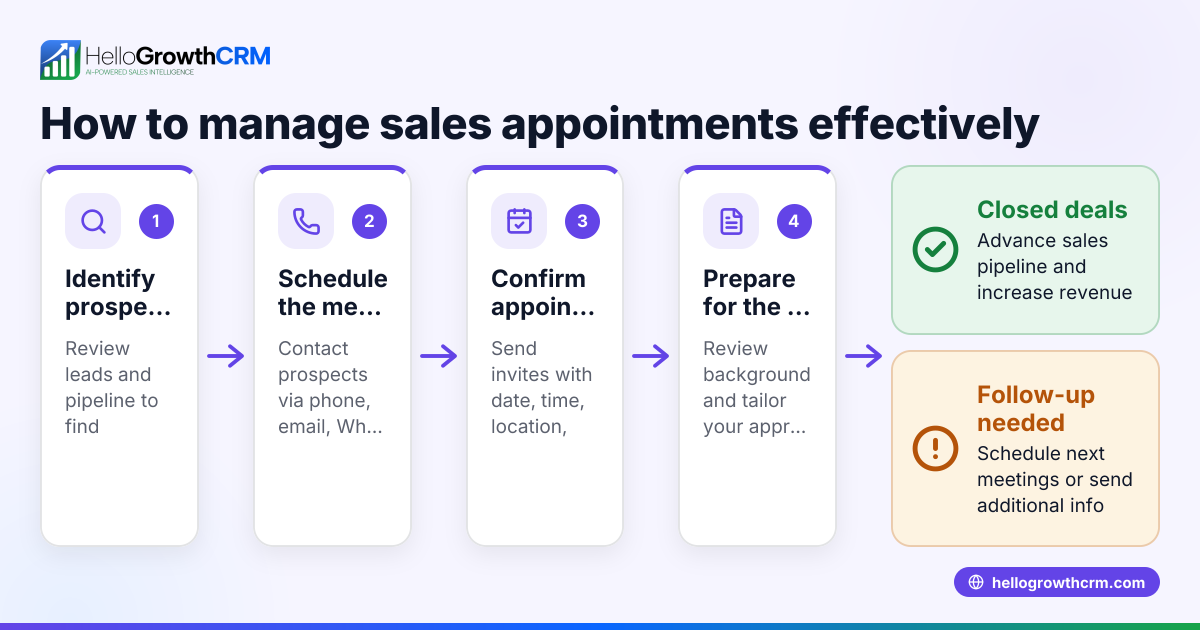
Step-by-step
- Collect Appointment Requests Promptly
- Use a dedicated phone line, WhatsApp business number, or online form.
- Record the patient’s full name, contact number, preferred date and time, and reason for visit.
- Check for completeness before proceeding.
- Verify Patient Details
- Confirm the patient’s identity and contact details.
- If the patient is new, note down any additional info like NRIC/FIN, medical history, or insurance.
- Check Appointment Availability
- Refer to your master appointment calendar.
- Avoid double-booking by confirming the requested slot is free.
- If not available, propose the nearest alternative slots.
- Schedule the Appointment
- Record the confirmed slot in your appointment book or digital calendar.
- Include patient details and reason for visit.
- Send Confirmation to Patient
- Use WhatsApp, SMS, or email to confirm the appointment date and time.
- Include clinic address, doctor’s name, and any preparation instructions.
- Set Reminders
- Schedule reminders 24 hours and 1 hour before the appointment.
- Use SMS or WhatsApp to reduce no-shows.
- Handle Rescheduling or Cancellations
- Update your calendar immediately upon any changes.
- Notify patients promptly and offer alternative slots.
- Review Daily Appointment Schedule
- At the start of each day, review all appointments.
- Check for any last-minute changes or no-shows from previous days.
Example (fictional figures)
A clinic in Novena receives an appointment request on 02/07/2024 from a patient named Lim Wei Ming who wants a slot on 05/07/2024 at 10:00 AM.
Step 1: Collect request details
- Patient: Lim Wei Ming
- Contact: 9123 4567
- Date/time requested: 05/07/2024, 10:00 AM
- Reason: General consultation
Step 2: Verify details
- Confirm contact number and patient name
Step 3: Check availability
- Check appointment calendar for 05/07/2024 at 10:00 AM
- Slot is available
Step 4: Schedule appointment
- Add Lim Wei Ming to calendar at 10:00 AM on 05/07/2024
Step 5: Send confirmation
- Message sent via WhatsApp: "Your appointment on 05/07/2024 at 10:00 AM with Dr Tan is confirmed. Clinic address: 123 Novena Road. Please arrive 10 minutes early."
Step 6: Set reminders
- Schedule reminder 24 hours before: 04/07/2024, 10:00 AM
- Schedule reminder 1 hour before: 05/07/2024, 9:00 AM
Step 7: Reschedule if needed
- If patient calls to change to 06/07/2024, update calendar and confirm new slot
Step 8: Review daily schedule
- On 05/07/2024 morning, check all appointments and confirm no last-minute changes
Common mistakes
- Failing to centralise appointment requests: Leads to lost or duplicated bookings. Use one calendar or booking system.
- Not confirming patient details upfront: Causes confusion and delays. Always verify contact info immediately.
- Double-booking slots: Avoid by checking availability before confirming.
- No reminders sent: Increases no-shows. Set automated reminders via SMS or WhatsApp.
- Delayed responses to rescheduling: Upsets patients. Update and notify promptly.
- Relying on manual tracking with spreadsheets or WhatsApp chats: Prone to errors and inefficiency. Consider a scheduling tool.
Doing this in HelloGrowthCRM
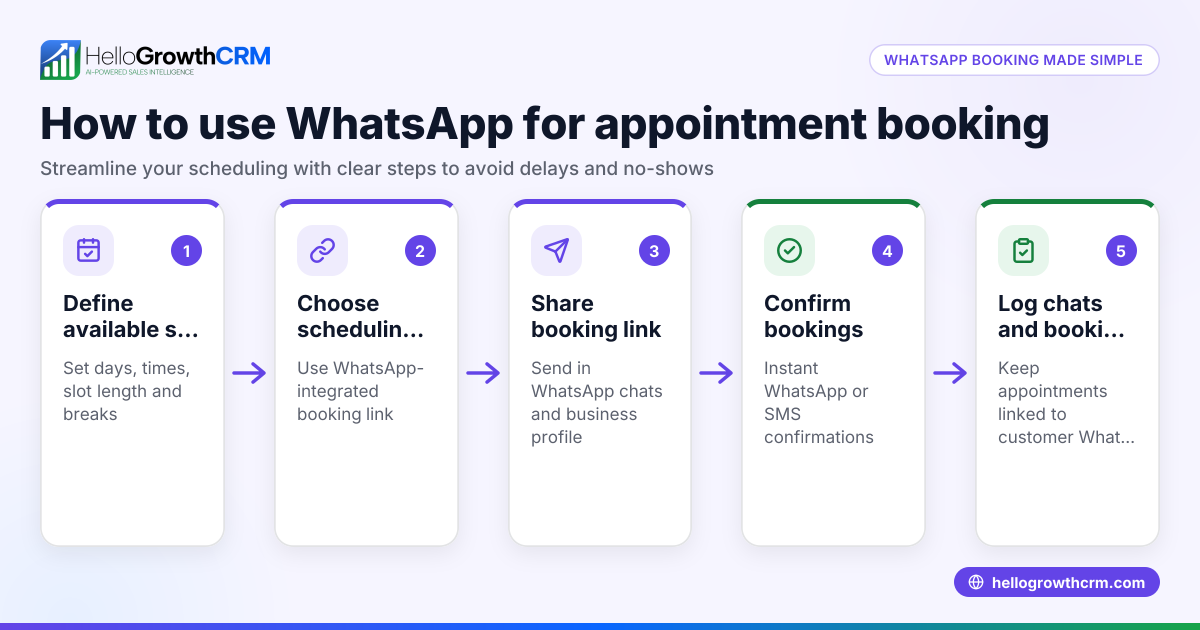
HelloGrowthCRM offers scheduling and booking pages that let patients pick an appointment slot from a link, eliminating back-and-forth messaging on WhatsApp. This streamlines booking, reduces errors, and improves patient experience. For Singapore clinics, labs and healthcare providers, this can save time and prevent double bookings. Learn more about the meeting scheduler feature.
Frequently asked questions
How can I reduce no-shows for clinic appointments? Sending reminders via WhatsApp or SMS 24 hours and 1 hour before appointments helps patients remember. Confirming appointments promptly and allowing easy rescheduling also reduces no-shows.
What is the best way to handle walk-in appointment requests? Record walk-in requests immediately in your appointment calendar. If the requested slot is unavailable, offer the next available time. Using a digital calendar or scheduling tool helps keep track.
How do I manage appointment requests coming from multiple channels? Centralise all requests in one system or calendar. If you use WhatsApp, phone, email and in-person requests, consolidate them daily to avoid double bookings. HelloGrowthCRM can help by integrating WhatsApp-based scheduling.
Can I let patients book appointments online directly? Yes, using scheduling pages like the one in HelloGrowthCRM, patients can pick available slots themselves. This reduces staff workload and speeds up booking.
How often should I review my appointment schedule? Review your daily schedule at the start of each day and after any changes. This ensures you catch cancellations or reschedules early and can adjust accordingly.
Key takeaways
- Collect and verify patient details immediately upon request.
- Use a centralised calendar to avoid double bookings.
- Confirm appointments with patients promptly via WhatsApp or SMS.
- Send automated reminders to reduce no-shows.
- Update your schedule immediately when appointments change.
- Consider using HelloGrowthCRM’s scheduling tool to simplify booking.
To start managing your clinic appointment requests more efficiently, consider trying HelloGrowthCRM’s scheduling feature. Start on the Free Forever plan (200 leads, no credit card).
Ready to put this into practice?
Set up your pipeline, WhatsApp follow-ups, and AI lead scoring in minutes — free, no credit card.
Try HelloGrowthCRM freeGet CRM tips in your inbox
Join thousands of sales professionals who get weekly insights on CRM strategy, AI automation, and pipeline optimization.

The HelloGrowthCRM team publishes guides on CRM strategy, AI sales tools, and revenue operations for small business sales teams.