HelloGrowthCRM software
Built for real small-business sales teams
HelloGrowthCRM helps reps qualify faster, follow up on time, and close more deals—with practical automation in one place.
- AI lead scoring and pipeline visibility
- Built-in dialer, WhatsApp, and email automation
- Sales forecasting and RevOps-ready reporting
Moving your business data from Excel spreadsheets into a CRM system can improve your sales follow-up and pipeline management. This guide explains why Canadian small businesses make this change, provides detailed step-by-step instructions, highlights common errors, offers a worked example with Canadian dollars, and outlines how HelloGrowthCRM features can help your team.
Why this comes up / what goes wrong
Many small businesses in Canada start tracking leads, contacts, and sales pipelines using Excel because it is familiar and flexible. However, Excel lacks automation, real-time collaboration, and integration with communication channels such as WhatsApp and SMS. As a result, businesses often experience slow follow-up, lost leads, and errors.
Business owners realize they need a CRM to improve lead management, automate follow-ups, and gain clear pipeline visibility. But moving data from Excel to a CRM requires careful preparation to avoid data loss or mismatches.
Step-by-step
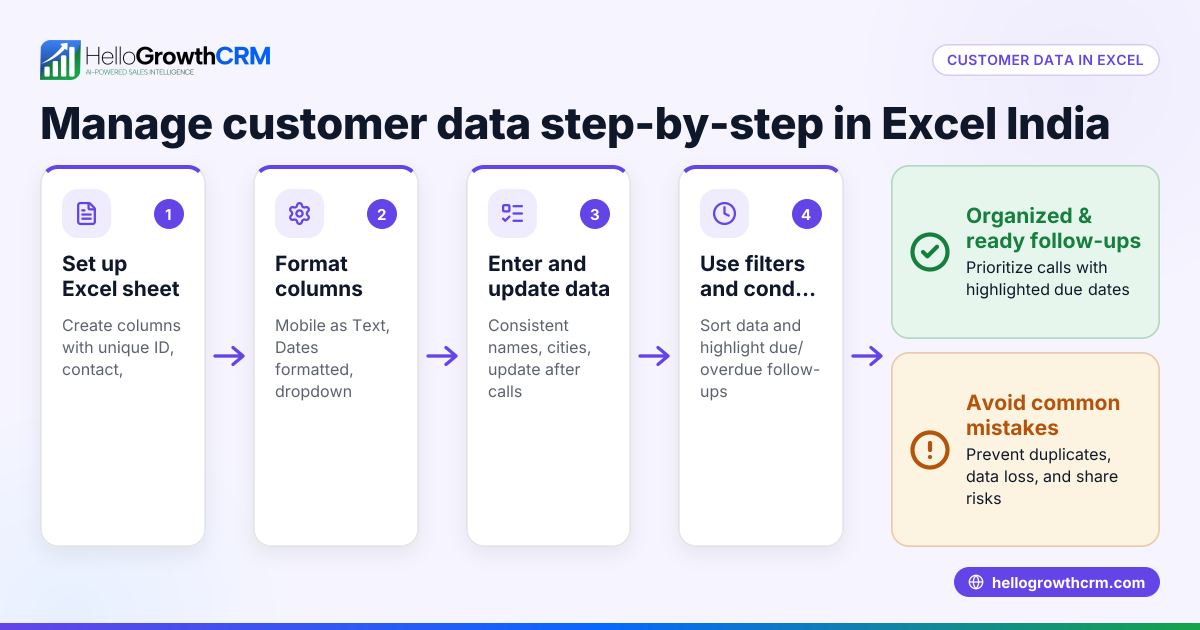
- Review your Excel data: Open your Excel file and identify key columns such as lead name, phone number, email, company, status, and notes.
- Clean your data: Remove duplicate entries, fix inconsistent phone number formats (include area codes), standardize dates, and fill in missing required information.
- Match Excel columns to CRM fields: Check your CRM’s field list or import template. Map each Excel column to a CRM field (e.g., Excel "Phone" to CRM "Phone Number").
- Export your Excel file as CSV: Save the cleaned and mapped Excel file as a CSV (comma-separated values) file, the most common format for CRM imports.
- Import the CSV into your CRM: Use your CRM’s import tool to upload the CSV file. Carefully verify the field mappings during import and run any validation checks.
- Verify imported data: Check a sample of imported records in the CRM to confirm data accuracy.
- Set up CRM workflows: Create follow-up tasks, email or message sequences, and pipeline stages to replace manual Excel tracking.
- Train your team: Ensure everyone understands how to use the CRM for daily sales and lead management tasks.
For CRM options with WhatsApp and SMS messaging, see WhatsApp and SMS CRM.
Example (fictional figures)
A mortgage brokerage in Mississauga, Ontario, wants to move 1,000 leads from Excel to a CRM on 2024-06-10.
- Excel columns: Lead Name, Phone, Email, Status, Last Contact Date.
- They remove 50 duplicate leads.
- They standardize phone numbers to include area code 905.
- Remaining leads: 1,000 - 50 = 950.
- They map Excel columns to CRM fields exactly.
- Export CSV file named "MortgageLeads_2024-06-10.csv".
- Import into the CRM and check 20 sample records for accuracy.
Calculations:
1,000 leads - 50 duplicates = 950 clean leads
The brokerage sets up follow-up tasks for leads with "Status" = "Contacted" and automates WhatsApp messages for new leads.
Common mistakes
- Skipping data cleaning: Causes duplicates or incorrect contacts. Prevent by thoroughly cleaning before export.
- Ignoring field mapping: Leads to data in wrong fields or loss. Double-check CRM import mappings.
- Not backing up Excel data: Risk of losing data if import fails. Always save a backup copy.
- Importing too large a file at once: Some CRMs limit file size. Split large files if needed.
- Not training the team: Causes fallback to Excel. Provide proper CRM training.
- Overlooking CRM features like WhatsApp integration: Missing automation benefits. Explore options like HelloGrowthCRM’s WhatsApp and SMS CRM (/product/whatsapp-sms-crm).
Doing this in HelloGrowthCRM
HelloGrowthCRM supports WhatsApp and SMS messaging where conversations with leads are automatically logged on the lead record, and follow-ups can be sent as messages. Its AI agents (Beta on the Growth plan) draft follow-up messages after calls so sales reps only review and send, saving time. The Free Forever plan lets a two-person team manage up to 200 leads with a full Kanban pipeline and task boards at no cost until calling or WhatsApp automation features are needed. Learn more about HelloGrowthCRM for Canada (/canada).
Frequently asked questions
Can I import Excel data directly into HelloGrowthCRM? You need to export your Excel data as a CSV file first, then use your CRM’s import tool to upload it. Make sure to clean and map your data correctly before importing.
What if my Excel file has missing or inconsistent data? Clean your Excel file before import by filling missing required fields, removing duplicates, and standardizing formats like phone numbers to avoid errors.
How does HelloGrowthCRM help with follow-ups after import? HelloGrowthCRM logs WhatsApp conversations on lead records and allows sending follow-ups via WhatsApp and SMS. Its AI agents draft follow-up messages after calls to streamline sales.
Is there a limit to how many leads I can manage on the Free Forever plan? The Free Forever plan supports up to 200 leads. If your Excel file has more, consider upgrading or importing in batches.
Can I integrate HelloGrowthCRM with other tools? Yes, HelloGrowthCRM supports lead capture from web forms and integrations, helping centralize your sales data beyond Excel imports.
For more about HelloGrowthCRM’s built-in dialer, see built-in CRM dialer.
Key takeaways
- Clean and prepare Excel data before export.
- Export as CSV and carefully map fields to CRM.
- Verify imported data and set up workflows.
- Train your team to use the CRM fully.
- Avoid common mistakes like skipping cleaning or field mapping.
- Explore CRM features like WhatsApp/SMS messaging and AI-assisted follow-ups.
Start moving your leads from Excel into a CRM today to improve follow-up and pipeline visibility. You can start on the Free Forever plan (200 leads, no credit card) and explore how HelloGrowthCRM fits your Canadian small business needs.
Ready to put this into practice?
Set up your pipeline, WhatsApp follow-ups, and AI lead scoring in minutes — free, no credit card.
Try HelloGrowthCRM freeGet CRM tips in your inbox
Join thousands of sales professionals who get weekly insights on CRM strategy, AI automation, and pipeline optimization.

The HelloGrowthCRM team publishes guides on CRM strategy, AI sales tools, and revenue operations for small business sales teams.