HelloGrowthCRM software
Built for real small-business sales teams
HelloGrowthCRM helps reps qualify faster, follow up on time, and close more deals—with practical automation in one place.
- AI lead scoring and pipeline visibility
- Built-in dialer, WhatsApp, and email automation
- Sales forecasting and RevOps-ready reporting
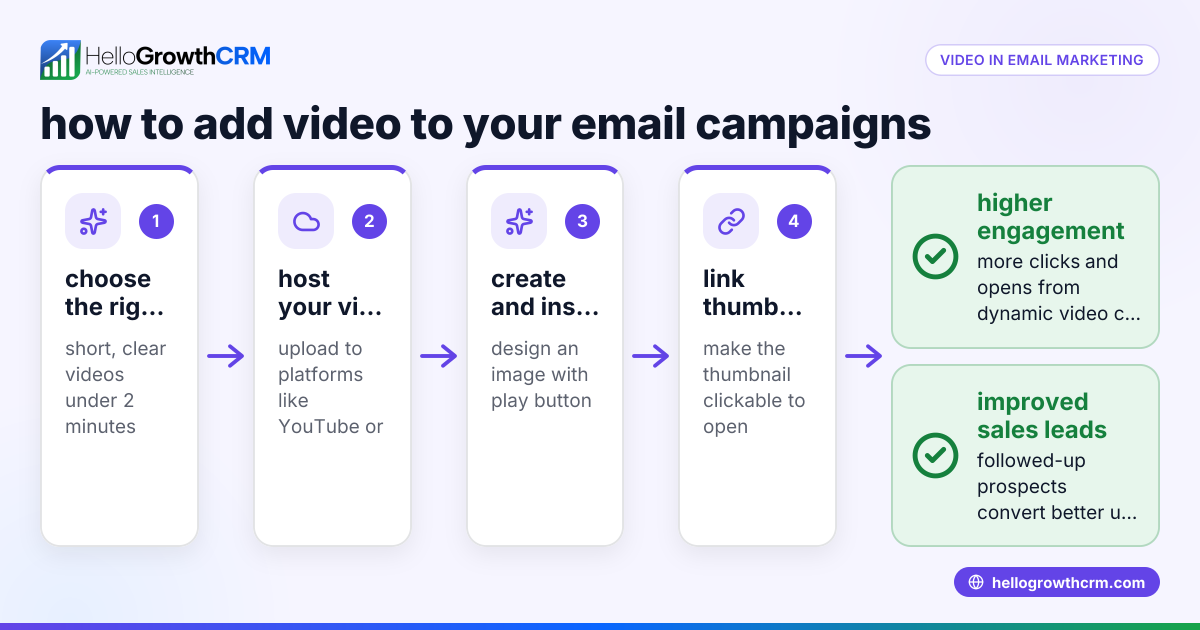
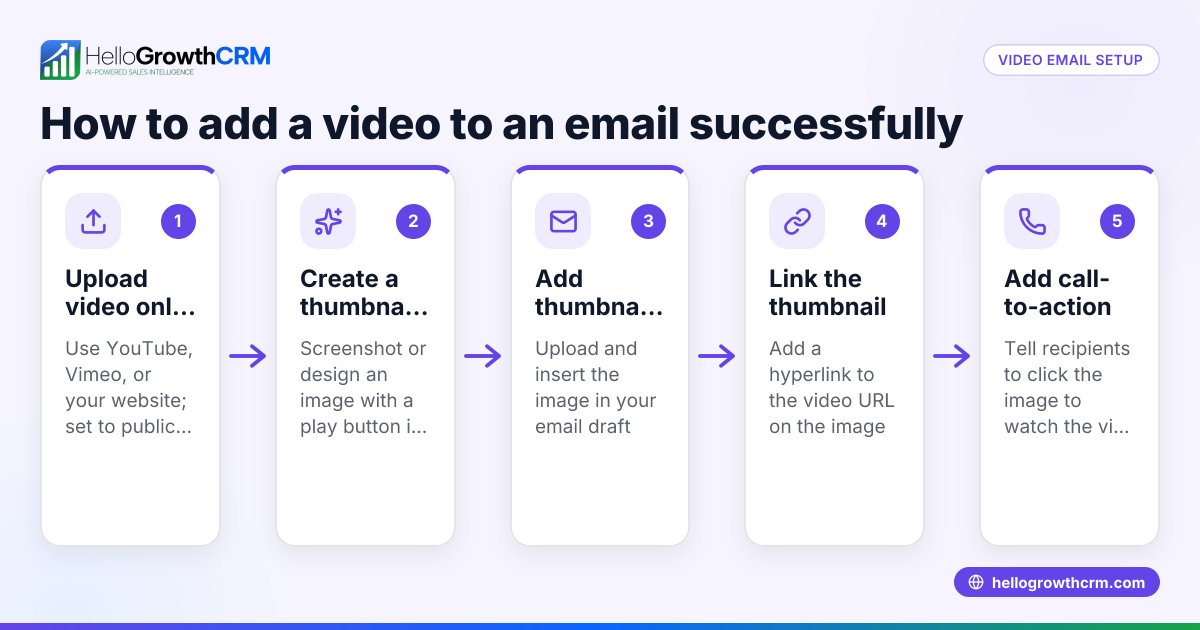
To send an MP4 video file via email, start by checking its file size. Most email services limit attachments to around 25 MB. If your MP4 is smaller than this limit, you can attach it directly to your email and send it. If it’s larger, upload the file to a cloud storage service such as Google Drive or Dropbox, then include the shareable link in your email message.
Why this comes up / what goes wrong
Small-business owners often need to share promotional videos, product demos, or recorded meetings with clients or team members. MP4 is a common video format, but video files can be large and quickly exceed email size limits. Attempting to send large MP4s directly can cause emails to bounce or fail to deliver. Without knowing alternative methods, you may waste time sending multiple emails or confuse recipients with several downloads.
For example, a sales team might want to email a product demo video to prospects. If the video is too large, the email may not send, delaying follow-up and potentially losing interest. Knowing how to send MP4s properly saves time and improves communication.
Step-by-step
- Check the MP4 file size. Locate the MP4 on your computer, right-click and select Properties (Windows) or Get Info (Mac) to see the file size.
- If under 25 MB, attach directly. Open your email client, compose a new message, click the attach button, select the MP4 file, and upload it.
- If over 25 MB, upload to cloud storage. Use Google Drive, Dropbox, OneDrive, or another service. Upload your MP4 file there.
- Create a shareable link. In your cloud storage, right-click the uploaded video and select “Get shareable link” or “Share.” Set permissions so anyone with the link can view.
- Insert the link in your email. Compose your email, paste the link, and add instructions if needed (e.g., “Click to view the video”).
- Test the link before sending. Open the link in a private browser or different device to confirm it works and is accessible without sign-in.
- Send your email. Double-check the recipient’s address and send.
After sending video emails, managing follow-ups is important. You can use email automation and sequences to keep track of responses without manual effort. HelloGrowthCRM offers features to keep your sales process efficient and organized. Learn more about email automation and sequences.
Example (fictional figures)
A landscaping contractor in Charlotte, North Carolina, wants to send a 40 MB MP4 video showcasing a recent project to a potential client on 06/15/2026.
- The file size is 40 MB, which exceeds the typical 25 MB email limit.
- The contractor uploads the MP4 to Google Drive.
- Google Drive generates a shareable link: https://drive.google.com/abc123
- The contractor composes an email: "Hello, please view our recent landscaping project here: https://drive.google.com/abc123"
The contractor avoids sending a large attachment and instead shares the video via a link, ensuring smooth delivery.
Additionally, the contractor estimates the cost savings by avoiding multiple emails due to bounced messages. Assume each bounced email costs $5 in lost time and effort, and the contractor avoids 3 bounced emails by using the cloud link:
$5 × 3 = $15 saved
This simple step saves $15 in communication costs and avoids frustrating delays.
Common mistakes
- Trying to send large MP4 files directly. Prevent by always checking the file size before attaching.
- Not setting proper sharing permissions on cloud links. Prevent by confirming link access settings so recipients can view without signing in.
- Forgetting to test the link. Prevent by opening the link in an incognito window or on another device.
- Sending multiple large emails to the same recipient. Prevent by consolidating files or using a single cloud link.
- Ignoring follow-up after sending. Prevent by using email sequences to automate reminders and track replies.
Using a CRM with email sequences and a shared inbox helps avoid missed follow-ups. See how WhatsApp and SMS CRM can also support your communication.
Doing this in HelloGrowthCRM
HelloGrowthCRM’s HelloMail shared inbox lets your team see all replies to emails, including those with video links, so no reply is missed on any deal. Its sequences and campaigns feature automates follow-up emails over two weeks, stopping immediately once the prospect replies, saving time and improving response rates. Learn more about managing emails in HelloGrowthCRM at email automation and sequences.
Frequently asked questions
Can I send MP4 files larger than 25 MB via email? Most email providers limit attachments to about 25 MB. For larger MP4 files, upload them to cloud storage and share a link in your email.
What cloud storage services work best for sharing MP4s? Google Drive, Dropbox, and OneDrive are popular and easy to use. They provide shareable links with adjustable permissions.
Will recipients need an account to view the MP4 link? You can set sharing permissions so anyone with the link can view without signing in, making access simple for recipients.
How can I follow up after sending an MP4 via email? Use email automation tools or CRM sequences to schedule follow-ups and track replies automatically, saving manual effort.
Is there a way to manage replies from video emails efficiently? HelloMail shared inbox shows all replies in one place for your team, preventing missed responses.
Key takeaways
- Check MP4 file size before emailing; 25 MB is a common limit.
- Use cloud storage and share links for files larger than 25 MB.
- Confirm sharing permissions and test links before sending.
- Avoid sending multiple large attachments; consolidate with cloud links.
- Use email sequences to automate follow-up and improve response.
- Shared inboxes help teams manage replies efficiently.
Start sending MP4 videos via email confidently and keep your communications organized with HelloGrowthCRM. Start on the Free Forever plan (200 leads, no credit card) today.
Ready to put this into practice?
Set up your pipeline, WhatsApp follow-ups, and AI lead scoring in minutes — free, no credit card.
Try HelloGrowthCRM freeGet CRM tips in your inbox
Join thousands of sales professionals who get weekly insights on CRM strategy, AI automation, and pipeline optimization.

The HelloGrowthCRM team publishes guides on CRM strategy, AI sales tools, and revenue operations for small business sales teams.