HelloGrowthCRM software
Built for real small-business sales teams
HelloGrowthCRM helps reps qualify faster, follow up on time, and close more deals—with practical automation in one place.
- AI lead scoring and pipeline visibility
- Built-in dialer, WhatsApp, and email automation
- Sales forecasting and RevOps-ready reporting
To add a video to an email, you usually cannot embed the actual video file because most email services block video playback for security and compatibility reasons. Instead, you create a clickable image thumbnail linked to the video hosted on a platform like YouTube, Vimeo, or your own website. When recipients click the image, they are taken to the video online. This article explains why this method is necessary, guides you through the process step-by-step, provides a worked example, highlights common mistakes, and shows how HelloGrowthCRM’s email automation features can support your outreach.
Why this comes up / what goes wrong
Small business owners often want to add videos to emails to engage leads or customers more effectively. However, they find that attaching video files or embedding videos directly in emails often results in broken links, blocked content, or emails landing in spam. Email clients like Gmail, Outlook, and Apple Mail have limited or no support for embedded video playback. This leads to frustration and lost engagement opportunities. Using a clickable thumbnail linked to an online video avoids these issues and ensures recipients can view the video on any device.
Step-by-step
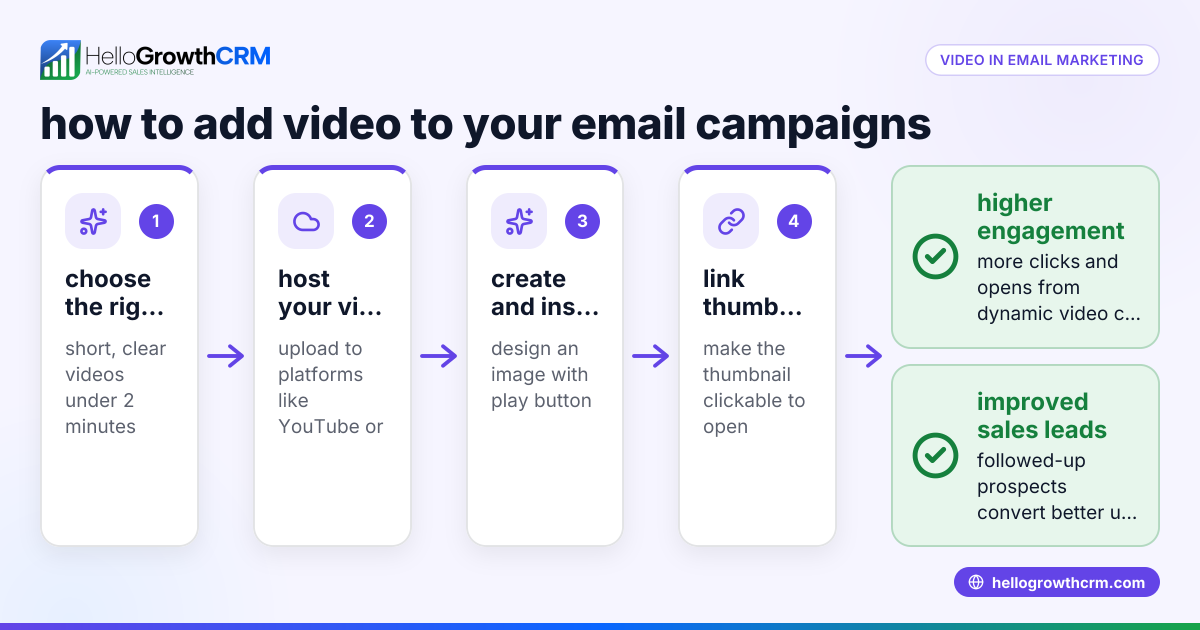
- Choose your video hosting platform: Upload your video to a platform such as YouTube, Vimeo, or your company website. Make sure the video is set to public or unlisted so your recipients can access it.
- Create a thumbnail image: Take a screenshot or design an image representing the video. Include a play button icon on the image to indicate it’s a video.
- Upload the thumbnail image to your email platform or hosting service: This ensures the image displays properly in your email.
- Insert the thumbnail image in your email draft: Use your email client’s insert image feature to place the thumbnail where you want it.
- Link the thumbnail image to the video URL: Highlight the image and add a hyperlink pointing to the video’s web address.
- Add a clear call-to-action (CTA): Include text like “Click the image to watch the video” near the thumbnail to guide recipients.
- Test your email: Send a test email to yourself and check that the image displays correctly and clicking it opens the video in a new tab.
- Send to your list: Once confirmed, send the email to your leads or customers.
Example (fictional figures)
A residential real-estate team in Phoenix, Arizona, wants to email a video tour of a new property listing on 06/15/2026. The video is uploaded to YouTube and set as unlisted.
- Step 1: Upload video to YouTube and copy the URL: https://youtu.be/abc123XYZ
- Step 2: Capture a screenshot of the video showing the living room.
- Step 3: Add a red play button icon on the screenshot using a simple graphic editor.
- Step 4: Upload the thumbnail image to their email platform.
- Step 5: Insert the thumbnail into the email draft.
- Step 6: Link the thumbnail to https://youtu.be/abc123XYZ.
- Step 7: Add text below the image: "Click the image to watch the full home tour."
- Step 8: Send a test email to the team’s manager and confirm the image and link work.
This process costs no extra money but improves engagement by making the video easy to access.
Common mistakes
- Embedding the actual video file: Most email clients block video playback. Instead, use a linked thumbnail.
- Not adding a play button icon on the thumbnail: Recipients might not realize the image is a video link. Always add a clear play icon.
- Linking to a private or restricted video: Ensure the video is public or unlisted so recipients can view it.
- Forgetting to test the email: Always send test emails to check image display and link functionality.
- Using a large image file: Large images slow email loading. Optimize the thumbnail image size for quick loading.
- No clear call-to-action: Tell recipients what to do with the image to improve click-through rates.
Doing this in HelloGrowthCRM
HelloGrowthCRM offers a shared inbox called HelloMail, where your team can manage inbound email replies collaboratively, making it easier to track responses to emails containing video links. Additionally, you can set up sequences and campaigns to automate follow-up emails over two weeks, which stop automatically when a prospect replies. This helps you nurture leads who engage with your video content without manual effort. Learn more about email automation and sequences.
Frequently asked questions
Can I embed a video file directly into an email? Most email clients do not support direct video embedding due to security and compatibility reasons. Instead, use a clickable thumbnail image linked to an online video.
What video hosting platforms work best for email videos? Popular platforms like YouTube and Vimeo are widely supported. You can also host videos on your own website if you have a reliable streaming setup.
How do I make sure my video link works for all recipients? Set your video to public or unlisted, not private. Test the email on different devices and email clients before sending.
Can HelloGrowthCRM help with sending video emails? Yes, HelloGrowthCRM supports email sequences and shared inbox management, which help you automate follow-ups and collaborate on replies to video emails. See HelloGrowthCRM for the United States and WhatsApp and SMS CRM for more.
What if my email recipients don’t click the video link? Use clear calls-to-action and engaging thumbnail images to encourage clicks. Automated follow-ups with HelloGrowthCRM sequences can also help.
Key takeaways
- Most email clients block direct video playback, so use a clickable thumbnail linked to an online video.
- Create a clear thumbnail with a play button icon and link it to a public or unlisted video.
- Test your email on multiple devices and clients before sending.
- Avoid large image files and add a clear call-to-action.
- Use HelloGrowthCRM’s email automation and shared inbox to manage follow-ups efficiently.
Start adding videos to your emails today to boost engagement. You can Start on the Free Forever plan (200 leads, no credit card) with HelloGrowthCRM and streamline your email outreach with sequences and shared inbox features.
Ready to put this into practice?
Set up your pipeline, WhatsApp follow-ups, and AI lead scoring in minutes — free, no credit card.
Try HelloGrowthCRM freeGet CRM tips in your inbox
Join thousands of sales professionals who get weekly insights on CRM strategy, AI automation, and pipeline optimization.

The HelloGrowthCRM team publishes guides on CRM strategy, AI sales tools, and revenue operations for small business sales teams.