HelloGrowthCRM software
Built for real small-business sales teams
HelloGrowthCRM helps reps qualify faster, follow up on time, and close more deals—with practical automation in one place.
- AI lead scoring and pipeline visibility
- Built-in dialer, WhatsApp, and email automation
- Sales forecasting and RevOps-ready reporting
Creating WhatsApp message templates in Singapore requires drafting your message according to WhatsApp’s rules, submitting it for approval through Facebook Business Manager, and then using the approved templates to communicate efficiently with customers. This article explains why templates are important, provides a clear step-by-step guide, a worked example with Singapore business figures, common mistakes to avoid, and how HelloGrowthCRM supports WhatsApp messaging workflows.
Why this comes up / what goes wrong
Many small and mid-sized business owners in Singapore use WhatsApp for customer communication and sales. Without message templates, sending repetitive messages manually wastes time and risks inconsistent wording. WhatsApp requires pre-approved message templates for certain types of messages such as notifications, appointment reminders, or follow-ups. The template creation and approval process involves specific formatting rules and submission through Facebook Business Manager, which can be confusing. If templates are not created properly, messages may be rejected or delayed, causing lost leads or unhappy customers.
Step-by-step
- Log in to Facebook Business Manager: Use your Facebook Business Manager account linked to your WhatsApp Business account. Ensure you have admin access.
- Go to WhatsApp Manager: Within Business Manager, navigate to WhatsApp Manager where your WhatsApp Business account is set up.
- Select Message Templates: Find the section labelled "Message Templates" or "Message Template Management".
- Click "Create Template": Start a new template. Choose the template category: Marketing, Utility, or Transactional. Transactional templates are for non-promotional messages like appointment reminders.
- Name your template: Use a simple name with only lowercase letters, numbers, and underscores. Avoid spaces or special characters.
- Choose the language: Select English (Singapore) or the appropriate language for your customers.
- Write the message content: Compose your message using plain text, emojis allowed by WhatsApp, and numbered placeholders like {{1}}, {{2}} for names, dates, or other variables. For example, "Hello {{1}}, your appointment is on {{2}} at {{3}}. Reply YES to confirm."
- Add buttons (optional): You may add quick reply or call-to-action buttons if needed.
- Review WhatsApp policies: Check that your message complies with WhatsApp’s Commerce and Business policies. Avoid promotional language in transactional templates.
- Submit for approval: Send your template for WhatsApp’s review. Approval can take from a few minutes up to 24 hours.
- Monitor approval status: Check regularly. If rejected, WhatsApp usually provides reasons so you can adjust and resubmit.
- Use approved templates: Once approved, send messages using these templates via WhatsApp Business API or a CRM platform.
To organise your WhatsApp follow-ups and pipeline management, you can download free sales templates and free sales tools and calculators without signing up.
Example (fictional figures)
An interior design studio in Tanjong Pagar wants to send appointment reminders via WhatsApp using templates.
- Template name: appointment_reminder
- Language: English (Singapore)
- Message: "Hello {{1}}, this is a reminder for your interior design consultation on {{2}} at {{3}}. Reply YES to confirm or call us at {{4}}."
Steps:
- Create template named "appointment_reminder"
- Select English (Singapore)
- Write message with placeholders for customer name, date, time, and contact number
- Submit on 15/06/2024
- Approved on 16/06/2024
The studio sends reminders using this template:
- Replace {{1}} with "Ms Tan"
- Replace {{2}} with "20/06/2024"
- Replace {{3}} with "3pm"
- Replace {{4}} with "+65 9123 4567"
Calculating the cost savings:
- Without templates, each reminder takes 5 minutes to type manually.
- Studio sends 20 reminders per week.
- Time spent weekly: 20 × 5 minutes = 100 minutes = 1 hour 40 minutes
- Using templates reduces typing time to 1 minute per message.
- Time spent weekly with templates: 20 × 1 minute = 20 minutes
- Time saved weekly: 100 minutes - 20 minutes = 80 minutes
If the studio values staff time at S$30 per hour:
S$30 × (80 minutes ÷ 60) = S$40 saved weekly
Over a month (4 weeks):
S$40 × 4 = S$160 saved
This example shows how templates save time and money.
Common mistakes
- Ignoring WhatsApp’s template rules: Using promotional language in transactional templates causes rejection. Prevent this by carefully reviewing WhatsApp’s policies before submission.
- Incorrect placeholder formatting: Placeholders must be numbered like {{1}}, {{2}}. Prevent errors by double-checking syntax and testing.
- Using unsupported characters or emojis: WhatsApp allows only certain characters in templates. Use plain text and approved emojis.
- Submitting duplicate or very similar templates: WhatsApp rejects duplicates. Search existing templates to avoid repeats.
- Not monitoring approval status: Ignoring the review status delays messaging. Check daily until approval.
- Sending unapproved templates: This causes message failure. Always confirm approval before sending.
For tools to organise your WhatsApp follow-ups and pipeline management, visit WhatsApp and SMS CRM.
Doing this in HelloGrowthCRM
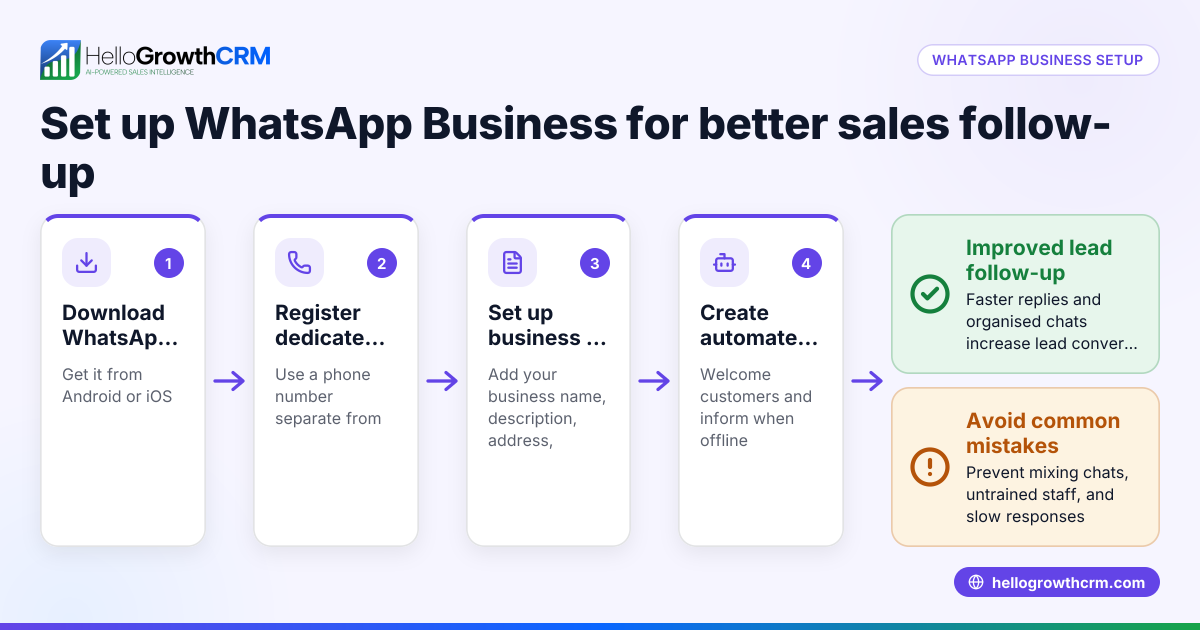
HelloGrowthCRM supports WhatsApp messaging workflows by logging WhatsApp conversations on each lead’s record. Your team can send follow-ups as WhatsApp messages, helping sales teams engage leads faster and stay organised. Learn more about WhatsApp messaging features in HelloGrowthCRM at WhatsApp and SMS CRM.
Frequently asked questions
Can I create WhatsApp templates without a Facebook Business account? No, a Facebook Business Manager account linked to your WhatsApp Business account is required to create and submit templates.
How long does WhatsApp template approval take in Singapore? Approval usually takes a few minutes to 24 hours depending on WhatsApp’s review queue.
Can I edit a template after approval? No, to change the content you must create a new template and submit it for approval again.
Are WhatsApp templates free to create and use? Creating templates is free, but sending template messages via WhatsApp Business API may incur charges from your messaging provider. Check your provider’s pricing.
What if my template is rejected? WhatsApp provides a reason for rejection. Modify your template to comply with guidelines and resubmit.
Can I add buttons to WhatsApp templates? Yes, you can add quick reply or call-to-action buttons to templates when creating them, following WhatsApp’s guidelines.
For more free resources to organise your sales and messaging, check free sales tools and calculators.
Key takeaways
- Use Facebook Business Manager linked to your WhatsApp Business account to create message templates.
- Follow WhatsApp’s content and formatting rules strictly to avoid rejection.
- Use numbered placeholders {{1}}, {{2}} to personalise messages.
- Monitor template approval status daily and never send unapproved templates.
- HelloGrowthCRM logs WhatsApp conversations and supports messaging workflows for efficient follow-up.
Start managing your WhatsApp messages better today. Start on the Free Forever plan (200 leads, no credit card).
Ready to put this into practice?
Set up your pipeline, WhatsApp follow-ups, and AI lead scoring in minutes — free, no credit card.
Try HelloGrowthCRM freeGet CRM tips in your inbox
Join thousands of sales professionals who get weekly insights on CRM strategy, AI automation, and pipeline optimization.

The HelloGrowthCRM team publishes guides on CRM strategy, AI sales tools, and revenue operations for small business sales teams.