HelloGrowthCRM software
Built for real small-business sales teams
HelloGrowthCRM helps reps qualify faster, follow up on time, and close more deals—with practical automation in one place.
- AI lead scoring and pipeline visibility
- Built-in dialer, WhatsApp, and email automation
- Sales forecasting and RevOps-ready reporting
To create WhatsApp message templates in the USA, you need to draft clear, reusable messages with placeholders for customer-specific details, then submit them for approval through your WhatsApp Business API provider or messaging platform. Once approved, you can use these templates to engage customers efficiently and maintain compliance.
Why this comes up / what goes wrong
Many small US businesses want to use WhatsApp for sales and customer service because it is widely used and convenient. However, WhatsApp restricts businesses from sending free-form messages to customers without prior consent. Instead, businesses must use pre-approved message templates for outbound notifications or marketing. Without templates, businesses might lose leads due to slow follow-up or send inconsistent messages that confuse customers. Creating and managing WhatsApp message templates correctly helps ensure quick, professional, and compliant communication.
Step-by-step
- Identify the purpose of your message template: Decide if it’s for appointment reminders, payment confirmations, follow-ups, or promotions. This helps keep your templates focused and relevant.
- Write the message content with placeholders: Draft your message using simple, clear language. Use placeholders like {{1}}, {{2}} where you will insert personalized information such as customer name or appointment date. For example, "Hello {{1}}, your appointment is on {{2}}." Check that your message complies with WhatsApp’s policies (no promotional content in certain template types).
- Format the template according to WhatsApp rules: Use only allowed characters, avoid emojis unless permitted, and keep the message concise. Confirm the template fits the character limits and does not include unsupported formatting.
- Submit the template for approval: Use your WhatsApp Business API provider’s platform or your messaging software to submit the template. Approval can take from a few minutes to 24 hours or more. You cannot send the template until it is approved.
- Test the template after approval: Send test messages to yourself or colleagues to ensure placeholders populate correctly and the message appears as intended.
- Use the template in your messaging workflows: Integrate the templates into your CRM or messaging tools for automated or manual sending. Track responses and update templates as needed.
- Maintain compliance and update templates: Review your templates regularly to ensure they comply with WhatsApp policies and reflect any changes in your business offerings.
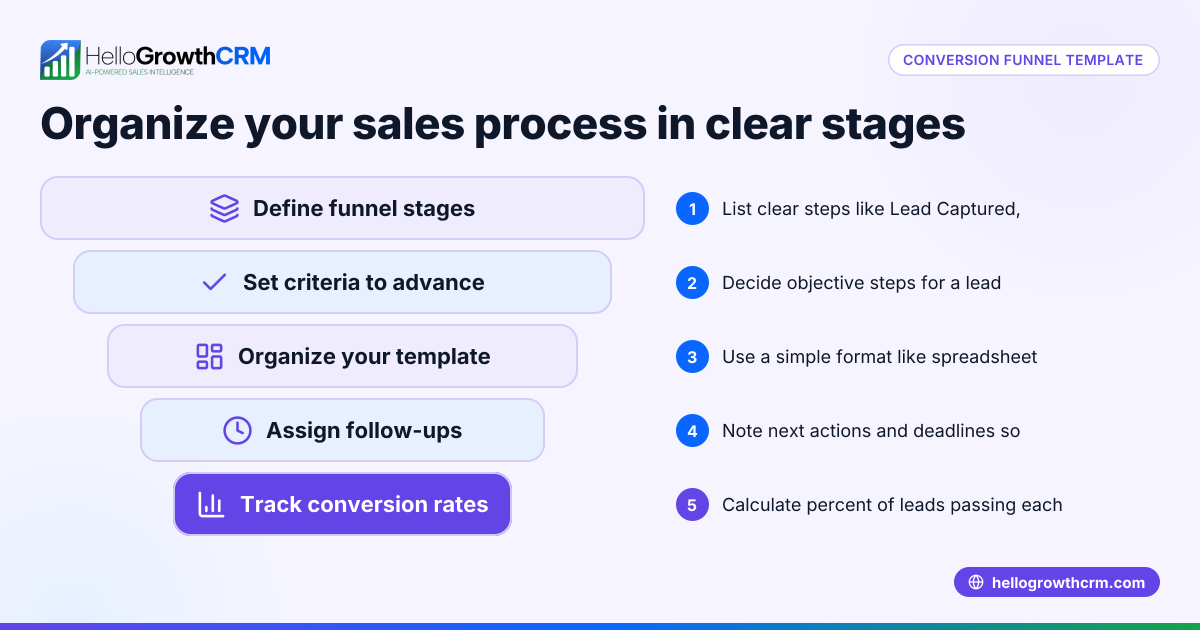
For free sales templates and tools to help with message planning, visit sales templates and free sales tools and calculators.
Example (fictional figures)
A two-location dental practice in Columbus, Ohio, wants to create an appointment reminder template for WhatsApp.
Step 1: Purpose – Appointment reminder.
Step 2: Draft message: "Hello {{1}}, this is Dr. Smith's dental office reminding you of your appointment on {{2}} at {{3}}. Please reply YES to confirm."
Step 3: Check formatting – uses placeholders {{1}} for patient name, {{2}} for date, {{3}} for time; no emojis; message is clear and concise.
Step 4: Submit template via WhatsApp Business API provider.
Step 5: After approval, test by sending: "Hello John Doe, this is Dr. Smith's dental office reminding you of your appointment on 07/15/2024 at 3:00 PM. Please reply YES to confirm."
Step 6: Use the template in daily appointment reminders.
This helps the practice reduce no-shows and improve patient communication.
Common mistakes
- Skipping placeholders or using incorrect syntax: Always use {{1}}, {{2}} format exactly to avoid template rejection. Double-check before submission.
- Sending unapproved templates: Only send messages after template approval to avoid message blocking or penalties.
- Overloading the message with too much information: Keep templates concise and focused. Break complex info into multiple messages if needed.
- Ignoring WhatsApp policies: Review WhatsApp’s official guidelines regularly to avoid disallowed content.
- Failing to test templates: Always send test messages to verify formatting and placeholder replacement.
- Not updating templates: Business changes may require template updates; keep them current to avoid confusion.
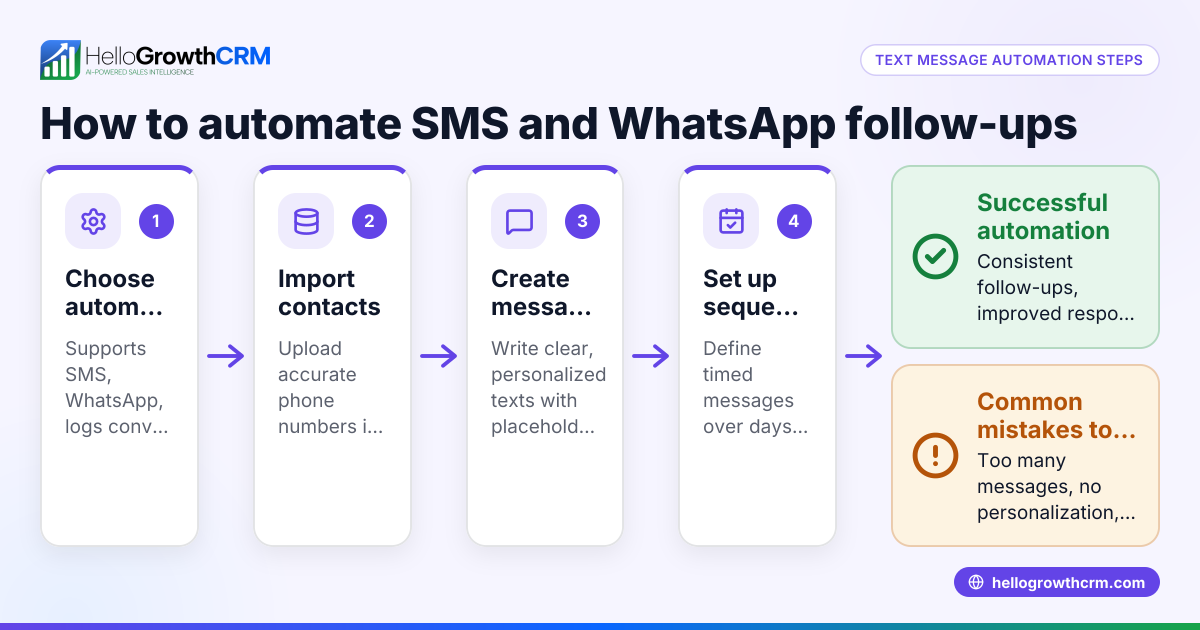
For tips on managing messaging workflows that include WhatsApp, see WhatsApp and SMS CRM.
Doing this in HelloGrowthCRM
HelloGrowthCRM supports WhatsApp conversations directly on lead records, logging all messages for easy tracking. Follow-ups can be sent as WhatsApp messages using your approved templates to engage leads quickly. You can also download free sales templates and follow-up cadence tools without an account to organize your messaging strategy efficiently. Explore these features at WhatsApp and SMS CRM and download resources at free sales tools and calculators.
Frequently asked questions
Can I create WhatsApp message templates without a WhatsApp Business API? No, WhatsApp message templates require approval through the WhatsApp Business API or an authorized provider. Regular WhatsApp accounts do not support template messaging.
How long does template approval take? Approval times vary, typically from a few minutes to 24 hours or more, depending on WhatsApp’s review process and your provider.
Can I edit a template after approval? You cannot edit an approved template directly. To make changes, you must submit a new template for approval.
Are emojis allowed in WhatsApp message templates? Emojis are allowed but should be used sparingly and only if WhatsApp’s current policies permit them in your template type.
How many templates can I create? WhatsApp allows multiple templates, but limits depend on your account tier and provider. Check your provider’s documentation for exact limits.
Key takeaways
- Create WhatsApp message templates with clear purpose and placeholders for personalization.
- Submit templates for approval via WhatsApp Business API before use.
- Test templates thoroughly to ensure correct formatting and content.
- Avoid common mistakes like unapproved sending and incorrect placeholders.
- Use HelloGrowthCRM to log WhatsApp conversations and send follow-ups efficiently.
- Download free sales templates and tools to organize your messaging strategy.
Start creating and using WhatsApp message templates today to improve your customer engagement and sales follow-up. You can Start on the Free Forever plan (200 leads, no credit card) to manage your messaging workflows with HelloGrowthCRM.
Ready to put this into practice?
Set up your pipeline, WhatsApp follow-ups, and AI lead scoring in minutes — free, no credit card.
Try HelloGrowthCRM freeGet CRM tips in your inbox
Join thousands of sales professionals who get weekly insights on CRM strategy, AI automation, and pipeline optimization.

The HelloGrowthCRM team publishes guides on CRM strategy, AI sales tools, and revenue operations for small business sales teams.