HelloGrowthCRM software
Built for real small-business sales teams
HelloGrowthCRM helps reps qualify faster, follow up on time, and close more deals—with practical automation in one place.
- AI lead scoring and pipeline visibility
- Built-in dialer, WhatsApp, and email automation
- Sales forecasting and RevOps-ready reporting
Managing customer data efficiently in Excel helps small and mid-sized UAE businesses keep track of leads, sales, and follow-ups without losing important details. This guide shows you how to set up your Excel workbook, maintain accurate records, and avoid common pitfalls.
Why this comes up / what goes wrong
Many UAE small-business owners start managing customer data in Excel because it is readily available and familiar. However, without a clear structure, data can become inconsistent, incomplete, or hard to find. Businesses often struggle with duplicate entries, lost contact details, and missed follow-ups, which can cause lost sales opportunities. Managing data manually in Excel also makes it difficult to monitor customer interactions and sales pipelines effectively.
Step-by-step
- Plan your data fields: Decide which customer details you need. Common fields include:
- Customer ID (unique identifier)
- Customer name
- Phone number
- Email address
- WhatsApp number (if different)
- Address
- Date of first contact
- Last purchase date
- Purchase amount
- Follow-up date
- Notes
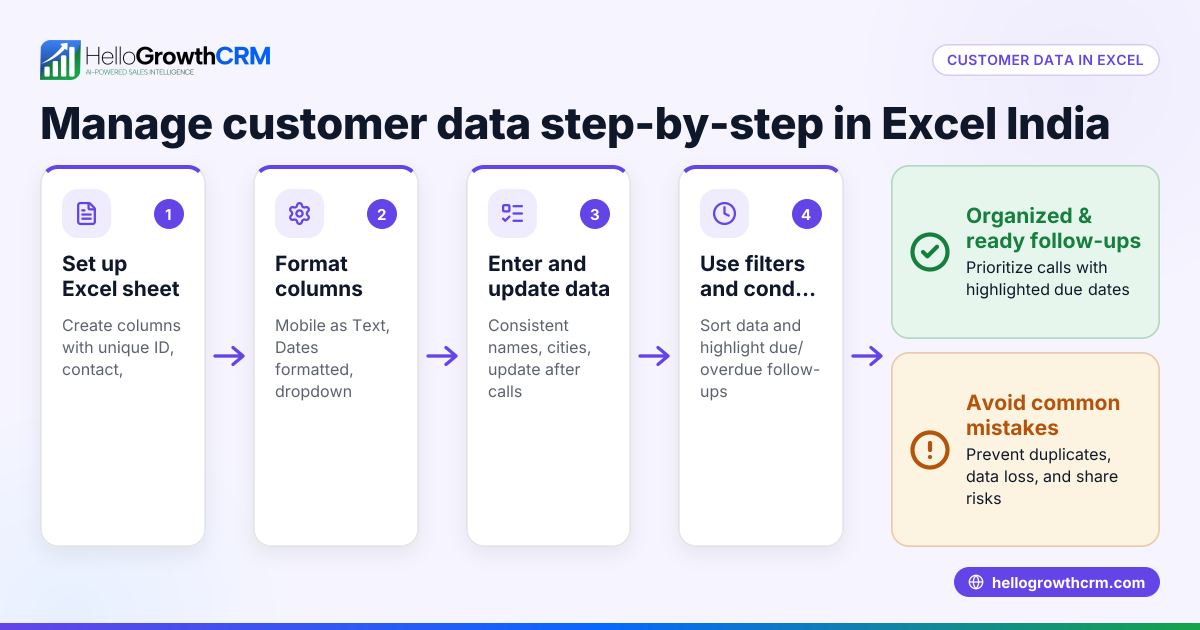
- Set up your Excel sheet:
- Open a new Excel workbook.
- Create a header row with the field names.
- Format the header row with bold text and freeze it for easy navigation.
- Convert your range to an Excel Table (Ctrl + T) to enable sorting and filtering.
- Data validation:
- Use Excel’s Data Validation feature to restrict entries. For example, set phone number fields to accept only numbers.
- Use date pickers or date format validation for date fields.
- Enter your customer data:
- Input existing customer details carefully.
- Assign a unique Customer ID to each record to prevent duplicates.
- Use filters and sorting:
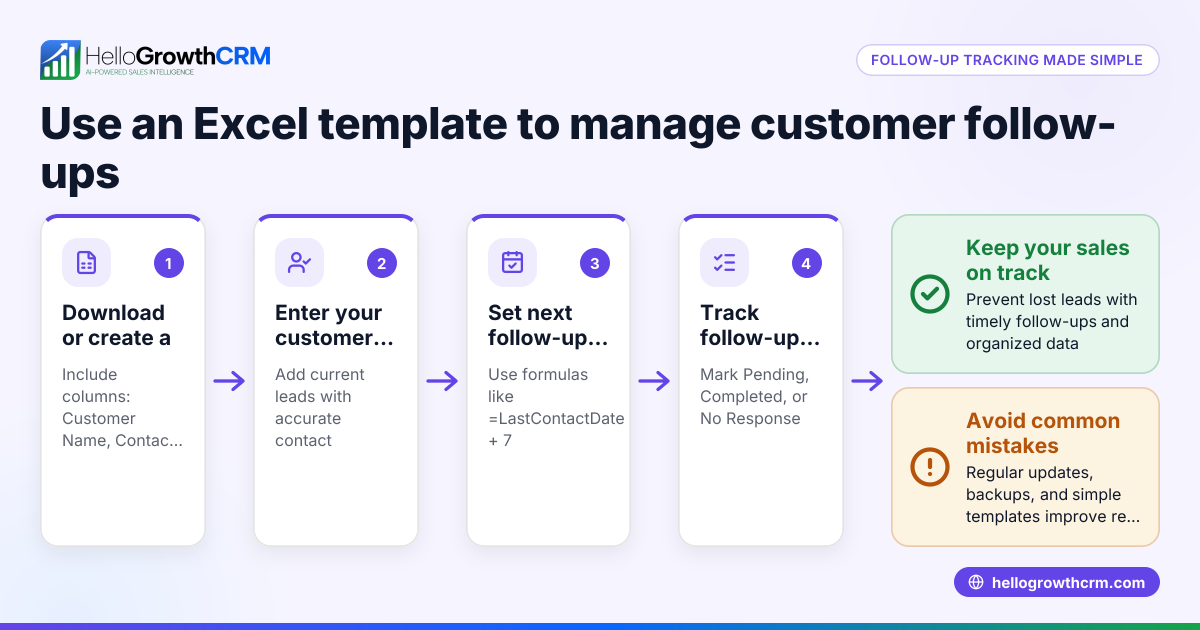
- Filter by follow-up date to see which customers need contacting.
- Sort by purchase amount or last purchase date to prioritise leads.
- Back up your data regularly:
- Save copies of your Excel file on cloud storage or external drives.
- Use versioning to track changes and recover earlier data if needed.
- Review and clean data periodically:
- Remove duplicate entries using Excel’s Remove Duplicates tool.
- Check for missing or inconsistent data.
- Track customer interactions:
- Add columns for call outcomes or meeting notes.
- Use comments or separate sheets to log detailed communication.
- Link Excel data with other tools (optional):
- Export data for email campaigns or WhatsApp messages.
- Use Excel’s built-in features or APIs to connect with CRM systems if needed.
Example (fictional figures)
A car rental company in Abu Dhabi wants to track customer bookings and follow-ups.
| Customer ID | Customer Name | Phone Number | Date of First Contact | Last Purchase Date | Purchase Amount | Follow-up Date | Notes | |
|---|---|---|---|---|---|---|---|---|
| C001 | Ahmed Al Mansoori | 0501234567 | ahmed@example.ae | 10/02/2024 | 25/03/2024 | AED 3,500 | 30/04/2024 | Interested in SUV |
Calculations:
- Total sales for Ahmed: AED 3,500
- Follow-up due in 5 days (from 25/03/2024 to 30/04/2024)
This setup lets the company filter customers needing follow-up and prioritise based on purchase amount.
Common mistakes
- No unique ID for customers: Leads to duplicates. Always assign a unique Customer ID.
- Inconsistent data formats: Phone numbers entered with different formats cause sorting issues. Use data validation.
- Ignoring follow-up dates: Missing timely contact can lose sales. Use filters to track follow-ups.
- Not backing up data: Risk of data loss. Save backups regularly.
- Overloading Excel with too many details: Keep the sheet focused on essential fields to avoid clutter.
- Manual call logging without structure: Leads to lost interaction history. Use a dedicated column for call outcomes.
For more on tracking customer interactions and health, see customer health score.
Doing this in HelloGrowthCRM
HelloGrowthCRM helps UAE businesses manage customer data securely with data residency options in India. It offers a built-in dialer so telecallers can work a list inside the CRM, logging each call outcome directly on the lead record. After sales, service requests stay linked to the same customer record via the customer portal, referrals, tickets, and knowledge base features. This centralises customer data, making it easier to manage than Excel alone. Learn more about HelloGrowthCRM for the United Arab Emirates here.
Frequently asked questions
Can Excel handle large customer databases effectively? Excel can manage small to medium-sized customer lists but may slow down or become unwieldy with very large databases. For growing businesses, moving to a CRM like HelloGrowthCRM can improve efficiency.
How do I ensure data privacy when managing customer data in Excel? Protect your Excel file with strong passwords and restrict access. Regularly update your security settings and back up data securely. For compliance needs, consider CRM solutions with data residency and security certifications.
Is it possible to automate customer follow-ups using Excel? Excel has limited automation capabilities. You can use formulas and conditional formatting to highlight follow-up dates but cannot automate messaging. HelloGrowthCRM offers sequences for WhatsApp, SMS, and email to automate follow-ups.
How do I integrate Excel customer data with WhatsApp for sales? You can export Excel data as CSV and use WhatsApp Business tools or CRM integrations to message customers. HelloGrowthCRM integrates WhatsApp natively, simplifying this process. See WhatsApp and SMS CRM for details.
What are the benefits of using a CRM over Excel for customer data management? CRMs provide structured data entry, automation, sales pipeline tracking, communication logging, and reporting. Excel requires manual updates and lacks integrated communication tools, which can slow down sales teams.
Key takeaways
- Use a clear, consistent structure with key fields and unique Customer IDs.
- Validate data entry and use Excel Tables for sorting and filtering.
- Regularly back up and clean your data to prevent errors.
- Track follow-up dates and customer interactions to avoid lost sales.
- Excel is suitable for small databases, but CRMs offer better scalability and automation.
- HelloGrowthCRM offers secure data management, a built-in dialer, and customer service features for UAE businesses.
Start managing your customer data more effectively today. Start on the Free Forever plan (200 leads, no credit card).
Ready to put this into practice?
Set up your pipeline, WhatsApp follow-ups, and AI lead scoring in minutes — free, no credit card.
Try HelloGrowthCRM freeGet CRM tips in your inbox
Join thousands of sales professionals who get weekly insights on CRM strategy, AI automation, and pipeline optimization.

The HelloGrowthCRM team publishes guides on CRM strategy, AI sales tools, and revenue operations for small business sales teams.