HelloGrowthCRM software
Built for real small-business sales teams
HelloGrowthCRM helps reps qualify faster, follow up on time, and close more deals—with practical automation in one place.
- AI lead scoring and pipeline visibility
- Built-in dialer, WhatsApp, and email automation
- Sales forecasting and RevOps-ready reporting
Moving from Excel to a CRM system in India involves careful preparation and execution to ensure your sales data is clean, complete, and usable. This guide provides a practical, step-by-step approach tailored for Indian small and mid-sized businesses.
Why this comes up / what goes wrong
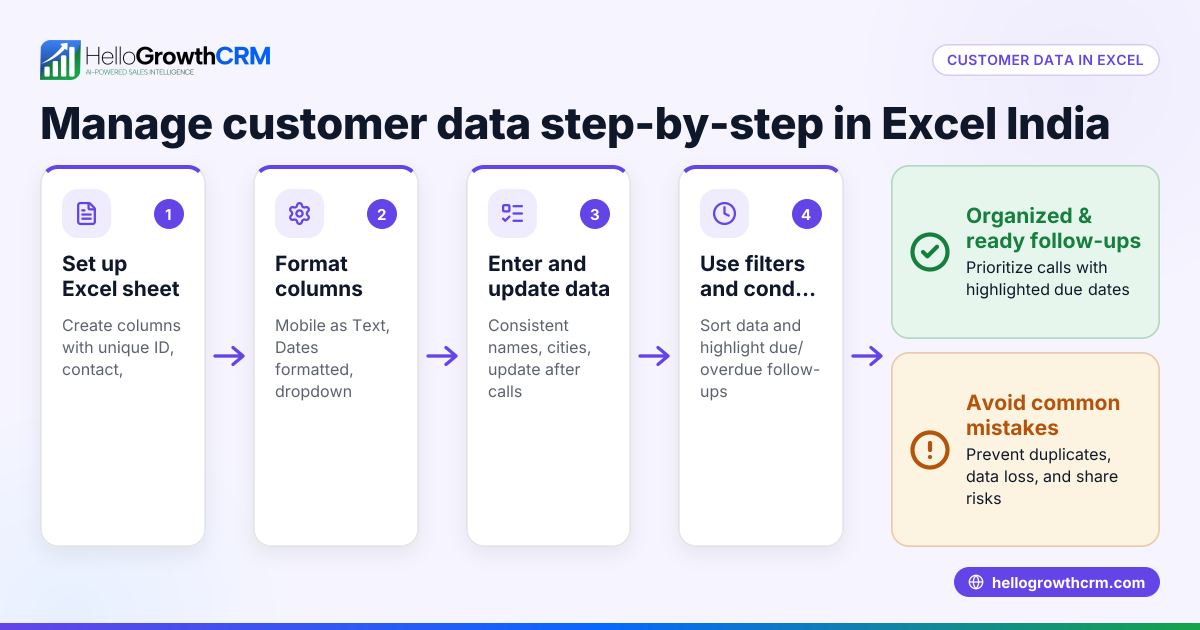
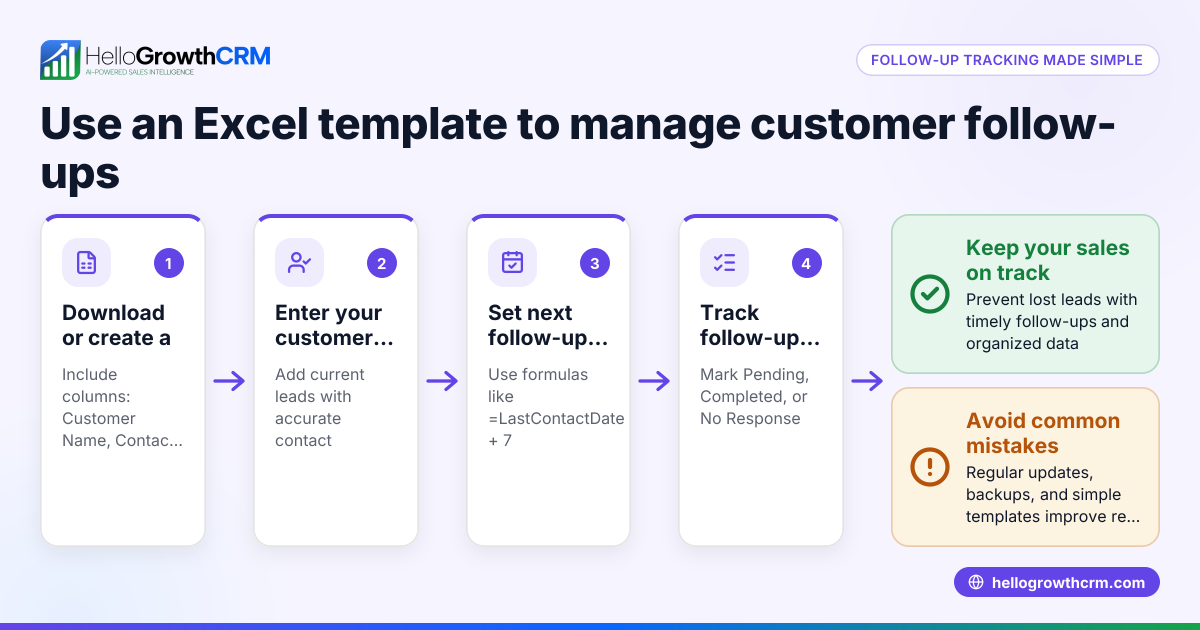
Many Indian small-business owners start managing leads and customers using Excel spreadsheets because they are simple and free. However, as the business grows, Excel becomes difficult to maintain for sales tracking, follow-ups, and reporting. Leads get lost or forgotten due to slow follow-up, and managing sales on WhatsApp or spreadsheets leads to inefficiency and errors. Moving to a CRM helps organise leads, automate follow-ups, and improve sales forecasting but can seem daunting without clear steps.
Step-by-step
- Export your Excel data to CSV format
- Open your Excel file with leads and customer data.
- Save or export the file as a CSV (Comma Separated Values) file.
- Check that all relevant columns like Name, Phone, Email, Lead Source, and Status are included.
- Clean your data
- Remove duplicate entries by sorting and filtering.
- Correct obvious typos in phone numbers and emails.
- Ensure phone numbers have country code prefixes (e.g., +91).
- Fill missing mandatory fields or mark incomplete leads for follow-up.
- Map your Excel columns to CRM fields
- Review your CRM’s lead import template or field list.
- Match Excel columns to CRM fields (e.g., Excel “Phone” to CRM “Contact Number”).
- Rename or reorder columns in your CSV if needed.
- Import the CSV into the CRM
- Log in to your CRM and find the import leads feature.
- Upload your cleaned CSV file.
- Map fields as prompted by the CRM interface.
- Run a test import with a few leads first.
- Verify imported data
- Check that all leads appear correctly in the CRM.
- Spot-check phone numbers, emails, and lead statuses.
- Correct any errors by editing records or re-importing after fixes.
- Set up follow-up tasks and automation
- Create follow-up reminders or sequences in the CRM.
- Assign leads to sales reps.
- Use CRM features like WhatsApp and SMS messaging to engage leads.
- Train your sales team
- Explain how to access and update leads in the CRM.
- Show how follow-ups and notes are logged.
- Encourage consistent use to avoid reverting to Excel or WhatsApp.
Example (fictional figures)
A Delhi-based SME has 500 leads in Excel dated 15/05/2024. They want to move these to a CRM.
- Export Excel file as leads.csv.
- Clean data: 20 duplicates removed, 30 phone numbers corrected to +91 format.
- Map columns: Excel “Lead Name” to CRM “Name”, “Mobile” to “Phone”, “Lead Source” to “Source”.
- Import leads.csv into CRM.
- Verify: 480 leads imported correctly.
- Set reminders for follow-up calls starting 16/05/2024.
Calculation example:
Original leads = 500 Duplicates removed = 20 Corrected leads = 500 - 20 = 480
Phone numbers fixed = 30 (included in 480)
Follow-up task set for each of 480 leads.
Common mistakes
- Not cleaning data before import: Leads with missing or incorrect phone numbers cause errors. Prevent by thorough data cleaning.
- Ignoring field mapping: Importing without matching Excel columns to CRM fields leads to misplaced data. Always map fields carefully.
- Skipping test import: Importing all leads at once risks large errors. Test with a small batch first.
- Not training the team: Sales reps may continue using Excel or WhatsApp outside the CRM. Provide hands-on training.
- Overlooking duplicate entries: Leads entered multiple times cause confusion. Use CRM duplicate detection and clean Excel beforehand.
- Not using CRM communication features: Continuing sales on WhatsApp outside CRM loses tracking. Use WhatsApp and SMS features within CRM.
Doing this in HelloGrowthCRM
HelloGrowthCRM supports Indian SMBs with WhatsApp and SMS messaging integrated directly into the CRM, so conversations with leads are logged on their records and follow-ups can be sent as messages. AI agents (in Beta on Growth plans) can draft follow-up messages after calls for quick review and sending. The Free Forever plan allows a two-person team to manage their sales pipeline at no cost until they need calling or WhatsApp automation. Learn more about WhatsApp and SMS CRM and the built-in CRM dialer. HelloGrowthCRM is designed for Indian businesses to move smoothly from Excel to a CRM that the team actually uses. See HelloGrowthCRM for India.
Frequently asked questions
How do I prepare my Excel file for CRM import? Clean your data by removing duplicates, correcting phone numbers to include +91, filling missing fields, and saving as a CSV file. Check your CRM’s required fields to map columns correctly.
Can I keep using WhatsApp for sales after moving to a CRM? Yes, with HelloGrowthCRM you can send and receive WhatsApp messages inside the CRM. Conversations are logged on lead records to keep all interactions in one place.
What if I have duplicate leads in Excel? Remove duplicates in Excel before importing. Most CRMs also detect duplicates during import. This prevents confusion and multiple follow-ups.
Is training my sales team necessary when switching from Excel? Yes, training ensures your team uses the CRM consistently, avoids reverting to spreadsheets or WhatsApp outside the CRM, and benefits from automation features.
Can I try HelloGrowthCRM for free before committing? Yes, the Free Forever plan supports up to two users managing 200 leads with full pipeline features and task management, no credit card required.
Key takeaways
- Export Excel data as CSV and clean it thoroughly before import.
- Map Excel columns to CRM fields to avoid data mismatches.
- Test import with a small batch to catch errors early.
- Train your sales team to adopt the CRM fully.
- Use CRM-integrated WhatsApp and SMS features to track lead communication.
- HelloGrowthCRM offers a Free Forever plan ideal for small teams starting CRM.
Moving from Excel to a CRM improves your sales process and lead management. Start on the Free Forever plan (200 leads, no credit card) at HelloGrowthCRM to organise your pipeline and follow-ups today.
Ready to put this into practice?
Set up your pipeline, WhatsApp follow-ups, and AI lead scoring in minutes — free, no credit card.
Try HelloGrowthCRM freeGet CRM tips in your inbox
Join thousands of sales professionals who get weekly insights on CRM strategy, AI automation, and pipeline optimization.

The HelloGrowthCRM team publishes guides on CRM strategy, AI sales tools, and revenue operations for small business sales teams.