HelloGrowthCRM software
Built for real small-business sales teams
HelloGrowthCRM helps reps qualify faster, follow up on time, and close more deals—with practical automation in one place.
- AI lead scoring and pipeline visibility
- Built-in dialer, WhatsApp, and email automation
- Sales forecasting and RevOps-ready reporting
To send an invoice via email, you need to prepare a professional invoice document, save it as a PDF, compose a clear email message, attach the invoice, and send it to the customer’s correct email address. This ensures your customer receives the invoice promptly and can process payment without confusion. Below, you will find why this task is important, detailed steps to complete it, a realistic example with UK figures, common pitfalls, and how HelloGrowthCRM can help you manage follow-up efficiently.
Why this comes up / what goes wrong
Small business owners often need to send invoices by email because it is fast, cost-effective, and creates a clear record of the transaction. However, many lose time or risk payment delays due to unclear invoices, missing attachments, or sending to the wrong email. Some use WhatsApp or spreadsheets to track invoices, which can cause confusion and missed follow-ups. Clear instructions help avoid these issues and ensure smooth cash flow.
Step-by-step
- Create your invoice document: Use a template or invoicing software to include your business name, address, contact details, invoice number, date, customer’s name and address, description of goods or services, amounts, VAT if applicable, and total amount due.
- Save the invoice as a PDF: This format preserves the layout and prevents accidental editing.
- Open your email client: Use your business email account to maintain professionalism.
- Compose a new email:
- To: Enter the customer’s correct email address.
- Subject line: Write a clear subject, e.g. "Invoice #12345 from [Your Business Name]".
- Body: Write a brief message stating the invoice is attached, the due date, and a thank you note.
- Attach the PDF invoice: Use the attach file function to add the invoice document.
- Double-check everything:
- Confirm the attachment is the correct invoice.
- Check the email address for typos.
- Ensure the invoice date and number are correct.
- Send the email.
- Record the invoice sent date and details in your system or spreadsheet to track payment.
- Follow up if payment is not received by the due date.
For automating follow-ups and managing emails in one place, consider tools described at email automation and sequences.
Example (fictional figures)
A recruitment consultancy in Bristol sends an invoice for placement services.
- Invoice number: 2025-089
- Invoice date: 15/04/2026
- Customer: ABC Ltd, 12 High Street, Bristol
- Services: Recruitment placement fee
- Amount excluding VAT: £4,000
- VAT (assumed illustrative rate 20%): £4,000 × 20% = £800
- Total amount due: £4,000 + £800 = £4,800
- Due date: 15/05/2026
Steps:
- Create invoice with above details.
- Save as PDF named "Invoice_2025-089_ABC_Ltd.pdf".
- Open email client.
- Compose email:
- To: accounts@abcltd.co.uk
- Subject: Invoice #2025-089 from Bristol Recruitment Consultancy
- Body: "Dear ABC Ltd, please find attached invoice #2025-089 for recruitment services. Payment of £4,800 is due by 15/05/2026. Thank you for your business."
- Attach PDF.
- Check attachment and email address.
- Send email.
- Record invoice sent date as 15/04/2026.
Common mistakes
- Not attaching the invoice file: Always double-check attachments before sending.
- Sending to the wrong email address: Verify the customer’s email carefully.
- Using unclear subject lines: Use invoice number and business name for clarity.
- Omitting payment terms or due date in the email body: Clearly state payment terms to avoid confusion.
- Not saving a copy of the sent invoice email: Keep records for follow-up and accounting.
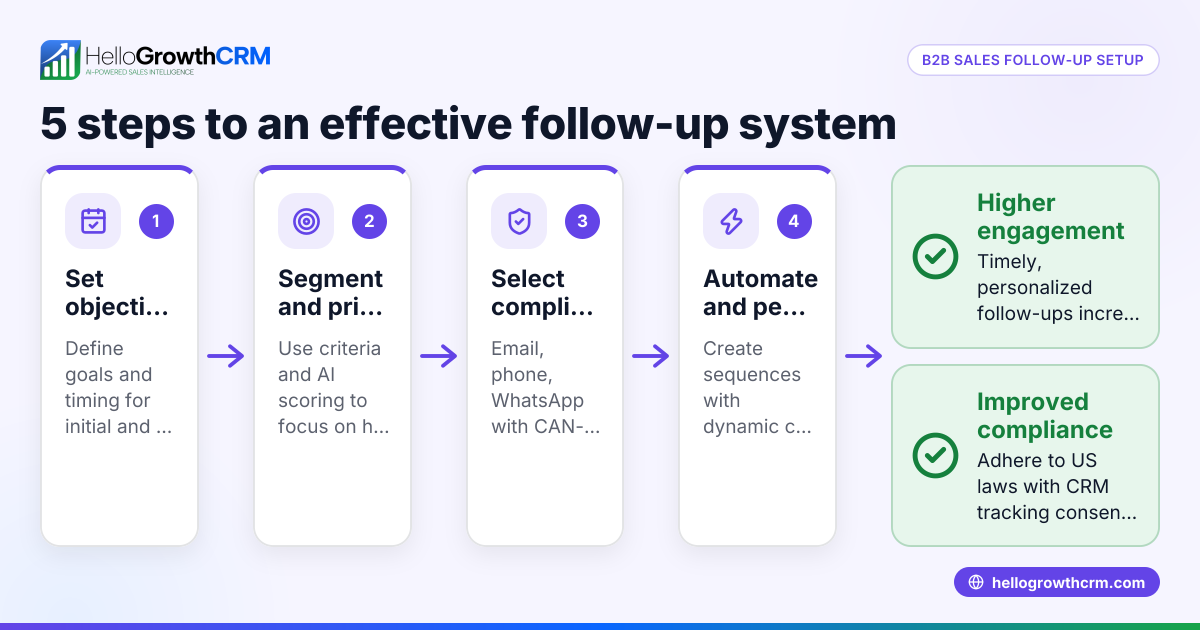
- Failing to follow up on unpaid invoices: Schedule reminders or use automated sequences to prompt payment, see email automation and sequences.
Doing this in HelloGrowthCRM
HelloGrowthCRM includes HelloMail shared inbox, where replies to a quotation email are visible to the whole team on the deal. It also offers sequences and campaigns: a five-step follow-up over two weeks runs on its own and stops the moment the prospect replies. These features help manage follow-up emails and keep the team coordinated. Learn more at WhatsApp and SMS CRM and email automation and sequences.
Frequently asked questions
Can I send an invoice as an email attachment without a PDF? It is best to send invoices as PDFs to preserve formatting and prevent editing. Sending editable files like Word documents can cause confusion or accidental changes.
What should I write in the email body when sending an invoice? Include a polite greeting, mention the attached invoice number and amount, state the payment due date, and thank the customer. Keep it concise and professional.
How do I know if the customer has received or viewed the invoice email? Standard email does not guarantee receipt or viewing. Using CRM tools with tracking features can show if an email was opened or the invoice viewed.
Is it better to send invoices via email or post? Email is faster and cheaper, ideal for most small businesses. However, some customers may prefer or require postal invoices; confirm their preference.
Can I automate invoice follow-ups? Yes, using email sequences or campaigns can automate reminders over a set period, stopping when the customer responds. HelloGrowthCRM supports this with multi-step follow-ups, see email automation and sequences.
Key takeaways
- Always create a clear, professional invoice and save it as a PDF.
- Double-check recipient email address and attach the correct file.
- Write a concise, polite email stating invoice details and payment terms.
- Keep records of sent invoices and follow up on unpaid ones.
- Use automation tools like HelloGrowthCRM to track invoices and automate follow-ups.
Start sending invoices confidently today. To manage your invoicing and follow-up emails all in one place, start on the Free Forever plan (200 leads, no credit card).
Ready to put this into practice?
Set up your pipeline, WhatsApp follow-ups, and AI lead scoring in minutes — free, no credit card.
Try HelloGrowthCRM freeGet CRM tips in your inbox
Join thousands of sales professionals who get weekly insights on CRM strategy, AI automation, and pipeline optimization.

The HelloGrowthCRM team publishes guides on CRM strategy, AI sales tools, and revenue operations for small business sales teams.