HelloGrowthCRM software
Built for real small-business sales teams
HelloGrowthCRM helps reps qualify faster, follow up on time, and close more deals—with practical automation in one place.
- AI lead scoring and pipeline visibility
- Built-in dialer, WhatsApp, and email automation
- Sales forecasting and RevOps-ready reporting
A quotation format in Excel with formula is crucial for small businesses in India to quickly generate professional sales quotations with automatic calculations. This format typically includes fields for item description, quantity, unit price, and formulas to calculate line totals, subtotal, GST, and the grand total. You can build this format yourself following the steps below or download a ready template to save time.
Why this comes up / what goes wrong
Many small business owners and sales teams in India prepare quotations manually using WhatsApp messages, Word documents, or Excel sheets without formulas. This often leads to errors such as incorrect totals, missed GST calculations, and slow response times to customer inquiries. Without a proper quotation format in Excel with formulas, businesses risk losing credibility and sales opportunities. Creating a template with formulas ensures accuracy, saves time, and improves customer trust.
Step-by-step
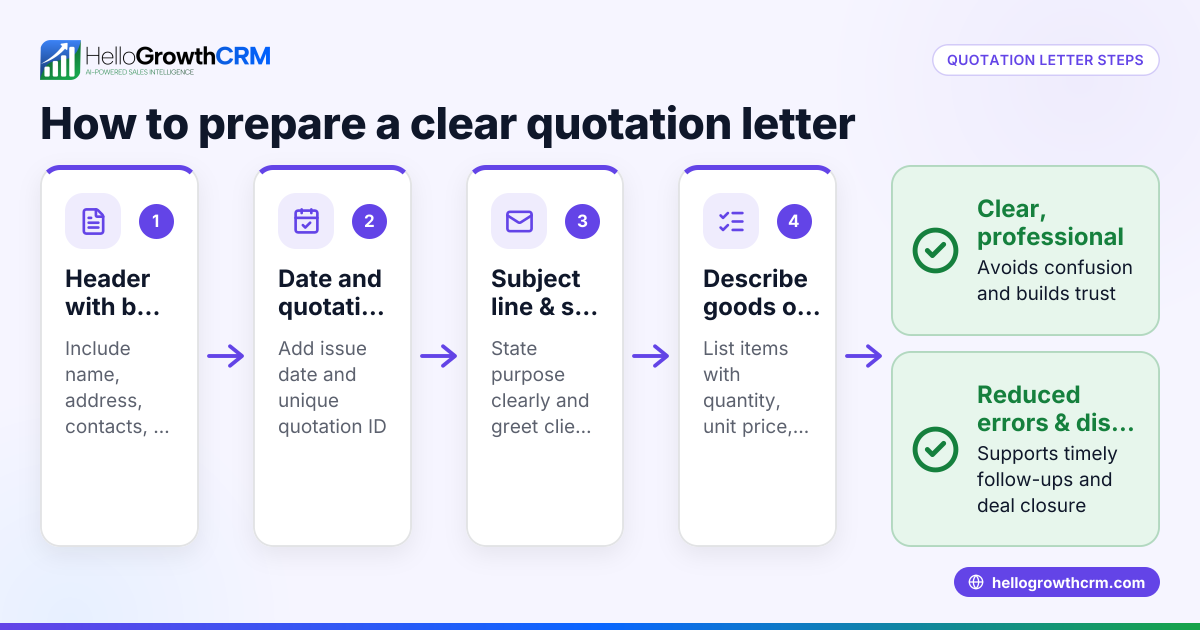
- Set up the header: Start by adding your company name, address, GSTIN, quotation number, date, and customer details at the top of the sheet.
- Create item columns: Label columns as Item Description, Quantity, Unit Price (₹), and Amount.
- Enter formulas for Amount: In the Amount column, enter the formula
=QuantityCell*UnitPriceCellfor each item row to calculate the line total automatically. - Calculate subtotal: Below the item list, use the formula
=SUM(AmountRange)to add up all item amounts. - Add GST calculation: Insert a row for GST and apply the formula
=SubtotalCell*GSTRatewhere GSTRate is the decimal form of the GST rate (for example, 0.18 for 18%). - Calculate grand total: Sum the subtotal and GST using
=SubtotalCell+GSTCellto get the final amount. - Add terms and conditions: Below the totals, include payment terms, quotation validity period, and delivery details.
- Format cells: Apply currency formatting to price and amount cells, date formatting to the quotation date, and borders around tables for clarity.
- Check formulas: Test by changing quantities or unit prices to confirm that totals update automatically.
- Save as template: Save the file as an Excel template (.xltx) so you can reuse it for future quotations without losing formulas.
Example (fictional figures)
Date: 15/06/2024
| Item Description | Quantity | Unit Price (₹) | Amount (₹) |
|---|---|---|---|
| Steel rods | 50 | 1,200 | =50*1,200 |
| Cement bags | 100 | 350 | =100*350 |
Calculations:
Amount for Steel rods = 50 × ₹1,200 = ₹60,000
Amount for Cement bags = 100 × ₹350 = ₹35,000
Subtotal = ₹60,000 + ₹35,000 = ₹95,000
Assumed GST rate = 18% = 0.18
GST = ₹95,000 × 0.18 = ₹17,100
Grand Total = ₹95,000 + ₹17,100 = ₹1,12,100
Common mistakes
- Not using formulas for totals: Manually calculating totals leads to errors. Always use
SUMand multiplication formulas to automate calculations. - Forgetting GST or applying the wrong rate: Confirm the correct GST rate applicable to your products and include it as a separate calculation line.
- Hardcoding amounts: Avoid typing totals manually; link totals to formula cells so they update automatically.
- Poor formatting: Unclear quotations confuse customers. Use currency formatting, borders, and consistent fonts for readability.
- Not saving as a template: Without saving as a template, you must recreate formulas every time. Save your quotation format as a reusable Excel template.
- Missing customer details or quotation date: These are essential for the validity and tracking of the quotation.
Doing this in HelloGrowthCRM
HelloGrowthCRM provides a built-in quoting and proposal tool that lets you create, send, and track quotations directly from a deal record. The quotation status—sent, viewed, or accepted—is visible on the same screen as your follow-up tasks, helping your sales team stay organised and responsive. Additionally, the built-in dialer allows telecallers to work leads inside the CRM and log call outcomes, keeping all sales communication and documents in one place. Learn more about the built-in CRM dialer and WhatsApp and SMS CRM.
Frequently asked questions
Can I add GST automatically in an Excel quotation? Yes, by including a GST row with a formula multiplying the subtotal by the GST rate (for example, 0.18 for 18%). Update the rate as per your product or service category.
How do I ensure my quotation format is reusable? Save your Excel file as a template (.xltx). This preserves all formulas and formatting so you can open a fresh copy each time without overwriting the original.
Is it better to use Excel or a CRM for quotations? Excel offers flexibility and works offline but is prone to manual errors and slow follow-up. A CRM like HelloGrowthCRM automates quotations, tracks their status, and integrates calling and follow-ups, improving sales efficiency and reducing lost leads.
Can I send quotations via WhatsApp from HelloGrowthCRM? Yes, HelloGrowthCRM supports WhatsApp and SMS sequences, enabling you to send quotations and follow-ups directly to customers within the CRM.
How do I handle multiple GST rates in one quotation? You can add separate GST rows for each rate category or create additional columns for HSN codes and tax rates, then sum the GST amounts. This requires more complex formulas.
What details should I include in the quotation header? Include your company name, address, GSTIN, quotation number, date, and customer details. This ensures clarity and legal compliance.
Key takeaways
- Use multiplication and SUM formulas to automate calculations in your Excel quotation.
- Include a separate GST calculation line with the correct rate.
- Format your quotation clearly with currency formatting and borders.
- Save your Excel file as a template to reuse easily and avoid recreating formulas.
- HelloGrowthCRM simplifies quotations with built-in quoting, status tracking, and integrated calling.
Start managing your quotations more efficiently by trying HelloGrowthCRM. Start on the Free Forever plan (200 leads, no credit card).
Ready to put this into practice?
Set up your pipeline, WhatsApp follow-ups, and AI lead scoring in minutes — free, no credit card.
Try HelloGrowthCRM freeGet CRM tips in your inbox
Join thousands of sales professionals who get weekly insights on CRM strategy, AI automation, and pipeline optimization.

The HelloGrowthCRM team publishes guides on CRM strategy, AI sales tools, and revenue operations for small business sales teams.