HelloGrowthCRM software
Built for real small-business sales teams
HelloGrowthCRM helps reps qualify faster, follow up on time, and close more deals—with practical automation in one place.
- AI lead scoring and pipeline visibility
- Built-in dialer, WhatsApp, and email automation
- Sales forecasting and RevOps-ready reporting
Adding a form to your website is essential for small-business owners who want to capture leads, collect customer information, or receive inquiries efficiently. A well-functioning form helps you engage visitors and grow your business.
Why this comes up / what goes wrong
Small-business owners often want to add forms to their websites but face challenges like not knowing where to start, lacking coding skills, or missing clear instructions. Without a form, you miss chances to capture potential customers’ contact details. Common issues include incomplete forms, submission errors, or forms that don’t send data anywhere, leading to lost leads and frustration.
Step-by-step
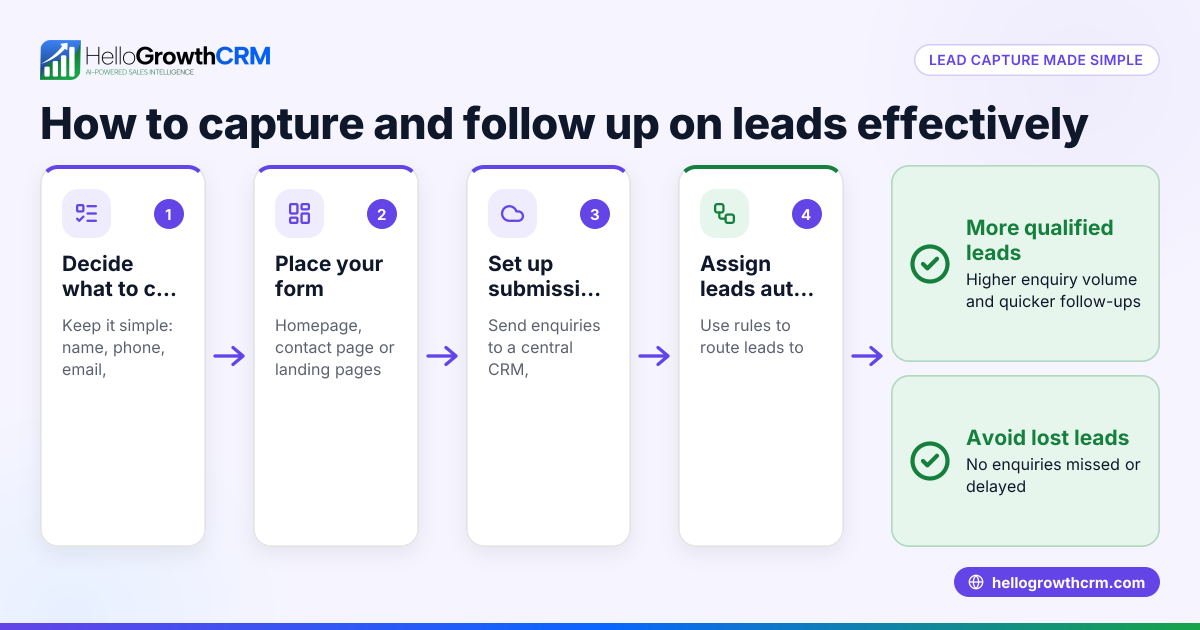
- Decide the purpose of your form: Determine what information you want to collect (e.g., name, email, phone number, message).
- Choose how to create the form:
- Use your website builder’s form tool if available.
- Use an online form builder service that provides embed code.
- Write the HTML form code yourself if you have coding knowledge.
- Create the form fields:
- Include clear labels and input fields for each piece of data.
- Mark essential fields as required to avoid incomplete submissions.
- Generate or write the form code:
- If using a form builder, copy the HTML embed code.
- If coding manually, write the
<form>tag with input elements and a submit button.
- Embed the form into your website:
- Open your website editor.
- Paste the form code into the page where you want the form to appear.
- For CMS platforms like WordPress, use the HTML or custom code block.
- Set up form submission handling:
- Configure the form to send submissions to your email or a database.
- Use backend scripts (like PHP) or settings in your form service.
- Test the form thoroughly:
- Submit test entries with sample data.
- Confirm that you receive the submissions correctly.
- Check that confirmation messages or redirects work.
- Publish your website changes.
- Monitor submissions regularly to respond promptly and adjust the form if needed.
For managing leads captured through forms, consider tools like HelloGrowthCRM for the United States which support WhatsApp and SMS CRM communication and include a built-in phone dialer.
Example (fictional figures)
A B2B software reseller in Denver, Colorado, wants to add a contact form to capture leads from their website.
- They decide to collect the following fields: Name (required), Email (required), Company, Phone, and Message.
- They use an online form builder that provides embed code.
Steps taken:
- Created form fields: Name (required), Email (required), Company, Phone, Message.
- Copied the embed code from the form builder.
- Opened the website editor and pasted the code into the Contact Us page.
- Set the form submissions to send to sales@softreseller.com.
- Tested by submitting a sample lead:
- Name: John Smith
- Email: john.smith@clientco.com
- Company: ClientCo
- Phone: 303-555-1234
- Message: Interested in your software solutions.
- Confirmed receipt of the email:
- Subject: New Contact Form Submission
- Body includes all submitted fields.
The time taken was 1 hour.
Common mistakes
- Not marking required fields: Leads to incomplete data. Prevent this by clearly setting required fields.
- Not setting up submission handling: Form appears but no data is received. Always configure and test where submissions go.
- Embedding code in the wrong place: Form won’t display or work. Paste code in the correct HTML section or editor block.
- Skipping testing: Errors remain unnoticed. Submit multiple test entries to verify functionality.
- Not making the form mobile-friendly: Visitors on phones may see broken forms. Use responsive design or form builders that adapt.
- Ignoring follow-up: Leads accumulate without action. Check submissions daily and respond promptly.
Explore HelloGrowthCRM for the United States for lead management with WhatsApp and SMS CRM and the built-in CRM dialer to improve your sales process.
Frequently asked questions
Can I add a form without coding skills? Yes. Many website builders and form services allow you to create forms using drag-and-drop interfaces and provide embed codes you can paste into your site.
How do I ensure form submissions reach me? Set the form to send submissions to your email address or a database. Always test by submitting sample data to confirm you receive it.
What fields should I include in a contact form? Common fields are Name, Email, and Message. Depending on your business, add Phone, Company, or custom fields.
Is it safe to collect personal data through forms? Ensure your website uses HTTPS to encrypt data. Inform users how their data will be used and comply with applicable privacy laws.
Can I integrate form submissions with a CRM? Yes. Many CRMs accept form data via integrations or APIs, automating lead capture and follow-up.
What if my form doesn’t display correctly on mobile devices? Use responsive form builders or add CSS to make the form adapt to different screen sizes.
Key takeaways
- Identify what information your form needs to collect before creating it.
- Use a website builder or form service if you don’t know coding.
- Embed the form code correctly into your website’s HTML or editor.
- Set up and test submission handling to receive data reliably.
- Avoid common mistakes like missing required fields and skipping tests.
- Monitor submissions regularly to follow up on leads promptly.
Adding a form to your website is a practical way to capture leads and improve customer communication. Start on the Free Forever plan (200 leads, no credit card) at HelloGrowthCRM to manage your leads efficiently.
Ready to put this into practice?
Set up your pipeline, WhatsApp follow-ups, and AI lead scoring in minutes — free, no credit card.
Try HelloGrowthCRM freeGet CRM tips in your inbox
Join thousands of sales professionals who get weekly insights on CRM strategy, AI automation, and pipeline optimization.

The HelloGrowthCRM team publishes guides on CRM strategy, AI sales tools, and revenue operations for small business sales teams.