HelloGrowthCRM software
Built for real small-business sales teams
HelloGrowthCRM helps reps qualify faster, follow up on time, and close more deals—with practical automation in one place.
- AI lead scoring and pipeline visibility
- Built-in dialer, WhatsApp, and email automation
- Sales forecasting and RevOps-ready reporting
Unexpected call forwarding can disrupt your business communication by sending your incoming calls to another number without your knowledge. This means you might miss important calls from clients or leads. Typically, call forwarding is active because it was turned on accidentally, by a carrier feature, through a third-party app, or by dialing forwarding codes unintentionally. This article explains why your phone might be forwarding calls, how to identify and disable this feature, common mistakes that cause it, and how to prevent it from recurring.
Why this comes up / what goes wrong
Small-business owners rely on their phones for timely communication. When your phone forwards calls unexpectedly, you may lose leads, miss client questions, or fail to respond quickly. Common reasons for this issue include:
- You or a team member activated call forwarding by mistake.
- Your mobile carrier enabled forwarding as part of a service or update.
- A third-party app with calling permissions changed your forwarding settings.
- You accidentally dialed call forwarding codes.
- Your phone settings were changed without your knowledge.
Call forwarding is often used intentionally to send calls to voicemail or another number during busy hours or when unavailable. But if you don’t remember setting it, it can cause confusion and lost business opportunities.
Step-by-step
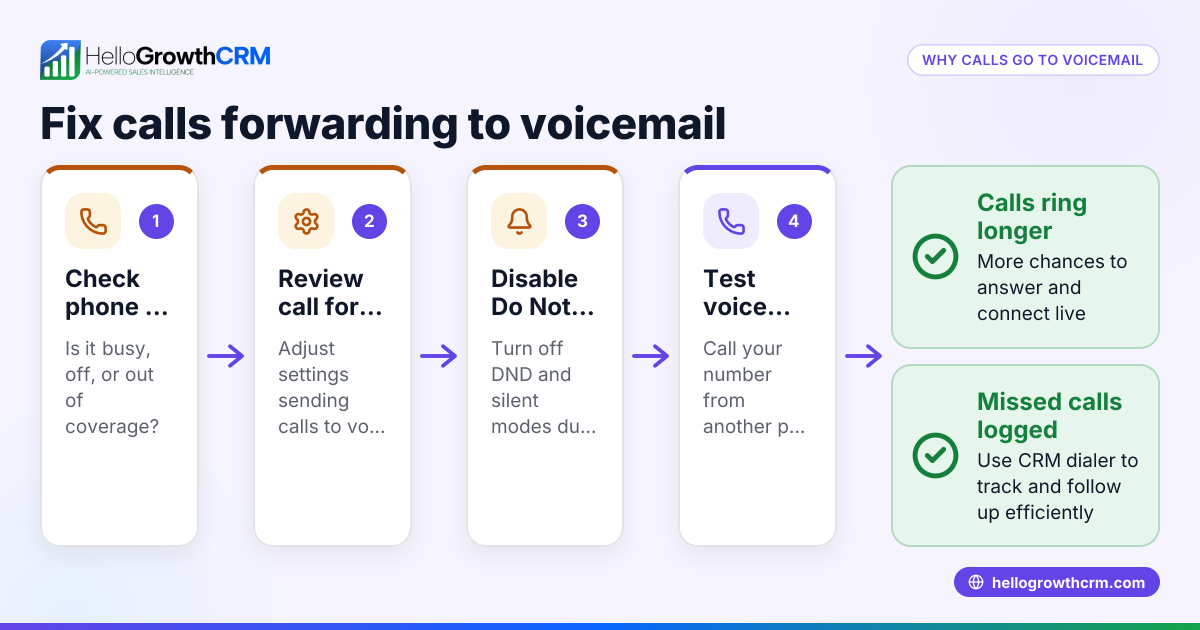
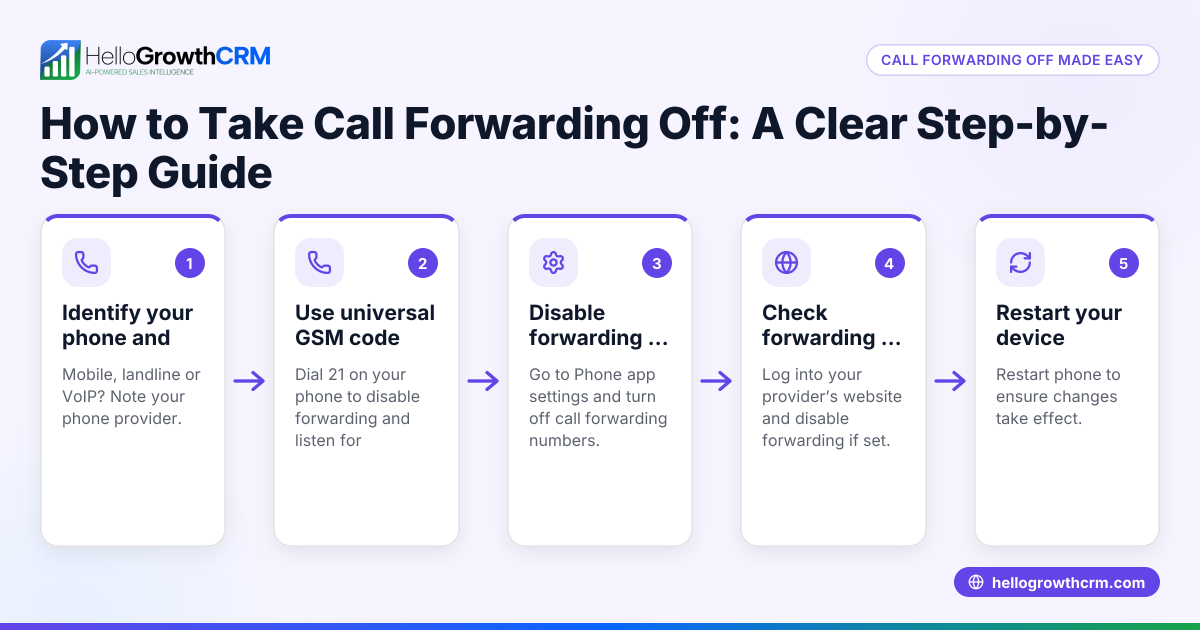
- Check your phone’s call forwarding settings:
- On iPhone: Go to Settings > Phone > Call Forwarding. If it’s on, you’ll see the forwarding number. Toggle it off to disable.
- On Android: Open the Phone app > tap the three-dot menu > Settings > Calls > Call Forwarding. Review all options (Always forward, When busy, When unanswered, When unreachable) and turn off any active forwarding.
- Use carrier codes to check and disable forwarding:
- Dial
*#21#and press Call to check if forwarding is active on your line. - To disable all forwarding, you can try dialing a code like
##21#and pressing Call, but check the rules that apply to you or ask counsel. - For conditional forwarding, use the appropriate code for your situation (such as when busy, unanswered, or unreachable), then press Call to disable it; check your device or carrier instructions for exact codes.
- Restart your phone:
- Turn your phone off and on again to ensure settings update properly.
- Contact your carrier:
- Call your mobile carrier’s customer service to ask if call forwarding is active on your account or if network features might be causing it.
- Review third-party apps and permissions:
- Check recently installed apps that have calling or messaging permissions. Remove or adjust settings if they might control forwarding.
- Secure your phone:
- Use a strong passcode or biometric lock to prevent unauthorized changes to call settings.
- Educate your team:
- If others use your phone or line, ensure they understand call forwarding and how to avoid enabling it accidentally.
Example (fictional figures)
The Phoenix Real Estate Team in Arizona noticed that calls were forwarding to an old office number, causing missed client inquiries and lost sales. On 06/15/2026, they took these steps:
- Checked the iPhone call forwarding setting and found it enabled to (480) 555-1234.
- Disabled call forwarding in the phone settings.
- Dialed
*#21#to confirm forwarding was off. - Restarted the phone to apply changes.
- Called their carrier, who confirmed no forwarding was active on their network side.
After disabling forwarding, they tracked their recovered commissions over the next month:
- Lost commissions before fix: $48,000
- Commissions recovered after fix: $48,000
Calculations:
$48,000 + $0 = $48,000 (total commissions after fixing call forwarding)
The team regained full control of their calls and prevented further losses.
Common mistakes
- Forgetting call forwarding is enabled: Always check your call forwarding settings when calls don’t ring on your phone.
- Using carrier codes incorrectly: Dial carefully. Wrong codes can activate forwarding instead of disabling it.
- Ignoring carrier network settings: Some forwarding is controlled at the network level. Don’t skip contacting your carrier.
- Not securing your phone: Without a passcode, unauthorized users can enable forwarding.
- Relying solely on voicemail: Forwarding to voicemail can cause missed calls if voicemail isn’t checked regularly.
- Overlooking third-party apps: Apps with calling features may change forwarding settings without clear notifications.
Prevent these mistakes by regularly reviewing forwarding settings, securing your device, and educating your team.
Frequently asked questions
Can call forwarding happen without my knowledge? Yes. Call forwarding can be activated accidentally by dialing codes, carrier features, or apps with calling permissions. Always check your phone’s settings and your carrier account to confirm.
How do I know if my calls are being forwarded? You might notice calls ringing on another number or not ringing on your phone. Dialing *#21# lets you check forwarding status. Also, check your phone’s call forwarding menu.
Will disabling call forwarding affect my voicemail? Disabling call forwarding stops calls from being redirected. Your voicemail will still work unless it is set up through forwarding.
How can I prevent call forwarding from turning on again? Secure your phone with a passcode or biometric lock, avoid dialing forwarding codes accidentally, monitor forwarding settings regularly, and check with your carrier about automatic forwarding features.
Can I use HelloGrowthCRM to manage calls better? HelloGrowthCRM offers a built-in CRM dialer and supports managing sales calls via WhatsApp and SMS CRM, helping you keep track of leads and calls without relying on phone forwarding. Learn more about HelloGrowthCRM for the United States.
Key takeaways
- Call forwarding can be enabled by phone settings, carrier features, apps, or accidental dial codes.
- Check and disable forwarding in your phone’s call settings.
- Use carrier codes carefully to verify and disable forwarding.
- Contact your carrier if forwarding persists.
- Secure your phone to prevent unauthorized changes.
- Regularly review call settings and educate your team to avoid missed calls.
To manage your business calls more effectively and avoid lost leads, consider starting with HelloGrowthCRM. You can Start on the Free Forever plan (200 leads, no credit card) today.
Ready to put this into practice?
Set up your pipeline, WhatsApp follow-ups, and AI lead scoring in minutes — free, no credit card.
Try HelloGrowthCRM freeGet CRM tips in your inbox
Join thousands of sales professionals who get weekly insights on CRM strategy, AI automation, and pipeline optimization.

The HelloGrowthCRM team publishes guides on CRM strategy, AI sales tools, and revenue operations for small business sales teams.