HelloGrowthCRM software
Built for real small-business sales teams
HelloGrowthCRM helps reps qualify faster, follow up on time, and close more deals—with practical automation in one place.
- AI lead scoring and pipeline visibility
- Built-in dialer, WhatsApp, and email automation
- Sales forecasting and RevOps-ready reporting
To connect Claude to your CRM, you typically need to set up an API-based integration that allows Claude's AI to interact with your CRM data. This involves obtaining API credentials from both Claude and your CRM, configuring authentication protocols, mapping lead and contact fields, and verifying the data flow with tests. This article guides you through these steps, explains why this integration matters, shows a realistic example, lists common mistakes, and shares how HelloGrowthCRM supports AI-driven sales workflows.
Why this comes up / what goes wrong
Small-business owners and sales teams often want to connect Claude—an AI assistant or agent—to their CRM to automate tasks like lead scoring, follow-up drafting, or data updates. Without integration, users must manually copy data between Claude and their CRM, causing delays and errors. Slow follow-up leads to lost leads and missed sales opportunities. However, connecting Claude to a CRM can be complex because it requires technical setup: API keys, authentication, and data mapping. Many small businesses struggle with unclear instructions or miss key steps, resulting in failed connections or partial data syncing.
Step-by-step
- Check your CRM supports API access: Confirm your CRM platform allows API connections. If unsure, contact your CRM provider or check their documentation.
- Obtain API credentials from Claude: Log into your Claude account and navigate to the developer or integrations section. Generate an API key or token that authorizes external apps.
- Obtain API credentials from your CRM: Similarly, log into your CRM account and find the API or integrations page. Generate or copy your API key and secret.
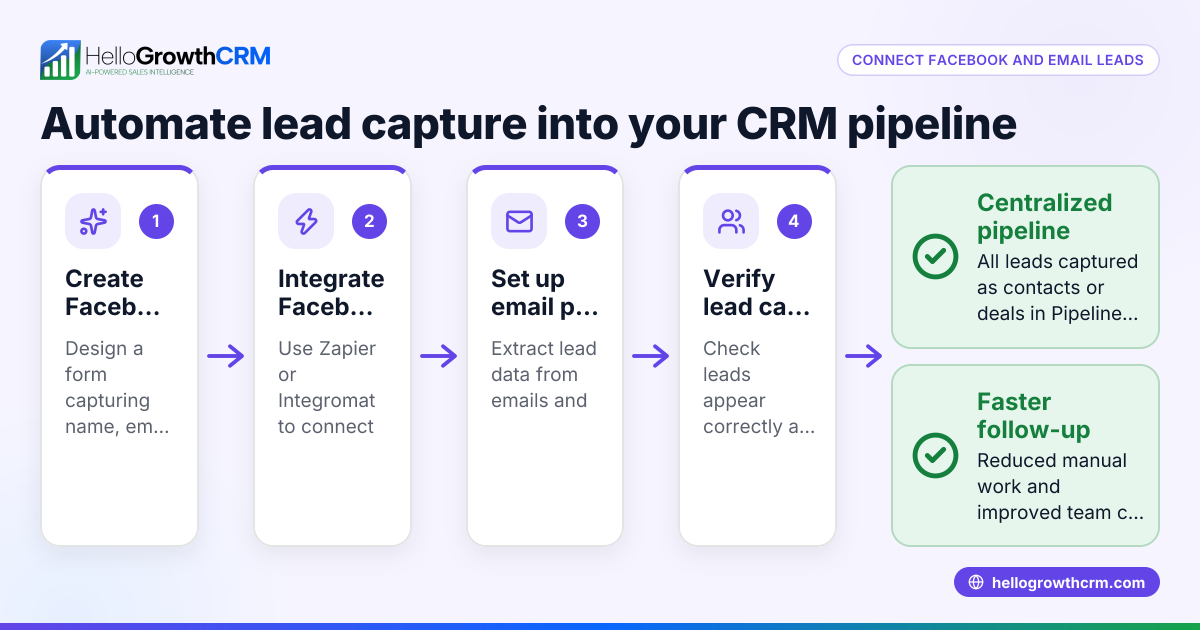
- Choose an integration method: Decide if you will connect Claude directly to your CRM using APIs or via a middleware platform like Zapier or Integromat. Middleware can simplify the process if you lack coding skills.
- Configure authentication: In your integration setup, enter the API keys for both Claude and your CRM. Ensure you use the correct authentication method (e.g., OAuth, API key).
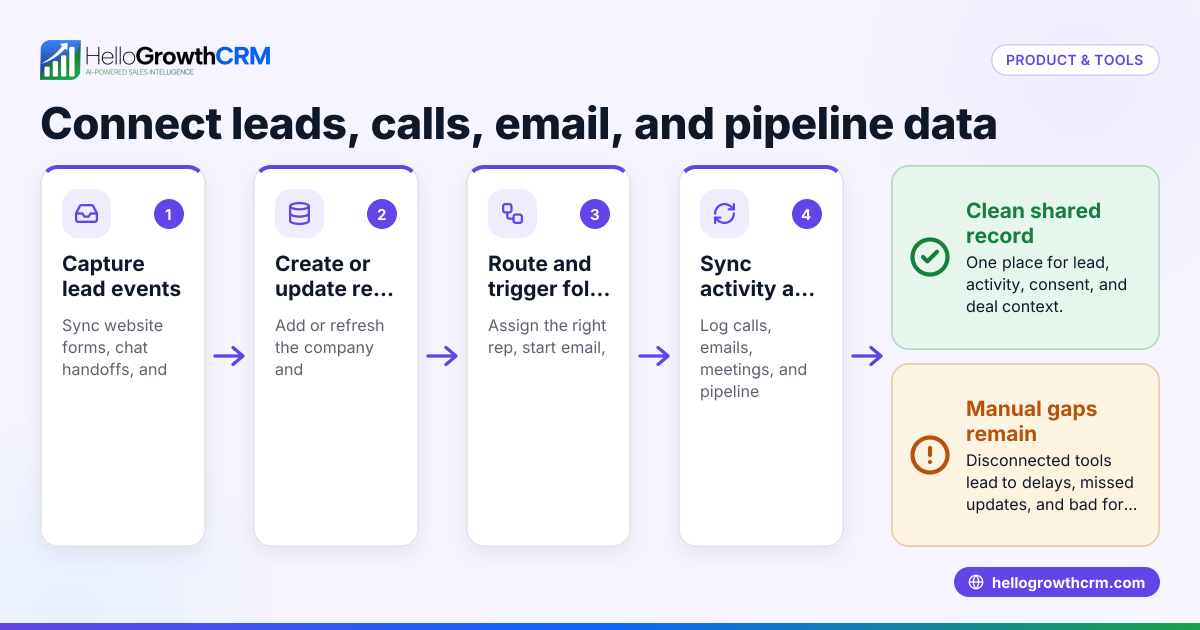
- Map data fields: Define which data fields in Claude correspond to those in your CRM (e.g., lead name, phone number, email, status). This ensures data flows correctly.
- Set up triggers and actions: Specify when Claude should send data to the CRM (e.g., after a lead is scored) and what actions to trigger in the CRM (e.g., create or update a contact).
- Test the connection: Run a test by sending sample data from Claude to your CRM. Check that the data appears correctly and updates as expected.
- Monitor and troubleshoot: After going live, monitor the integration for errors or missed data. Adjust field mappings or authentication if needed.
Example (fictional figures)
A residential real-estate team in Phoenix, Arizona wants to connect Claude to their CRM to automate lead follow-up. They have 1,200 leads and expect to increase sales efficiency by 15%.
- API keys: Claude API key = "CLAUDE-KEY-123"; CRM API key = "CRM-KEY-456"
- Data fields to map: Lead Name, Phone, Email, Lead Score, Follow-up Status
Steps:
- Obtain Claude API key: "CLAUDE-KEY-123"
- Obtain CRM API key: "CRM-KEY-456"
- Use Zapier to connect Claude and CRM
- Map "Lead Name" in Claude to "Contact Name" in CRM
- Map "Phone" and "Email" fields
- Set trigger: When Claude scores a lead above 80, update CRM lead status to "Hot"
- Test with sample lead: John Doe, Phone 480-555-1234, Email john@example.com, Score 85
Test data flow:
- Claude sends data to CRM
- CRM updates John Doe's status to "Hot"
Results:
- Lead count: 1,200
- Expected sales increase: 15%
- Time saved on manual entry: 10 hours/week
Common mistakes
- Using incorrect API keys: Double-check you copy the full and correct API keys from both Claude and your CRM. Prevent by copying and pasting carefully.
- Skipping authentication setup: Missing OAuth or token setup causes connection failure. Prevent by following each authentication step precisely.
- Mismatched data fields: Mapping "Phone" to "Email" causes errors. Prevent by reviewing field names and types carefully.
- Not testing before going live: Skipping tests leads to unnoticed errors. Always run sample data tests.
- Ignoring rate limits or quotas: Some APIs limit calls per minute. Prevent by checking limits in documentation.
- Relying on manual updates post-integration: Automation fails if manual steps remain. Prevent by automating all possible workflows.
For more on sales automation and CRM features, see WhatsApp and SMS CRM and the built-in CRM dialer.
Doing this in HelloGrowthCRM
HelloGrowthCRM offers AI agents that draft follow-up messages after calls, so your sales reps only review and send them, reducing manual work. WhatsApp conversations with leads are logged directly on the lead record, and follow-ups can be sent as WhatsApp or SMS messages, keeping communication in one place. For teams just starting, the Free Forever plan supports up to two users managing a pipeline at no cost, helping small businesses organize leads before adding calling or WhatsApp automation. Learn more about HelloGrowthCRM’s AI capabilities at HelloGrowthCRM for the United States.
Frequently asked questions
Can I connect Claude to any CRM? Most CRMs that offer API access can be connected to Claude, but the ease depends on your CRM’s API features. Check your CRM’s documentation for API support and authentication methods.
Do I need coding skills to connect Claude to my CRM? Basic API connections may require some technical knowledge, but middleware platforms like Zapier can simplify the process without coding.
What data can Claude send to my CRM? Typically, Claude can send lead information, scores, follow-up statuses, and notes. The exact data depends on your integration setup and field mappings.
How do I secure the connection between Claude and my CRM? Use secure API keys, OAuth tokens, and restrict permissions to only necessary data. Regularly rotate keys and monitor access.
Can I automate follow-ups using Claude and my CRM? Yes, by setting triggers in your integration, Claude can draft follow-ups or update lead statuses automatically.
Key takeaways
- Connecting Claude to your CRM requires API keys from both platforms and careful data mapping.
- Use middleware tools if you lack coding skills to simplify integration.
- Always test the connection with sample data before full use.
- Avoid common mistakes like incorrect API keys and mismatched fields.
- HelloGrowthCRM supports AI agents and WhatsApp/SMS messaging to automate follow-ups.
- Start small with HelloGrowthCRM’s Free Forever plan before adding automation features.
To organize your sales pipeline and try AI-assisted follow-ups, start on the Free Forever plan (200 leads, no credit card).
Ready to put this into practice?
Set up your pipeline, WhatsApp follow-ups, and AI lead scoring in minutes — free, no credit card.
Try HelloGrowthCRM freeGet CRM tips in your inbox
Join thousands of sales professionals who get weekly insights on CRM strategy, AI automation, and pipeline optimization.

The HelloGrowthCRM team publishes guides on CRM strategy, AI sales tools, and revenue operations for small business sales teams.